

Sign a PDF using freeware Acrobat Reader DC.
Acrobat Reader lets you sign PDFs and incorporate that signature into the file. If you are viewing a PDF on the web, download the PDF first before you sign it.

Note: Some documents have security applied that prohibits electronic signatures. Print such documents and then sign the printed copy.
Let’s start adding a Signature to your PDF file:
To sign a PDF document or form, you can type, draw, or insert an image of your handwritten signature. You can also add text, such as your name, company, title, or the date. When you save the document, the signature and text become part of the PDF.
Steps to sign a PDF:
- Open the PDF document or form that you want to sign.
- Click the Sign icon

- Alternatively, you can choose Tools > Fill & Sign or choose Fill & Sign from the right pane.

4. The Fill & Sign tool is displayed. Click Fill and Sign.
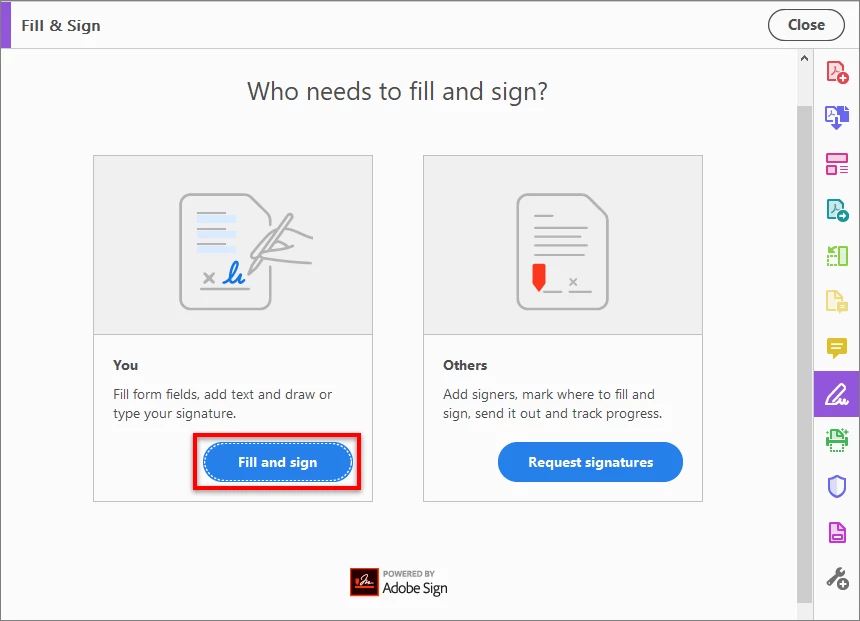
Note: The form fields are detected automatically. Hover the mouse over a field to display a blue box. Click anywhere in the blue box, the cursor will be placed at the right position automatically. Type your text to fill the field.
Signature Properties:
- You can choose your desired color to fill the PDF form. Click the color button in the Fill & Sign menu and choose your desired color.
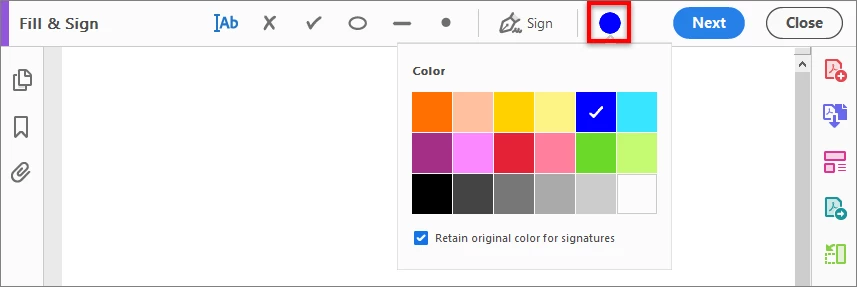
Note: By default, the signature color is black. To retain the default color of the signature, make sure the Retain Original Color for Signature option is unchecked.
- Click the Sign icon
 in the toolbar, and then choose whether you want to add your signature or just initials.
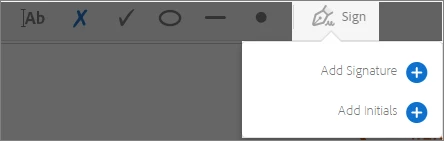 If you have already added signatures or initials, they are displayed as options to choose from.
Things to keep in mind: -
- You can Add only one Signature and one Initials under Sign option
- If you have already added your Signature/Initials and willing to add another one, then that won’t be possible. Unless you would not delete the existing one, you can’t add a new one. This way, only one Signature and one Initials can be kept.
If you are signing for the first time, you see the Signature or Initials panel. Below is an example of the Signature panel.
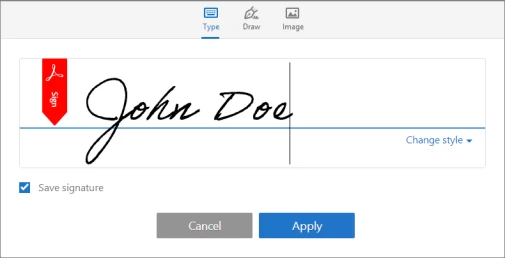
- Type: Type your name in the field. You can choose from a small selection of signature styles; click Change Style to view a different style.
- Draw: Draw your signature in the field.
- Image: Browse and select an image of your signature.
- Save Signature: When this check box is selected, and you're signed in to Acrobat Reader or Acrobat, the added signature is saved securely in Adobe Document Cloud for reuse.
To Get the PDFs signed by others using Adobe Sign. For more information, see Send PDF documents for signature.
Hope this has helped you signing a document. Have further questions in mind? Join the conversation here. We are listening!
To discover a host of other great features – Go straight to: 5 Best features that you get in Adobe Acrobat Reader DC: Free | Adobe Acrobat Reader DC FAQs & Export PDF to Word, Excel and other file formats from Acrobat Reader desktop app | Now remove/clear “Recent” files in Adobe Acrobat Reader DC.
 AdChoices