

Cut, copy, and paste thumbnails in Organize Pages tool and page thumbnails
New Acrobat DC now introduce the Cut, copy and paste thumbnails in Organize Pages tool and Page thumbnails.
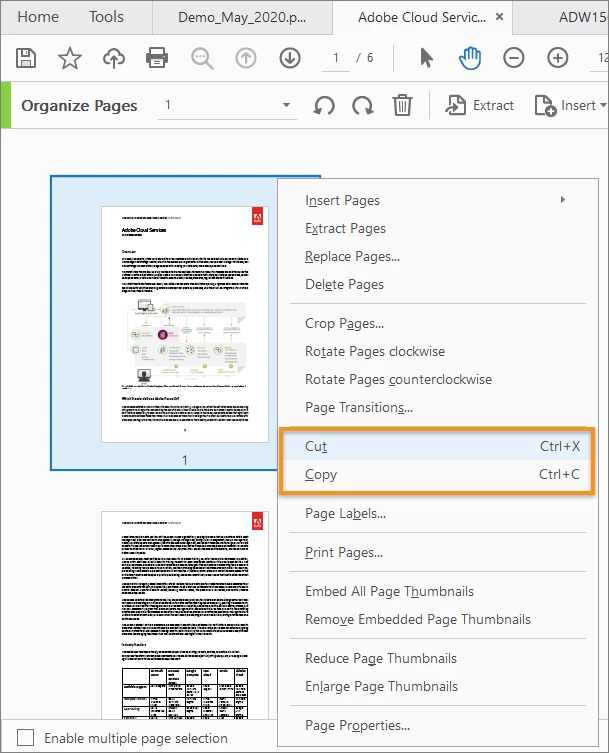
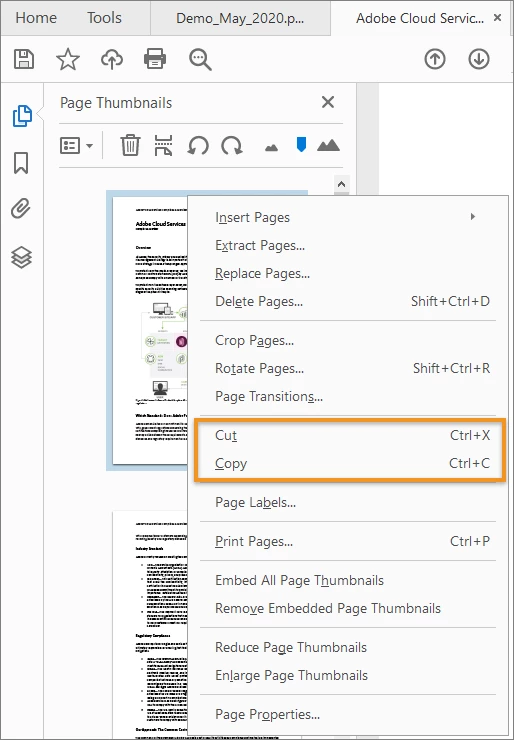
You can now organize the pages in a PDF using cut, copy, and paste options from the context menu in the thumbnail view of the pages in the Organize tool and the page thumbnails in Acrobat.
This new feature simplifies your work, as the options are supported across the documents - you can cut or copy in one document and paste in another document.
Let’s get started:
Open the PDF in Acrobat DC and do one of the following-
- Cut or Copy: Go to Tools > Organize Pages. Choose Cut or Copy from the right-click context menu of the page thumbnail, or from the Options menu (...)

- Click the page thumbnails in the left pane of a PDF. Choose Cut or Copy from the right-click context menu.
- Paste: Click between the page thumbnails where you want to insert the page. You see an insertion bar giving a clear indication of where to paste the page. Right-click, or click the insertion bar, and then choose Paste.

To know more about the great new features check ours What’s New in Acrobat DC and Acrobat DC May 2020 Optional Update Windows and Mac _ Bug fixes Any further question in mind? Join the conversation here. We are listening!
To discover a host of other great features – Go straight to: Acrobat DC tutorials | What’s new in the Redaction tool with the latest Acrobat update.
 AdChoices