
Participant
January 21, 2018
Answered

Radio Button Icon Removal Option?

  • January 21, 2018
  • 2 replies
  • 5963 views

First off, I'm using the latest edition of Adobe Acrobat Pro DC for Mac. Is it possible to remove the radio button "icon" that Acrobat automatically inserts into a form? I've created radio buttons for the first three options on the scale below. But I don't want the radio button icon that Acrobat keeps inserting into my form design.

Here's a closer look at these radio button "icons" that Acrobat is inserting into the form:
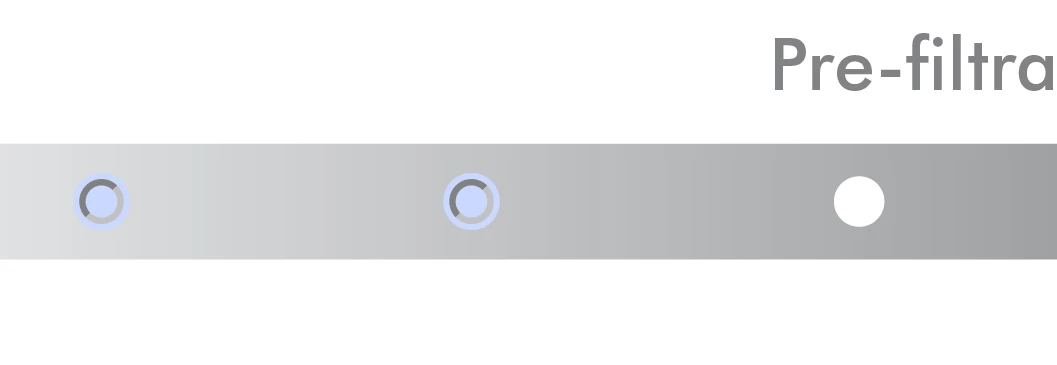
Is it possible to remove these two-toned circles from the radio buttons on my form? As it is now, when selecting the button the dot is so tiny b/c this icon is filling the circle. I really don't want to have to redesign the form with larger circles to accommodate these silly icons. Anybody have any ideas on how to get rid of them?

This topic has been closed for replies.
Correct answer Thom Parker

The line style is set to "Inset",  That's the two tone pattern you are seeing.

To turn it off, first set the Border color to some value. This will enable the line style dropdown.

Then set the Line Style to "Solid", and the Border Color to "No Color". Also set the Fill Color to "No Color". The fill is the background color, not the color of the "On" Symbol that appears when the user clicks on the radio button. This "On" Symbol is actually a font, and it's color is the Text Color.

So in the settings you have above, the fill and the font are the same color, which means you should never be able to tell when it was turned on But this isn't entirely true, when the radio button is turned off the background displays the bluish color. This is because you have Acrobat is set to highlight fields. If you go to the Acrobat Preferences, on the Form Panel, and turn off field highlighting, then the radio button will be completely black all the time.

2 replies

Thom Parker
Community Expert
Community Expert
January 21, 2018

There is no such thing as a radio button icon.  Radio buttons have an appearance that you can define. Look on the "Appearance" tab of the radio button field properties dialog. The appearance parameters, including the "On" symbol can be modified from a script as well as the properties dialog, so you can change it at runtime.

Thom Parker - Software Developer at PDFScriptingUse the Acrobat JavaScript Reference early and often
Participant
January 22, 2018

Thanks for the reply Thom. Just so we're on the same page, when I say radio button icon I'm referring to the two-toned circle within the blue highlighted circle below.

This two-toned circle "icon" was inserted into the form when I created the radio button within Acrobat Pro. Here's what the object looked like prior to the radio button creation. As you can see the two-toned circle is not there...

As for being able to define the appearance within the properties dialog, below is all the options I have available. Unfortunately, I do not see an option to turn this icon off there. Any additional thoughts are welcomed.

Thom Parker
Community Expert
Thom ParkerCommunity ExpertCorrect answer
Community Expert
January 22, 2018

The line style is set to "Inset",  That's the two tone pattern you are seeing.

To turn it off, first set the Border color to some value. This will enable the line style dropdown.

Then set the Line Style to "Solid", and the Border Color to "No Color". Also set the Fill Color to "No Color". The fill is the background color, not the color of the "On" Symbol that appears when the user clicks on the radio button. This "On" Symbol is actually a font, and it's color is the Text Color.

So in the settings you have above, the fill and the font are the same color, which means you should never be able to tell when it was turned on But this isn't entirely true, when the radio button is turned off the background displays the bluish color. This is because you have Acrobat is set to highlight fields. If you go to the Acrobat Preferences, on the Form Panel, and turn off field highlighting, then the radio button will be completely black all the time.

Thom Parker - Software Developer at PDFScriptingUse the Acrobat JavaScript Reference early and often
Inspiring
January 21, 2018

Maybe. If you have access to InDesign, you can create radio buttons with custom icons, export to interactive PDF, and use them in a form. The problem is they won't work as expected when field highlighting is active (as it is in your screen shots).

Another option is to fake it using buttons, but this requires some custom JavaScript programming to simulate the functionality of a radio button group, and field highlighting won't be an option.

Participant
January 22, 2018

Ok thanks. I do have InDesign and will look into what you suggested. As for field highlighting, it's not necessary here.

Thom Parker
Community Expert
Community Expert
January 22, 2018

Highlighting is turned on by default. It can be turned off with a document script, at least for Acrobat and Reader.

Thom Parker - Software Developer at PDFScriptingUse the Acrobat JavaScript Reference early and often