Ideally, all characters — including accented ones — should be inserted into the original source document, such as MS Word. By the time a PDF has been created from the source document, it's a bit late in the process to now add the correct accented character.
And it takes longer to do it in Acrobat, too, because Acrobat has only basic, rudimentary editing tools.
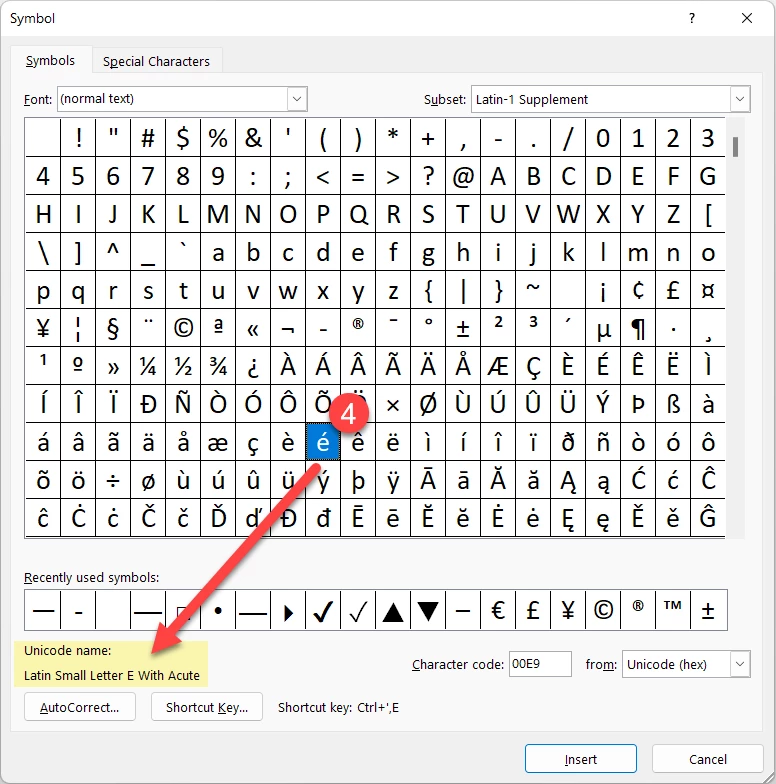
In MS Word:
- Choose the Insert ribbon/tab.
- Symbols.
- More Symbols.
- And then select the accented character from the chart.

In Acrobat, it's a bit more work to swap in an accented character:
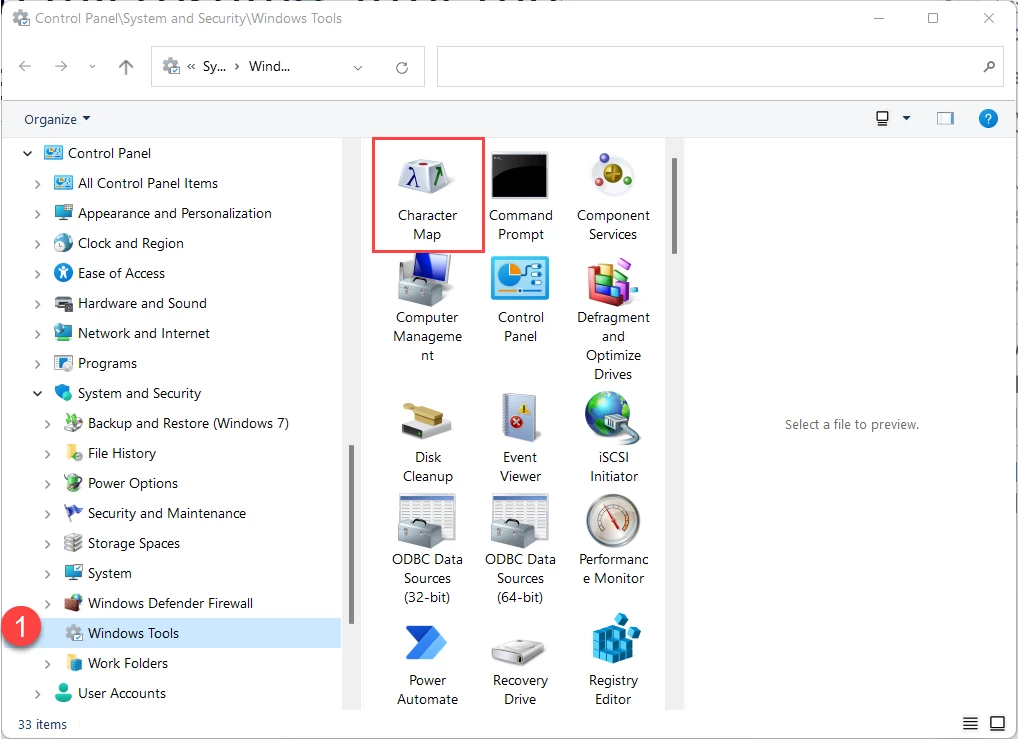
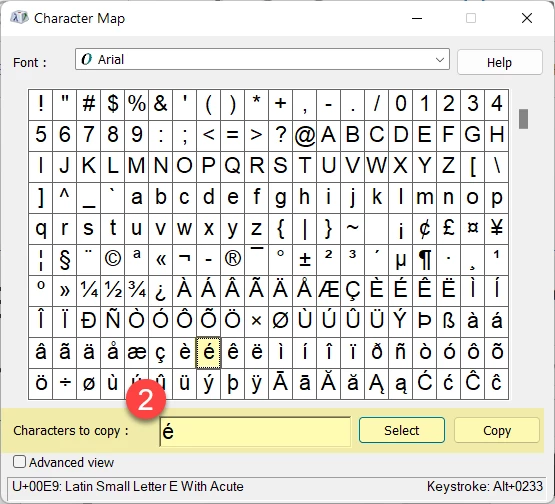
- Open your operating system's character/glyph chart. In Windows, it's in the Control Panel / Windows Tools / Character Map.
- Find the accented character you want and copy it to the clipboard (Control + C).
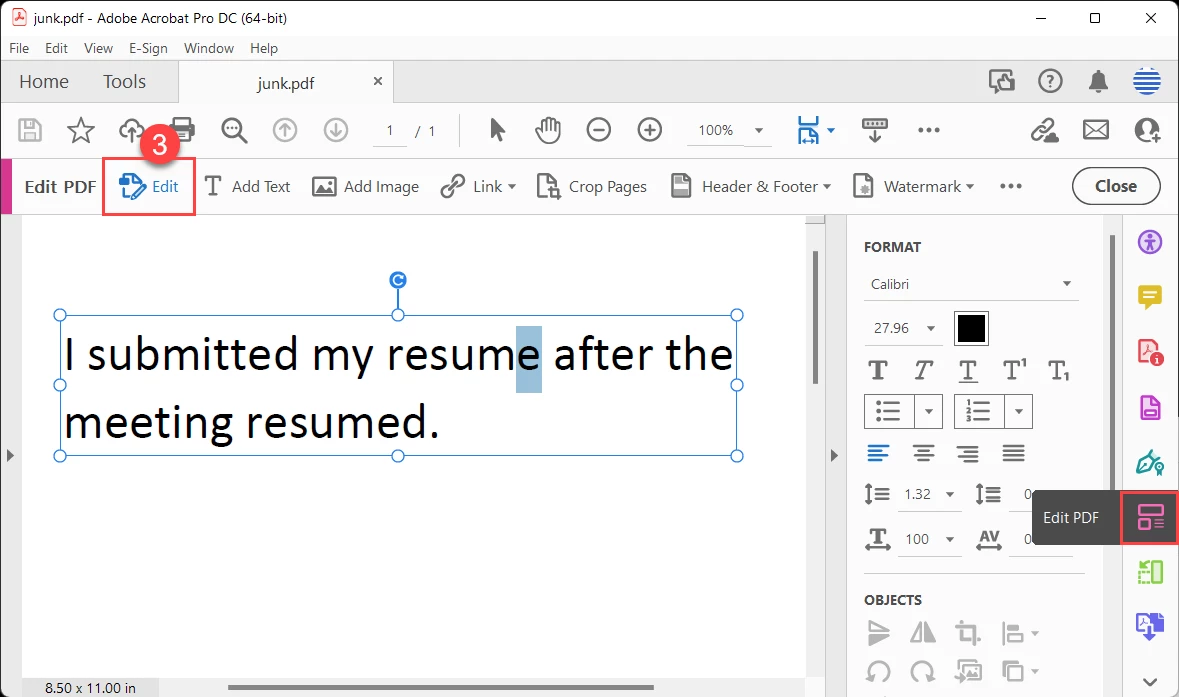
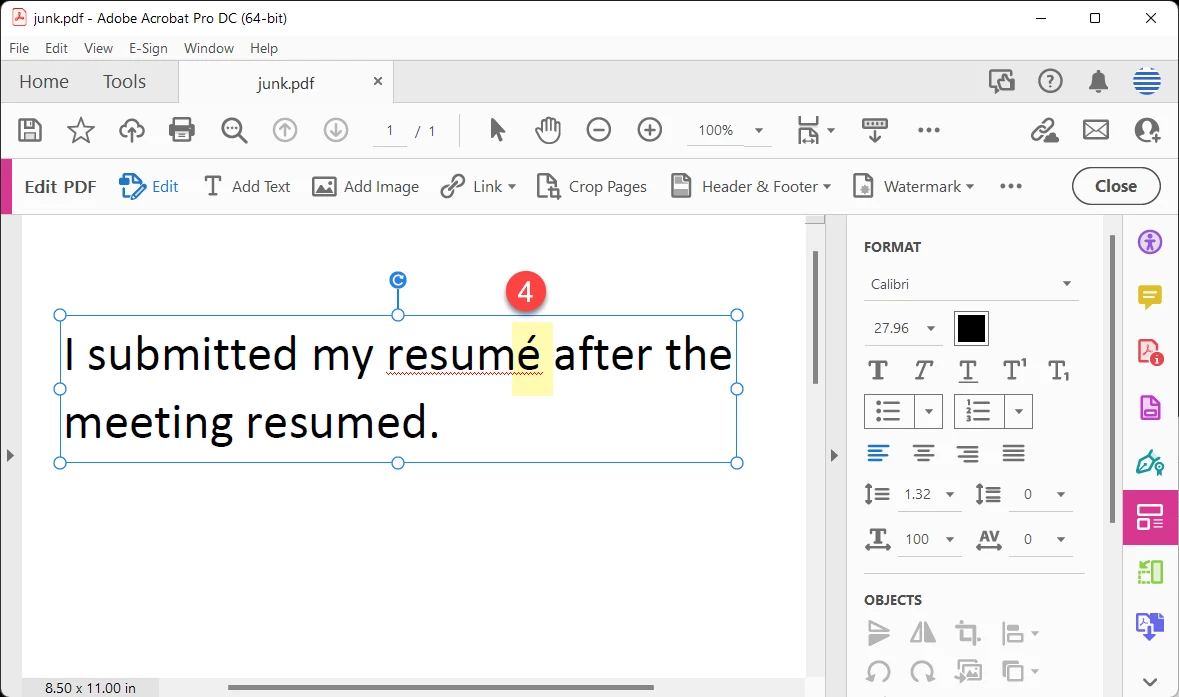
- Switch to Acrobat and open the Edit PDF tool, then select Edit Text.
- Select the old character and paste in the new accented one that you copied into memory.
| Bevi Chagnon | Designer, Trainer, & Technologist for Accessible Documents || PubCom | Classes & Books for Accessible InDesign, PDFs & MS Office |




 AdChoices