
Participant
January 24, 2018
Answered

Tagged Content Failed in Accessibility

  • January 24, 2018
  • 2 replies
  • 9906 views

I am attempting to remediate a PDF for accessibility, but am running into myriad issues. One that I cannot wrap my head around is that I am running into a tagged content element failure for content that does not even exist. I attempting to show the content in the content panel and it is not there. See below. One of the content element failures is highlighted in blue. All failures look as such; a content failure where no content exists.
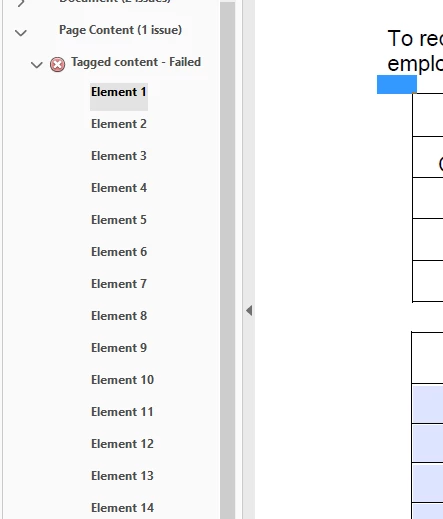
Is there a remedy to this problem? I have recreated the PDF from a Word doc and still run into the same issue. I would just delete these elements but since they don't even exist...

Thank you for any help.
Correct answer Anna Nmty

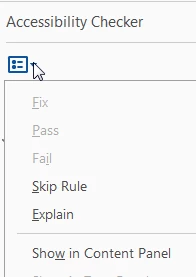
You may be able to find those elements in the content panel. (I know you said you couldn't find them, but bear with me.)  With the element selected as you show in your screenshot, go up to the Accessibility dropdown at the top and select Show in Content Panel. If you are able to locate the element that way, you can create the an artifact tag there. If you are not able to find your ghost content that way, there is the nuclear option of using the Edit PDF tool to manually select and delete the offending elements. As always, for either method have a saved backup just in case things go awry.

2 replies

Participating Frequently
March 28, 2025

Hi all - I have the same problem - but the solution doesn't work. Selection not found. Any ideas? Ta. 


S_S
Community Manager
Community Manager
March 28, 2025

Hi @Felicity35766470jgez,


Hope you are doing well. Sorry for the trouble with tagging content in Acrobat.


Here are a few solutions you might want to try:


Order Panel:

  • Go to View → Show/Hide → Navigation Panels → Order

  • Sometimes, unwanted content exists here but not in the Content panel.

  • Delete any empty or unnecessary items.

Tags Panel

  • Open Tags Panel (Alt + Shift + Ctrl + T in Windows).

  • Look for empty <P>, <Span>, or other elements.

  • Right-click → Delete Empty Tags.

Hidden Objects

  • Go to Print Production → Preflight → Fix Potential Issues.

  • Look for hidden text, white objects, or artifacts that might be interfering.

Hope this helps.


Regards,
Souvik.

Anna Nmty
Anna NmtyCorrect answer
Inspiring
January 24, 2018

You may be able to find those elements in the content panel. (I know you said you couldn't find them, but bear with me.)  With the element selected as you show in your screenshot, go up to the Accessibility dropdown at the top and select Show in Content Panel. If you are able to locate the element that way, you can create the an artifact tag there. If you are not able to find your ghost content that way, there is the nuclear option of using the Edit PDF tool to manually select and delete the offending elements. As always, for either method have a saved backup just in case things go awry.

Participant
January 24, 2018

Hi Anna,

I was able to get it! Thank you very much!

Have a great day