
Inspiring
May 17, 2016
Answered

Where is Strikethrough and Replace in Acrobat Pro DC?

  • May 17, 2016
  • 3 replies
  • 34278 views

We need this tool-- it is our main tool for marking up PDFs. You highlight the text you want to replace, start typing, and then it strikes through and places a blue mark indicating replacement text. It has worked fine for years, until now. This what the Adobe help page claims should be there:
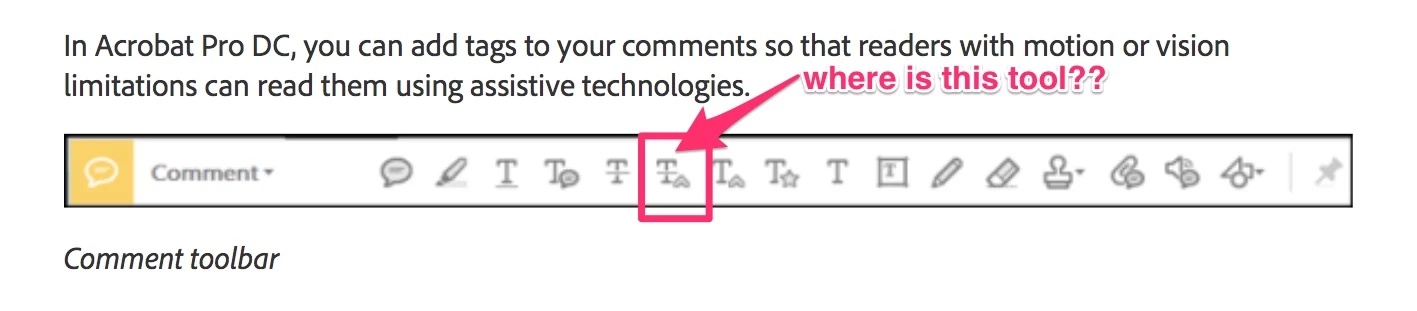
And this is what actually appears in Acrobat Pro DC:

Any idea how to get it back or make it show up on the commenting toolbar??

This topic has been closed for replies.
Correct answer Stewart Design

Okay, we discovered that the tool for that does not actually exist, but you can highlight text and start typing, and it will add a Strikethrough and Replace.

3 replies

Adobe Employee
July 13, 2016

Hi All,

We acknowledged and incorporated your feedback of bringing back the "Add notes to replace text" tool to the prime real estate in the Commenting Tool bar.

With latest update released few hours back (15.017.20050) you would see this tool listed there and is back in action.

Let us know if you encounter any issues.

Thanks

-Aj

timraw01
New Participant
May 19, 2016

Is there any way of changing the colour, as the replace tool defaults to red, which at a glance could be mis-understood as the delete text tool.

Adobe Employee
June 3, 2016

Hi Tim,

The default color changing to Red is a bug that the team is working upon and would be fixing asap.

As of now, default color of “Add Note to Replace Text” can be changed from RED to user desired color from the properties bar (please refer screenshot) and the tool will remember the color settings for subsequent usage.

regards

Aj

Stewart DesignAuthorCorrect answer
Inspiring
May 17, 2016

Okay, we discovered that the tool for that does not actually exist, but you can highlight text and start typing, and it will add a Strikethrough and Replace.

Adobe Employee
June 3, 2016

Hi Amy,

The option to  “Add note to replace text” is present in the right-click menu (Select the relevant text in the document -> do a right click -> select "Add Note to Replace Text" ) – so the feature is there in the product per se, with the update, the invocation point from the main Comment App menu was removed though.

regards

Aj