


jltcv
Participant
June 13, 2018
Answered

White bar / box covering options and toolbar

  • June 13, 2018
  • 17 replies
  • 216936 views

Hi,

A user is currently using Adobe Acrobat Pro DC (Below screenshot is Adobe Reader but used for showing where the issue appears).

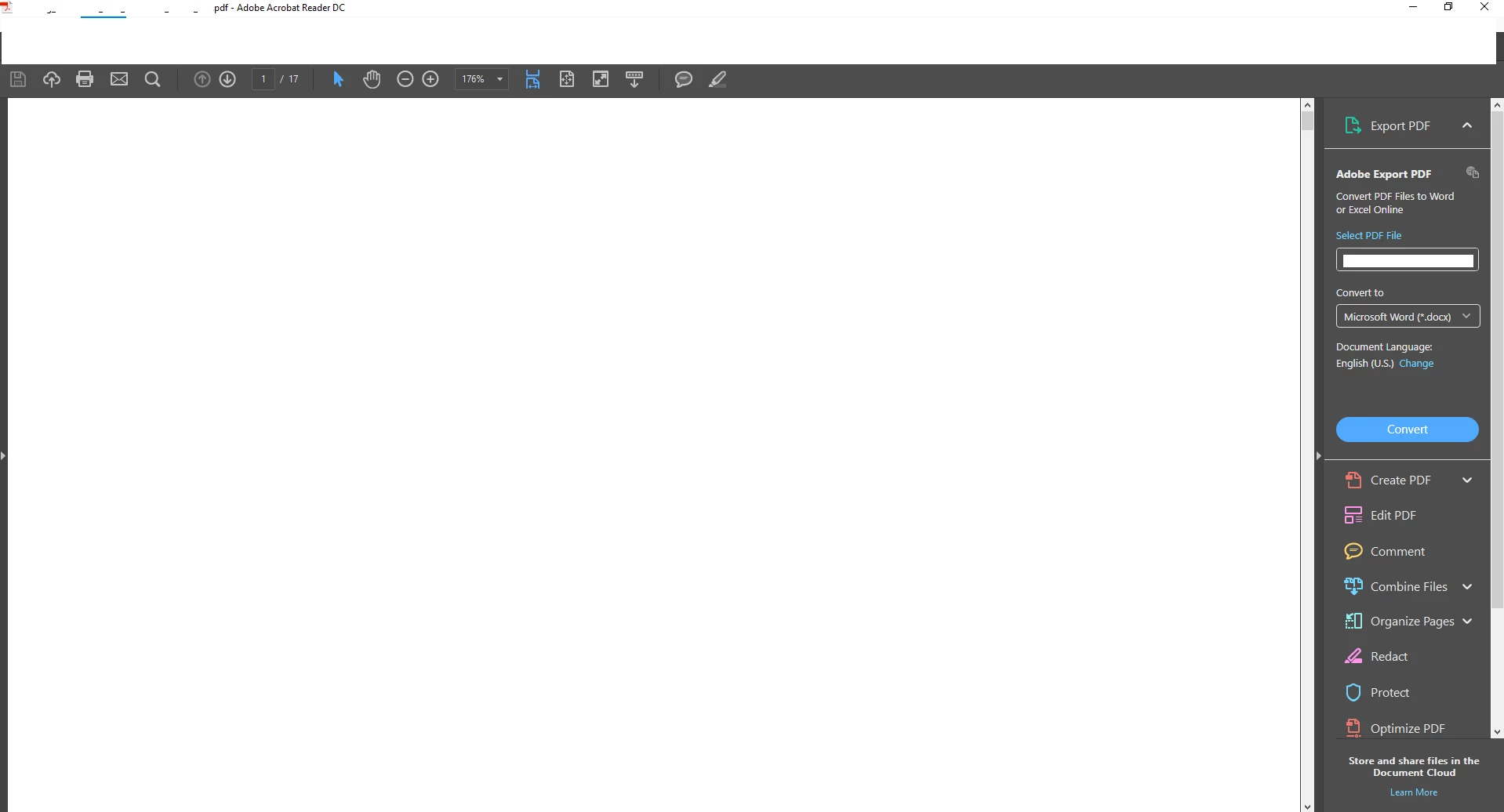
When opening PDF's intermittently they will appear with a white box covering the section marked in red in the image below. The area becomes unclickable. Nothing happens when you click in any area

I noticed that if this were the only window open and the white box was ontop of some other desktop items eg. Recycle bin, word, googlechrome. Clicking on the whitebox where the icons are located actually opens / highlights the shortcuts. It should be just interpretting clicks in the Adobe application itself, not behind the Adobe window.

Re-installed adobe, repaired adobe, updated graphics drivers.

Please note: Image 1 is where the problem occurs and what actually disappears (Home, tools, file edit view , window, help). Image 2 is what it looks like.

Image 1.
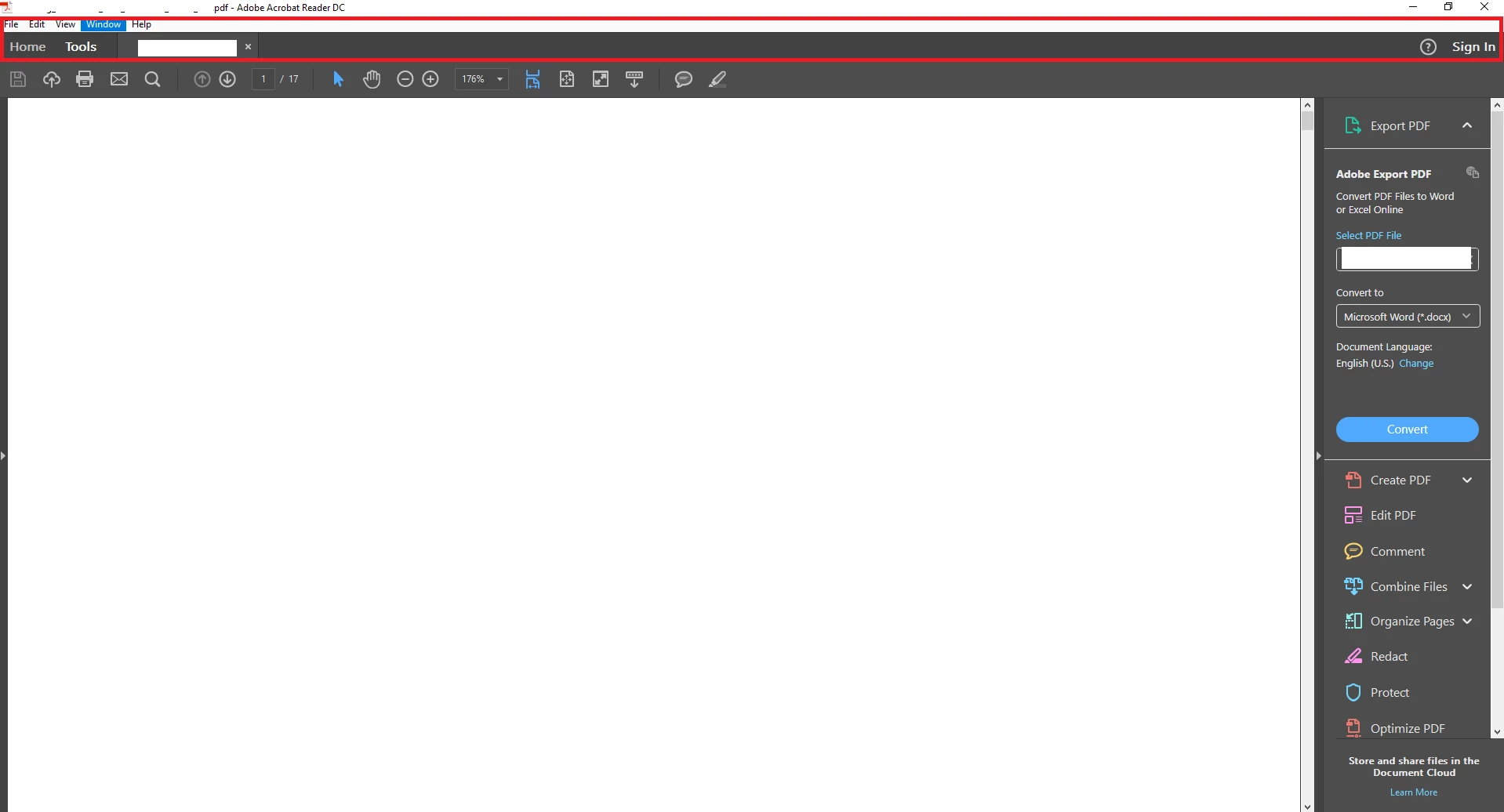
Image 2.
I've never seen this issue anywhere else.

Any help is greatly appreciated.

Regards

Jason

Correct answer gabrielb52833762

I have the same issue.  Ctrl+L. toggle is the only thing in this thread that works, I need to do that on launch each time now.  I do not have this issue on any other programs, and only on this computer (Windows 10).  The display preferences change above did nothing to resolve.

Come on Adobe, get a handle on this.  Great product, this shouldn't be that hard to resolve!


Replying to myself with a solution - it does seem to be a Windows thing, not Adobe.  All I had to do was toggle my monitor's screen resolution to a lower level and then back to where it was, the problem has disappeared even after restarting. 

17 replies

Participant
October 8, 2023

Gabriel. Your solution worked for me as well. I had the exact problem and reinstalling Adobe reader did nothing to fix it. I right clicked on the desktop and changed my display resolution to a random setting. The when prompted, I had it revert back to the original resolution and all problems were gone.

Participant
June 19, 2021

Hello folks of the Adobe realm,

I have found one solution, it is not a GREAT fix but a fix none the less.  I you can not get to the title bar, use ALT+F and hit the back arrow once to get to the "Restore, Move, Size, Minimize, Maximize, Close" menu.  Usually, the 2" of white bar space will not allow you to access this, but using the ALT+F option and hit the back arrow once will get you there.  Once there navigate down to restore, and hopefully it will give you a Reader in a window.  At this point you can resize it accordingly and not maximize it and have your Tool bar back...

No fuss, no muss, and Adobe Reader is (semi) back to normal use.

Glad to be of service.  🙂

Participant
December 30, 2020

I have been having the same issue for a while now and haven't been able to resolve it until I saw your post.

Thank you so much!

Participant
August 20, 2020

Hi guys, for a quick fix on Windows 10 devices: one can sinply press Win+Ctrl+Shift+B and it will restart the grapic driver in an instance.
Please do let me know if that works for you 🙂 Thanks

andrews70951059
Participant
June 4, 2020

I had the same problem, and went to the display, and set the screen to a different aspect, all came back, they redid the aspect to the recommended, and it has been fine since seems to be a glitch that's still happening from time to time windows 10 in 2020

Participant
April 21, 2020

It worked, thank you for posting this and resolving it yourself.  God bless!

hannahn40243060
Participant
March 12, 2020

So, I have had this issue for several different users in my company. I have tried all of those solutions that are in the replies, it would be workarounds. Work for a few days and then the white bar was back. 

I believe I have found a permanent solution... If you go to the adobe desktop app on your desktop home screen (or laptop) right-click on the app --> then properties --> in properties, go to the tab that says "compatibility" --> in compatibility tab, under "combability mode" check the box and make sure the dropdown menu is on Windows 8 --> then go to change settings for all users and proceed with the same check boxing --> make sure to hit APPLY and then OK. 

It must be a compatibility issue with the new Windows 10. 

Participant
March 18, 2020

I have tried everything above too and only gota temporary fixes, i just tried this and i still have the stripe

February 19, 2020

Dual-Display Setup

we solved it by making the other display as the "main display" (accessed from the display setting) and then switching it back. 


architectoxford
Participant
June 1, 2020

This is the only thing that works for me in Acrobat. Lightroom can be adjusted by using the F11 switch, but I have to do it everytime I open the programme now.

Inspiring
August 2, 2019

I've had this problem and really needed a fix today.  Thanks to all for your comments.  I fixed the issue by updating the driver for the monitor with the problem (I have three).  This has solved the issue.

Participating Frequently
August 2, 2019

I have not tried this.  I won't know if it's a fix or not for fairly long time, worth a shot. 

I will say I thought I have fixed the issue on several occasions, only for it to return in a few months.

Participating Frequently
June 3, 2019

I have this problem too.  It also impact Chrome and Outlook.  If you find a fix, let me know...It's been over a year