Participant
January 24, 2017
Answered

How do I edit my PDF document?

  • January 24, 2017
  • 12 replies
  • 12000 views

I want to be able to edit my PDF document as I correct modify the way I prefer to update it. How do I do it ?

This topic has been closed for replies.
Correct answer Bevi Chagnon - PubCom.com

Summary: How to Edit a PDF.

Note that these are instructions directly edit (and permanently change) the content in the PDF. Editorial mark up and commenting is in the next section below.


  1. Open the PDF in Acrobat Standard or Pro. FYI, the free Adobe Reader does not have tools for editing a PDF.
     
  2. Open the Edit PDF tool panel. It's either already docked to the right side of your screen, or you can open it from the TOOLS tab (upper left corner).
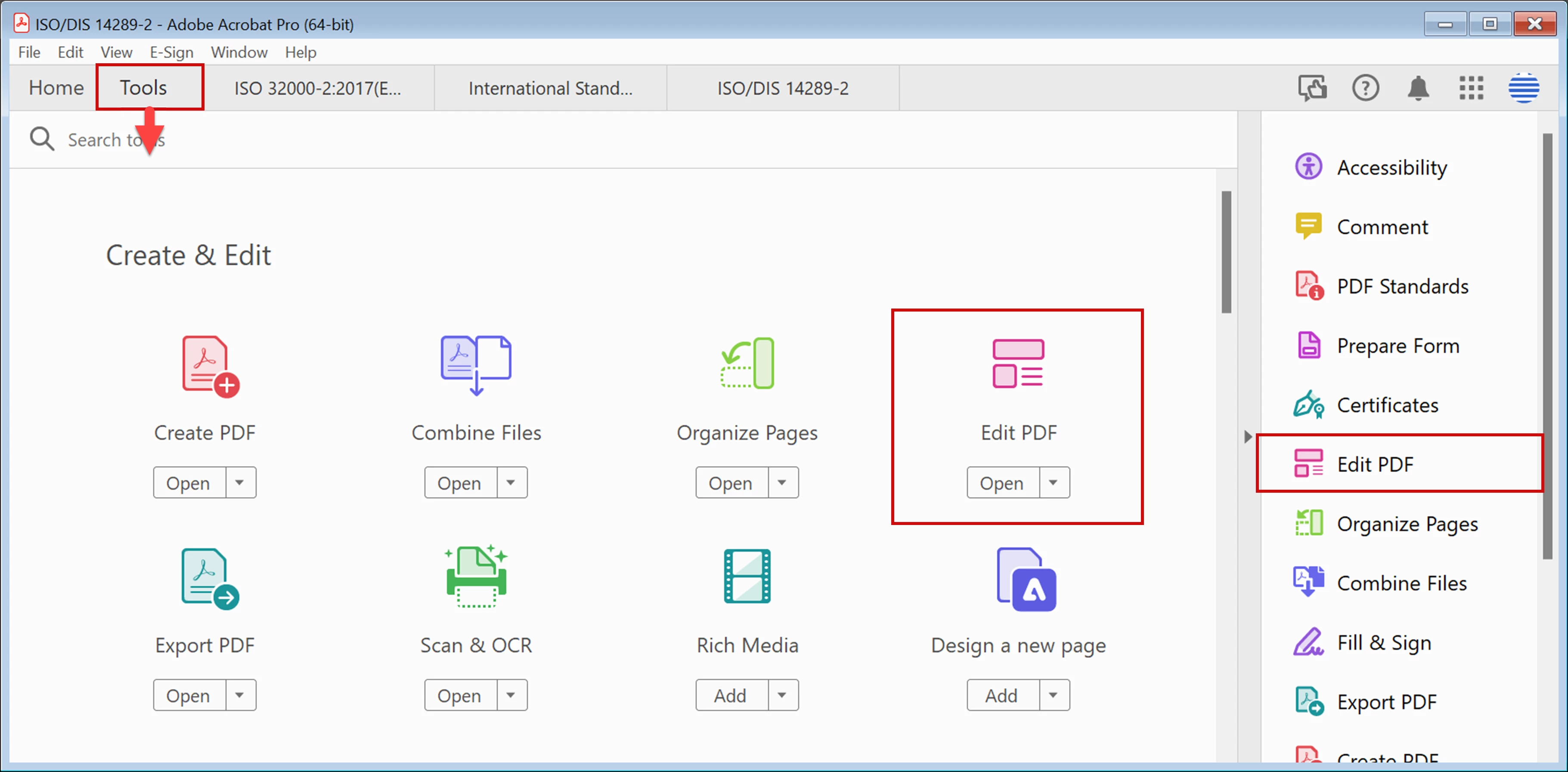

  3. Two sets of tools appear, one across the top of the screen, the other in the right-side panel.
    Click inside a paragraph of text and you can add, delete, and format text.
    Click on the 3 dots ... in the upper right toolbar for more options.
    Click on an image and you can select Replace Image from the right-side panel.
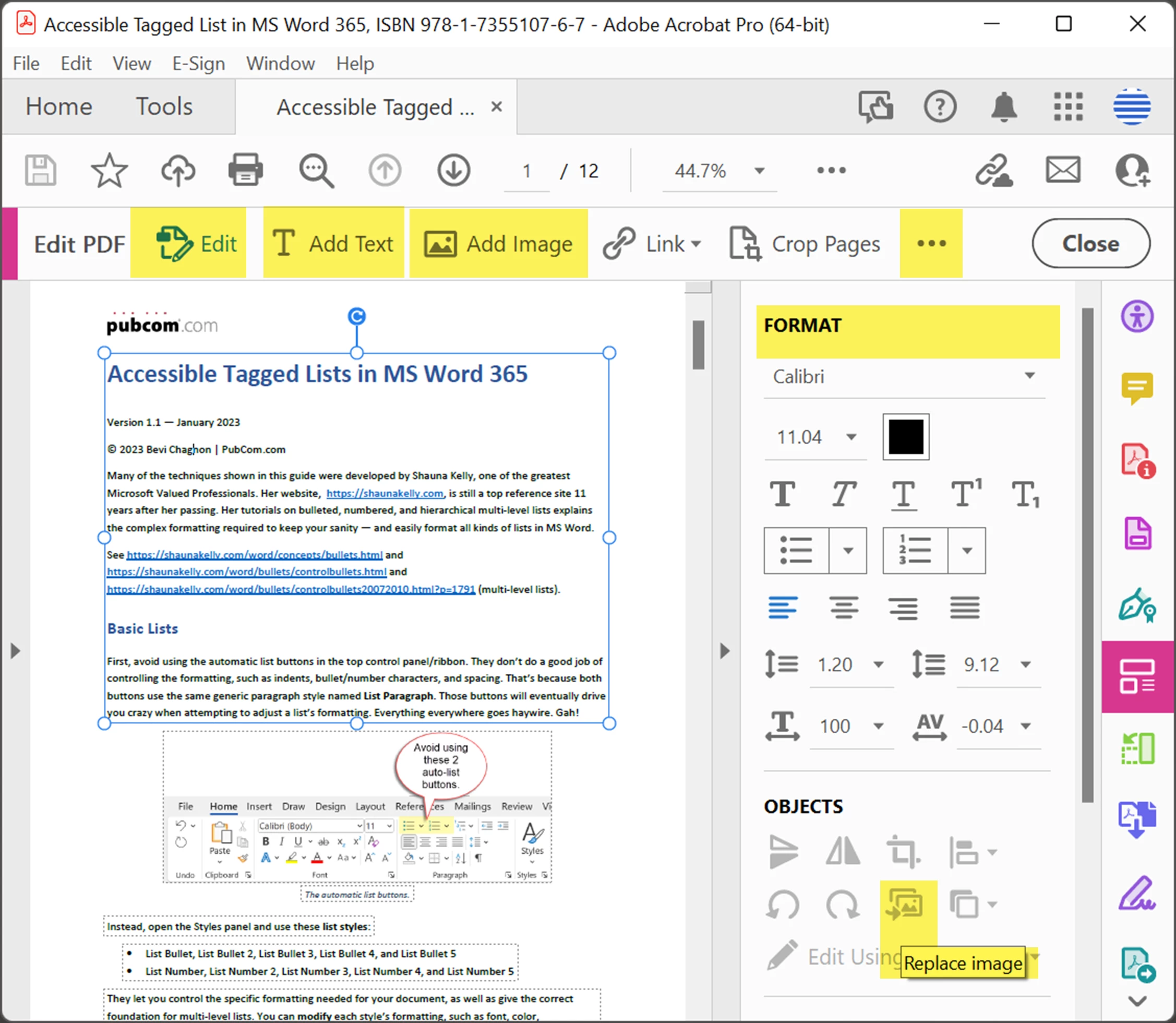
  4. Note that you can't edit an image directly in Acrobat because the software doesn't have image editing features. But you can open it in your preferred graphics program, make the image adjustments there, and bring the revised graphic back into Acrobat.
 

How to make editorial markups in a PDF.

These are generally used by editors and proofreaders to place visible editing marks on the PDF. These tools do not actually change the content like the above tools.


  1. Open the PDF in Acrobat Standard or Pro. FYI, the free Adobe Reader does not have tools for editing a PDF.
     
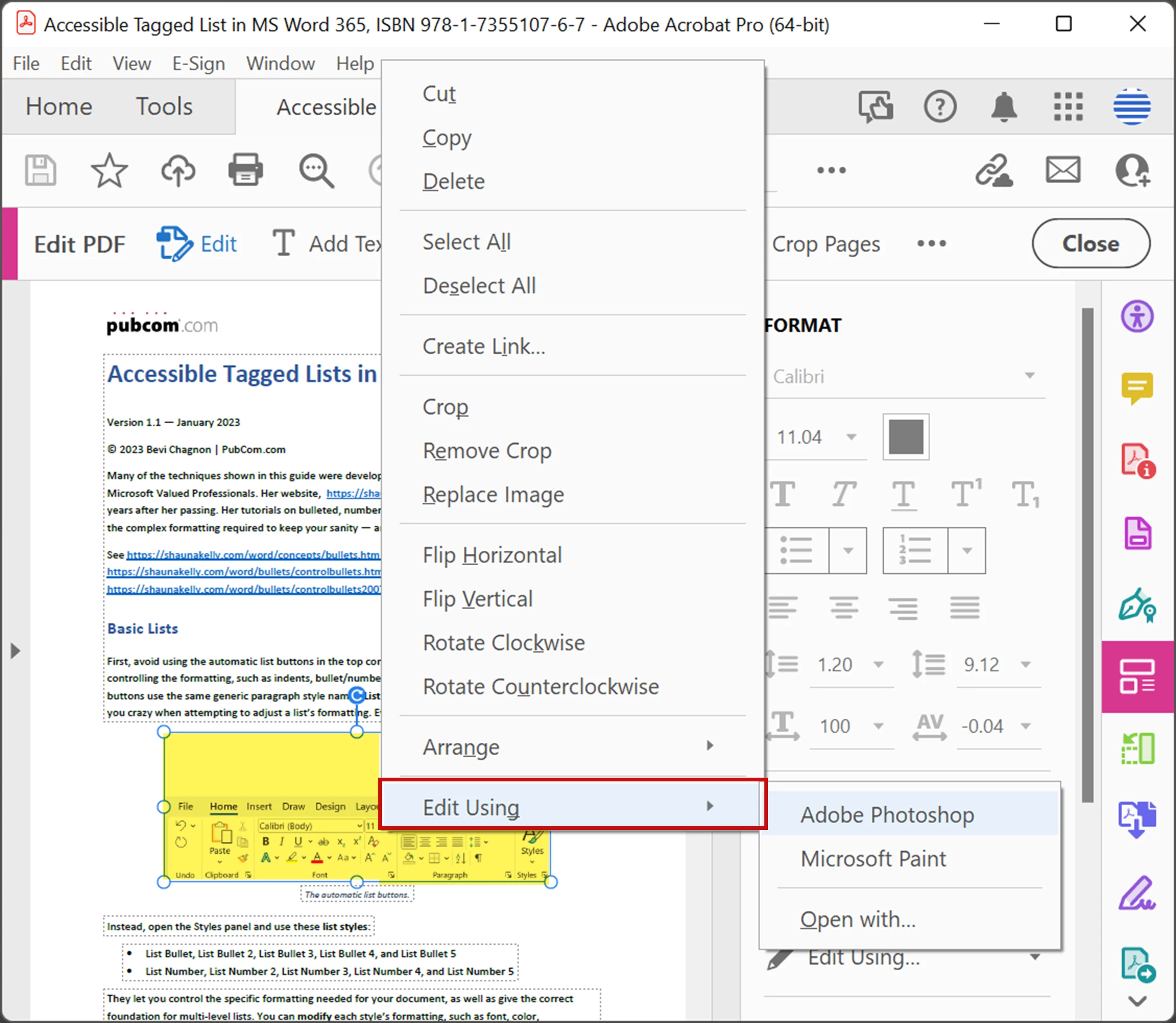
  2. Open the Comment tool panel. It's either already docked to the right side of your screen, or you can open it from the TOOLS tab (upper left corner).
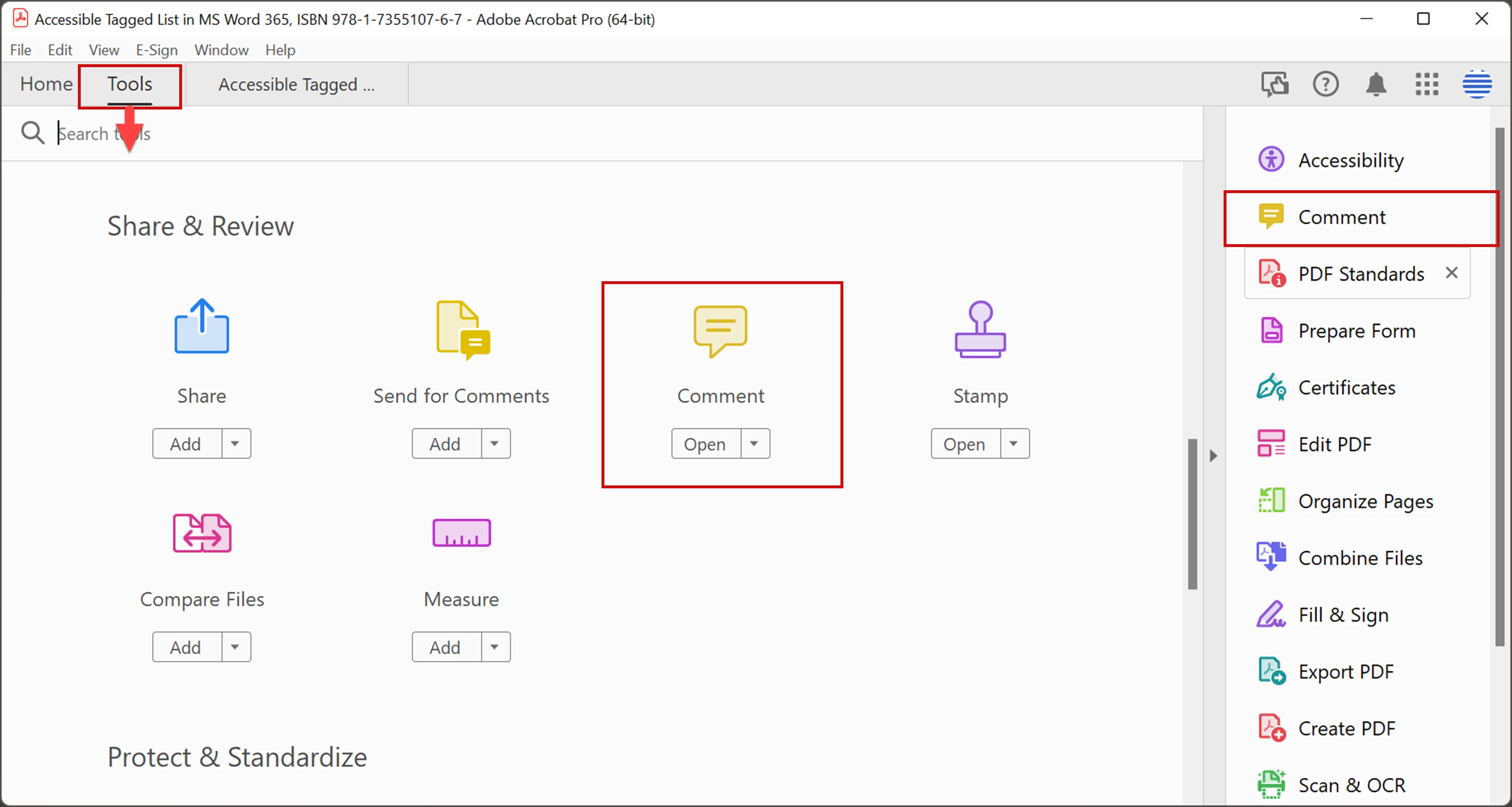

  3. Two sets of tools appear, one across the top of the screen, the other in the right-side panel.
    Tools across the top let you mark-up the text: insert, delete/cross-out, add text, and draw symbols and call-out boxes.
    The right side holds a list of comments that have been added to the PDF.
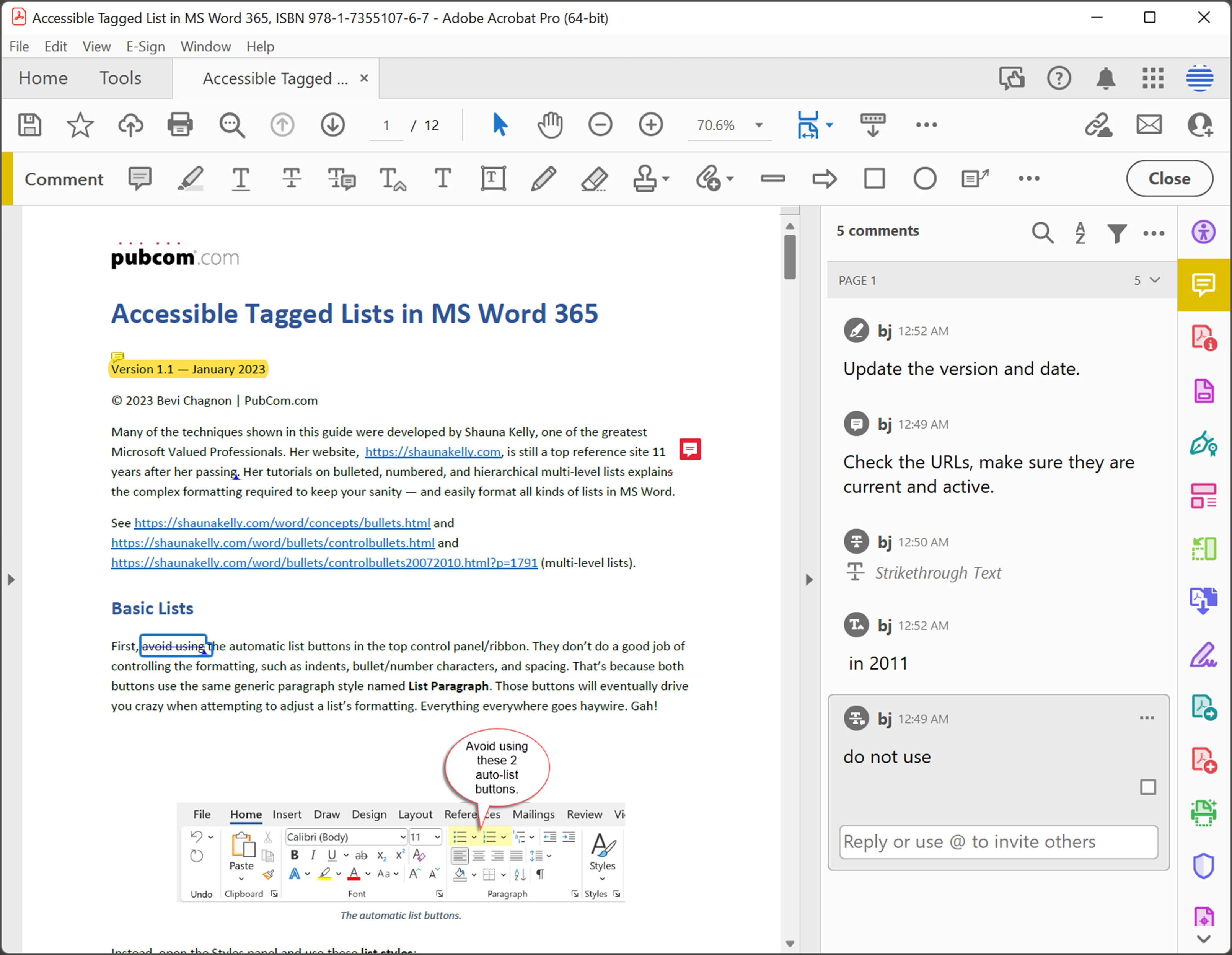


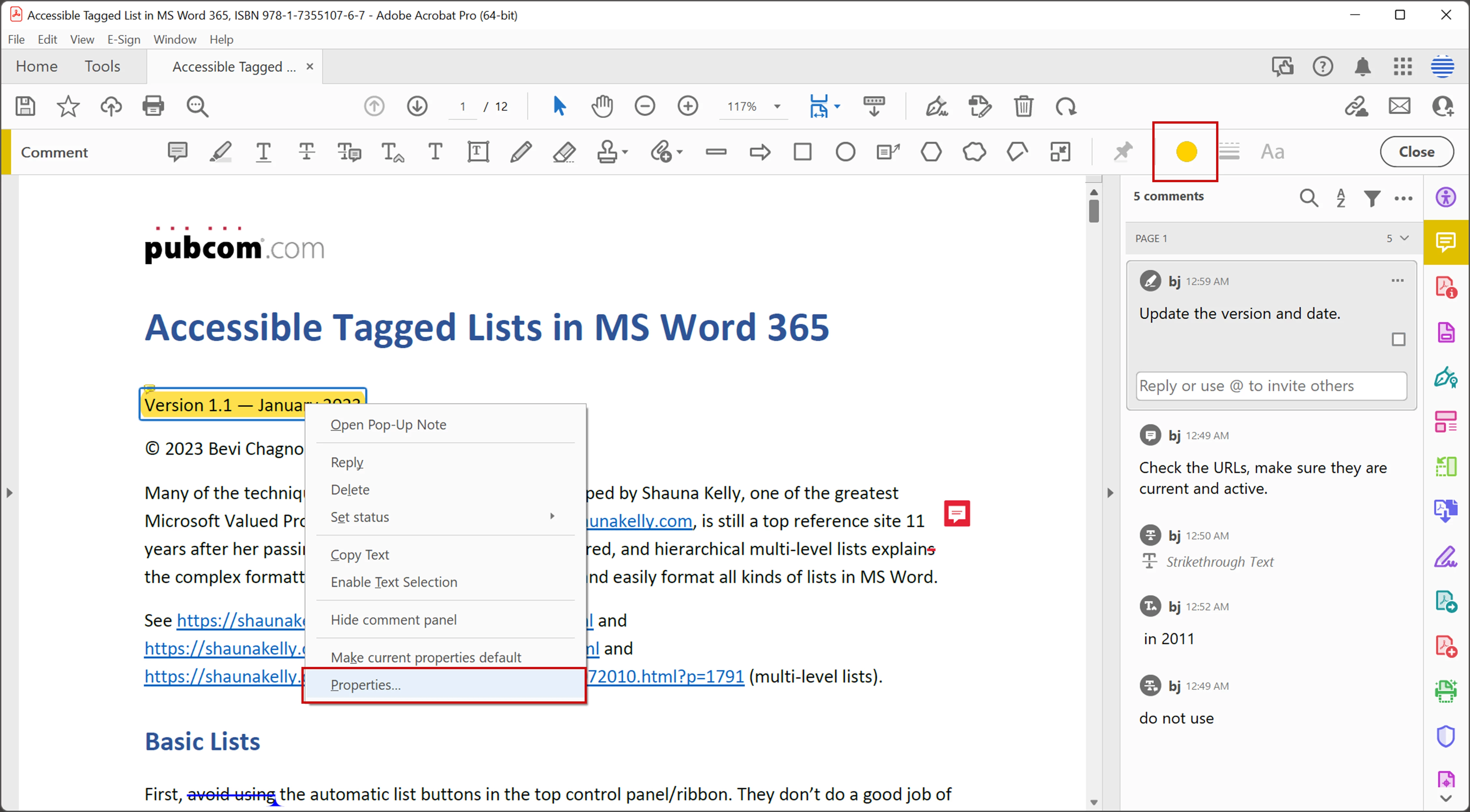
  4. To change the color of any comment or editorial markup, either:
    — Right click on the comment, select Properties, and choose another color. It can be a one-time change or for comments going forward.
    — If your screen is wide enough, you might have the color circle icon in the top toolbar.
 

Suggestions:

  • The default blue used for editorial markups is difficult to see in a PDF (in the above screen capture, there's one just below the subhead "Basic Lists"). So I change my color to a bright red which helps everyone spot where the editorial changes are to be made.
  • When you click a comment in the right-side comment panel, the actual comment will be highlighted in the PDF text.
  • Other editors can reply to a comment directly in the original comment. Very handy way to have a group discussion about the content.
  • And the little checkbox can be used to indicate that the editorial change has been accepted. (But remember, the checkbox doesn't actually change the content in the PDF — Comment Tools are only editorial markup and comments.)


Hope this helps Acrobat users.

 

12 replies

Bevi Chagnon - PubCom.com
Legend
April 17, 2023

Summary: How to Edit a PDF.

Note that these are instructions directly edit (and permanently change) the content in the PDF. Editorial mark up and commenting is in the next section below.


  1. Open the PDF in Acrobat Standard or Pro. FYI, the free Adobe Reader does not have tools for editing a PDF.
     
  2. Open the Edit PDF tool panel. It's either already docked to the right side of your screen, or you can open it from the TOOLS tab (upper left corner).


  3. Two sets of tools appear, one across the top of the screen, the other in the right-side panel.
    Click inside a paragraph of text and you can add, delete, and format text.
    Click on the 3 dots ... in the upper right toolbar for more options.
    Click on an image and you can select Replace Image from the right-side panel.
  4. Note that you can't edit an image directly in Acrobat because the software doesn't have image editing features. But you can open it in your preferred graphics program, make the image adjustments there, and bring the revised graphic back into Acrobat.


How to make editorial markups in a PDF.

These are generally used by editors and proofreaders to place visible editing marks on the PDF. These tools do not actually change the content like the above tools.


  1. Open the PDF in Acrobat Standard or Pro. FYI, the free Adobe Reader does not have tools for editing a PDF.
     
  2. Open the Comment tool panel. It's either already docked to the right side of your screen, or you can open it from the TOOLS tab (upper left corner).


  3. Two sets of tools appear, one across the top of the screen, the other in the right-side panel.
    Tools across the top let you mark-up the text: insert, delete/cross-out, add text, and draw symbols and call-out boxes.
    The right side holds a list of comments that have been added to the PDF.


  4. To change the color of any comment or editorial markup, either:
    — Right click on the comment, select Properties, and choose another color. It can be a one-time change or for comments going forward.
    — If your screen is wide enough, you might have the color circle icon in the top toolbar.


Suggestions:

  • The default blue used for editorial markups is difficult to see in a PDF (in the above screen capture, there's one just below the subhead "Basic Lists"). So I change my color to a bright red which helps everyone spot where the editorial changes are to be made.
  • When you click a comment in the right-side comment panel, the actual comment will be highlighted in the PDF text.
  • Other editors can reply to a comment directly in the original comment. Very handy way to have a group discussion about the content.
  • And the little checkbox can be used to indicate that the editorial change has been accepted. (But remember, the checkbox doesn't actually change the content in the PDF — Comment Tools are only editorial markup and comments.)


Hope this helps Acrobat users.


|    Bevi Chagnon   |  Designer, Trainer, & Technologist for Accessible Documents ||    PubCom |    Classes & Books for Accessible InDesign, PDFs & MS Office |
Participant
April 15, 2023

I HAVE TRIED TO SIGN UP FOR ACROBAT PRO AND ACROBAT READER, EVERY TIME I TYRY TO USE A FUNCTION, I AM TOLD I MUST BUY ANOTHER PRODUCT EDITING A DOCUMENT SHOULD BE INCLUDED.


Participant
April 15, 2023

How many plans must one buy? this is ridiculous. CANCEL MY FREE TRIAL  AM MNO LONGER INTERESTED 

Participant
February 3, 2022

I have an account with Adobe DC Pro

Participant
February 3, 2022

Can you just tell me how to do it instead of all these conversations I don't care about

Meenakshi Negi
Community Manager
Community Manager
February 7, 2022

Hi Beverly,


Thank you for reaching out, and sorry for the delay in response.


Please refer to the steps suggested to edit PDF in the following help document: https://helpx.adobe.com/acrobat/how-to/edit-text-images-pdf-files.html


Let us know if you have any questions.


Thanks,

Meenakshi

Participant
March 29, 2020

I already have acrobat/Pro and I am unable to edit a document. need help with that. In trying to get this straightened out I have inadvertently activated a free test subscription that I don't need please cancel this test and repair whatever the problem is with my current Adobe Acrobat Pro/PC

Legend
April 1, 2020

This is not Adobe Customer service and we can't straighten out account issues. We are just fellow users of the products. Contact Adobe - as soon as possible, and you MIGHT avoid a cancellation fee.

Participant
March 29, 2020

I don't know why I have tried to purchase a new account (which I dont need by the way) and am told that I cannot because I need to purchase a different type of product, because I already have Adobe Acrobat. I really need to get this document edited and I don't want to purchase another plan. I already have Adobe Acrobat and should be able to edit PDF documents.


Participant
March 29, 2020

using adobe pro


Participant
December 28, 2017

How do I purchase the edit pro function?

AkanchhaS8194121
Legend
December 28, 2017

Hi Sandram,

In order to use the "Edit" functionality, you need to subscribe for either Adobe Acrobat DC/Acrobat Std DC.

Please check- Plans and pricing | Adobe Acrobat DC

-Akanchha

Participant
March 6, 2021

very misleading.  cancel my membersip


Participant
October 28, 2017

If this problem can not be fixed, let me know how I can cancel my current subscription to Adobe PDF Pack.

Thank you.

Participant
October 27, 2017

I just paid for a subscription of the DC Pro.

October 10, 2017

Ok then I will not use Adope Acrobat as we are using the one installed with the PC Adope Acrobat Reader DC - normal PDF.

Thank you and cancel my free trial.

Kind regards,

Zenta