Participant
December 27, 2021
Answered

Removing Background?

  • December 27, 2021
  • 3 replies
  • 4857 views

I have pictures of someone sitting on a chair. I wante the keep the chair when removing the background.

Is this possible?

I have attached a sample picture.

Correct answer caroline_edits

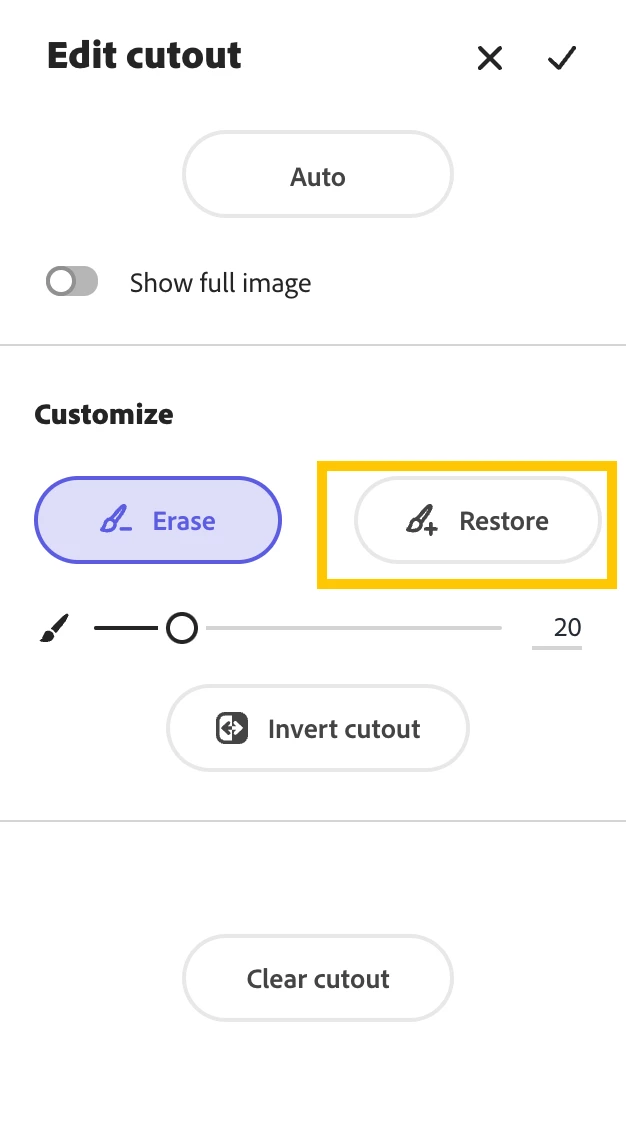
You can edit the cutout in CC Express! You can use the Quick Action "remove background" to get started, but once your project is up and running, select your photo to see "Edit Cutout" displayed in the righthand toolbar. Then you can select "Restore" and use the paintbrush to map over the chair and restore it to the image.


Hope this helps!

Caroline

3 replies

Participant
September 12, 2023

 link 

Participant
May 12, 2023

I keep trying the remove background feature and each time i click on it, the app keeps force closing, please help, this just started today

Participant
May 12, 2023

When I click on the remove background I am told this works best in portate mode but this is a MmacBook and it is very hard to ue when it is sitting on it's side.

michelew83603738
Community Expert
Community Expert
December 27, 2021

Yes, once you add the image, under the edit tools there is remove background which should do exactly what you want here.

Participant
December 28, 2021

When I remove the background, it removes the chair and only keeps the person sittin on the chair. I need to keep the chair.

Attached s the original picture and the removed background picture. My understand is I need to use Photshop too do this.

Community Manager
May 26, 2025

Does this not exist anymore? I am not able to manually select parts of a picture and cut them out or copy and paste, the only way I can do this is remove object but then it uses ai to create a new background around it, then I have to use background remove but I can't then cut further again? Surely this is capable but I can't figure out how


Hi @parus_6902,


I get how frustrating it can be when the background removal doesn’t work as expected. Good news — in Adobe Express, you can fix this!


Here’s a quick tip:


Start by using the “Remove Background” Quick Action. Then, select your photo and look for “Edit Cutout” on the right side. There, you can use the “Restore” brush to paint back anything you want to keep, like the chair in your case. You can also use the “Erase” brush to clean up edges.


If you don’t see these tools, make sure your app is updated to the latest version.


Hope this helps! Feel free to ask if you want a hand with it.


^MM
