Participant
October 11, 2018
Answered

HTML5 Range Slider

  • October 11, 2018
  • 1 reply
  • 3526 views

I am new to animate and I am trying to create HTML5 banner ads that uses a horizontal slider that has a number value that goes up or down as you slide the handle left or right. Similar to the sliders here --> How To Create Range Sliders

But I want it to have a highlight attached to the handle. So as you slide the handle right the highlight is revealed on the left side.

My attempts so far to create this have not worked and I cannot find any examples online or tutorials.

Has anyone had success creating something like this or useful resources they can suggest?

This topic has been closed for replies.
Correct answer JoãoCésar17023019

Good morning JC,

First of all I wanted to thank you for getting back to us so quickly. Sadly the fix doesn't seem to have helped. I'm including screen shots to show you the issue and hopefully offer clarity.

As a recap we need to move a button across a horizontal bar. As the button is moved there is a contrasting color added to the left side of the button to help visually show the location of the button and its position away from its starting point. We would expect the button's starting point to start at the left end of the horizontal bar. For ease of communication lets call that starting point as position 0. As the button slides right we would expect an accumulation, and as the button is slid left we would expect the opposite.
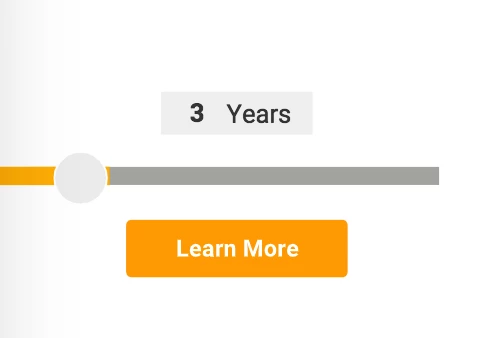
As you can see, on a new page load the button isn't lined up with the left most point of the horizontal bar. The contrasting color is preloaded and extends past the button a hair. When the button is clicked and dragged (mouse button held down) we get an unwanted behavior:
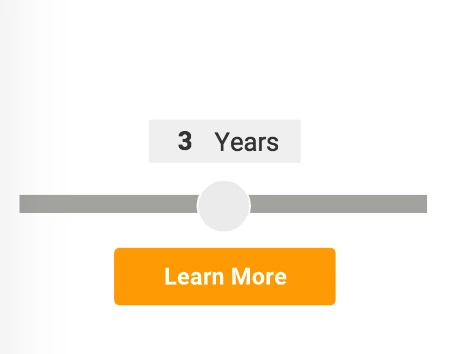
There is no ability to drag the button across the bar and instead the button snaps to center. The code you had previously supplied us with did allow for the button to move both left and right but the yellow fill was always off. Now the button fails to slide at all. Please let me know your thoughts and thank you again!


UPDATE: 11/01/2021
Please see two new approaches that are more versatile, extensible, and modular in the following answer:
https://community.adobe.com/t5/animate-discussions/html5-range-slider/m-p/12489403#M348638

__________________________________________________________________________


Hi.


I do appreciate your feedback.


I have to apologize again! I tend to code this answers here very fast and sometimes I forget small details. This time I forgot to consider the stage.scaleX when setting the mouse down offset.


I could swear I was testing this code with responsive settings on. -_-'


this.button.on("mousedown", function(e)

{

     e.target.offsetX = (e.stageX / stage.scaleX) - e.target.x; // UPDATED

}.bind(this));


this.button.on("pressmove", function (e)

{

     e.target.x = this.clamp((e.stageX / stage.scaleX) - e.target.offsetX, this.bar.x, this.bar.x + this.bar.nominalBounds.width);

     this.setProportion(e.target.x);

}.bind(this));


this.setProportion = function (posX)

{

     this.bar.highlight.scaleX = (this.button.x - this.bar.x) / this.bar.nominalBounds.width;

}.bind(this);


this.clamp = function (value, min, max)

{

     if (value < min)

          return min;

     else if (value > max)

          return max;

     else

          return value;

}


setTimeout(this.setProportion, 0);


Please let me know if it works now and if I didn't forget anything this time!


Regards,

JC

1 reply

kglad
Community Expert
Community Expert
October 11, 2018

what code have your tried that's failed?

Participant
October 12, 2018

I tried following the advice found here Slider to control timeline

But the slider seemed buggy and the button (handle) was not close enough to the highlight. I am wondering if this is really the best approach. Or what I can do to make it work.

After altering it a bit this is what  I have currently in my actions

this.button.x = 100;

this.button.on("pressmove", function(e)

{

e.target.x = this.clamp(e.stageX, this.bar.x, this.bar.x + this.bar.nominalBounds.width);

this.setProportion();

}.bind(this));

this.setProportion = function()

{

var prop = (this.button.x - this.bar.x) / this.bar.nominalBounds.width;

this.button.x = this.button.x - Math.round(prop * 42) - 75;

// this.txt.x = this.button.x;

this.txt.text = Math.round(prop * 42);

this.bar.gotoAndStop(Math.floor(this.bar.timeline.duration * prop));

}.bind(this);

this.clamp = function(value, min, max)

{

if (value < min)

return min;

else if (value > max)

return max;

else

return value;

}

setTimeout(this.setProportion, 0);

JoãoCésar17023019
Community Expert
Community Expert
November 1, 2021

Sorry check it out on this one

https://drive.google.com/file/d/146pIngG9dfAX8Acen2RxIyHy-SxmkKW1/view?usp=sharing


Hi.


The approach I firstly used here is not the most versatile, modular and extensible, so I decided to suggest two new ones that can be found in this link:

https://github.com/joao-cesar/adobe/tree/master/animate%20cc/html5_canvas/timeline_slider


The first one is a regular procedural approach.


var root = this;
var slider = this.slider;
var slider1 = this.slider1;

document.body.style.backgroundColor = lib.properties.color;
createjs.Touch.enable(stage);

root.move = function(e, data)
{	
	var target = e.currentTarget;
	var parent = target.parent;
	var mouseX = parent.globalToLocal(target.stage.mouseX, target.stage.mouseY).x;
	
	parent.ratio = Math.min(Math.max(mouseX / target.nominalBounds.width + 0.5, 0), 1);
	root.gotoRatio(parent);
	
	if (data.onUpdate)
		data.onUpdate();
};

root.gotoRatio = function(target, ratio)
{
	target.gotoAndStop(Math.floor(target.totalFrames * (ratio || target.ratio)));
};

root.updateText = function(textField, slider)
{
	textField.text = "Ratio: " + slider.ratio.toFixed(2) + ", Current Frame: " + slider.currentFrame;
};

slider.loop = false;
slider.ratio = 0;
slider.onUpdate = function(){ root.updateText(root.txt, slider); };
root.gotoRatio(slider);
root.updateText(root.txt, slider);
slider.hit.on("mousedown", root.move, this, false, { onUpdate: slider.onUpdate });
slider.hit.on("pressmove", root.move, this, false, { onUpdate: slider.onUpdate });

slider1.loop = false;
slider1.ratio = 0.5;
slider1.onUpdate = function(){ root.updateText(root.txt1, slider1); };
root.gotoRatio(slider1);
root.updateText(root.txt1, slider1);
slider1.hit.on("mousedown", root.move, this, false, { onUpdate: slider1.onUpdate });
slider1.hit.on("pressmove", root.move, this, false, { onUpdate: slider1.onUpdate });


The second one is object-oriented and so more suitable for the real world.


// GLOBAL FRAME SCRIPT
window.TimelineSlider = function(target, ratio, onUpdate)
{
	this.target = target;
	this.target.loop = false;
	this.ratio = ratio || 0;
	this.onUpdate = onUpdate;
	this.gotoRatio();
	this.target.hit.on("mousedown", this.move.bind(this));
	this.target.hit.on("pressmove", this.move.bind(this));
};

window.TimelineSlider.prototype.move = function(e)
{
	var mouseX = this.target.globalToLocal(e.currentTarget.stage.mouseX, e.currentTarget.stage.mouseY).x;
	
	this.ratio = Math.min(Math.max(mouseX / e.currentTarget.nominalBounds.width + 0.5, 0), 1);
	this.gotoRatio();
};

window.TimelineSlider.prototype.gotoRatio = function(ratio)
{
	this.target.gotoAndStop(Math.floor(this.target.totalFrames * (ratio || this.ratio)));
	
	if (this.onUpdate)
	{
		this.onUpdate = this.onUpdate.bind(this);
		this.onUpdate();
	}
};


// FIRST FRAME OF THE MAIN TIMELINE
var root = this;

document.body.style.backgroundColor = lib.properties.color;
createjs.Touch.enable(stage);

slider = new TimelineSlider(this.slider, 0, function()
{
	root.txt.text = "Ratio: " + this.ratio.toFixed(2) + ", Frame: " + this.target.currentFrame;
});

slider1 = new TimelineSlider(this.slider1, 0.5, function()
{
	root.txt1.text = "Ratio: " + this.ratio.toFixed(2) + ", Frame: " + this.target.currentFrame;
});


I hope this helps.


Regards,

JC