


Participant
May 27, 2023
Answered

Adobe Audition Favorites, Presets, and Shortcut reinstall

  • May 27, 2023
  • 1 reply
  • 2391 views

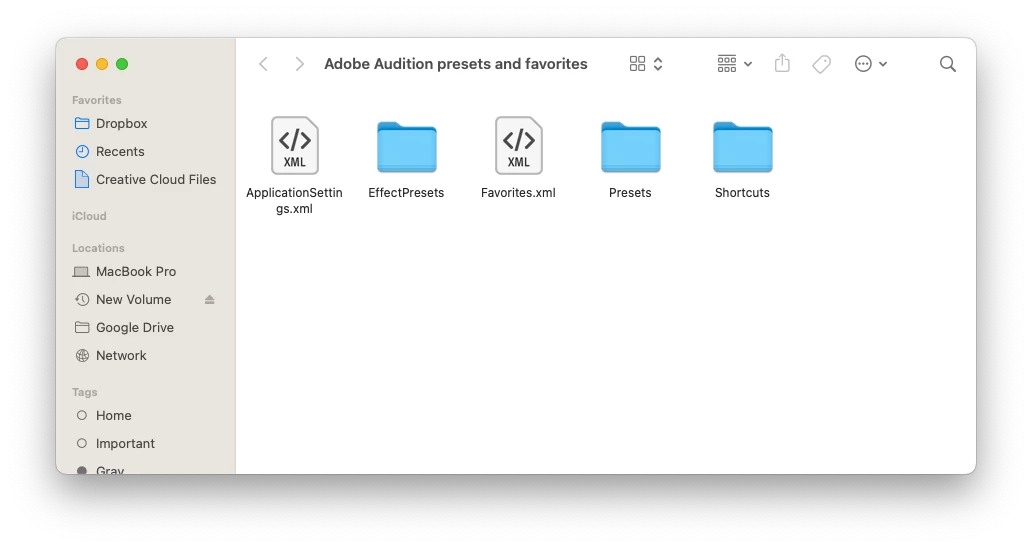
I had issues with Adobe Creative Cloud opening to updated apps, etc. I finally had support remotely fix the problem, which ended up being completely removing everything Adobe and reinstalling. They told me I would lose all presets and shortcuts, which I did. However, the only setting I would like to have back were for Adobe Audition. I actually saved a while back the files and folders associated with that. And I was hoping to be able to put them into the newly-installed Audition. I’m posting a photo of the files and folders I’m talking about. Is this possible? Where do I need to go to find these and replace them? I’m running Adobe Audition 2023 on a MacBook Pro with MacOS Ventura 13.4. Is this possible? Or am I simply out of luck and need to try to replicate my settings? Thanks in advance.
This topic has been closed for replies.
Correct answer SteveG_AudioMasters_

First off, I'm not a Mac user so this is untested. That said, I believe that the path to where anything like that is stored on a Mac is /Users/{username}/Library/Preferences/Adobe/Audition/{version no}/ and that it's possible that this path is hidden.  On Macs, unhiding the location is achieved by clicking Go in the Finder menu whilst holding down the Alt/Option key. When you've got there, you have to locate the newly-installed versions of the files you want to reinstall, and save them in a completely different directory, and then replace them with your saved files. If you are lucky, this will work...

1 reply

SteveG_AudioMasters_
Community Expert
SteveG_AudioMasters_Community ExpertCorrect answer
Community Expert
May 27, 2023

First off, I'm not a Mac user so this is untested. That said, I believe that the path to where anything like that is stored on a Mac is /Users/{username}/Library/Preferences/Adobe/Audition/{version no}/ and that it's possible that this path is hidden.  On Macs, unhiding the location is achieved by clicking Go in the Finder menu whilst holding down the Alt/Option key. When you've got there, you have to locate the newly-installed versions of the files you want to reinstall, and save them in a completely different directory, and then replace them with your saved files. If you are lucky, this will work...

Participant
May 30, 2023

Steve, worked like a charm. You have saved me a ton of time trying to replicate these. Thank you!