Sylvester26814 wrote Auto Gain evens out the volume to a consistent level across the selection. Auto Gain automatically varies the volume level to increase it when it is low and decrease it when it is high. This editor has Target volume, Update interval, attack/release, Maximum gain, Silence level. I experimented with Dynamics Processing, Multiband Compressor, Single Band Compressor, Gain Envelope, but there are too many presets and I could not get the result. |
Audition's dynamics processor has all those controls (and a couple more), but often, you can ignore them. The most important thing to do is easy, and it's on the Dynamics tab (the first one that opens) You need to do something like this:
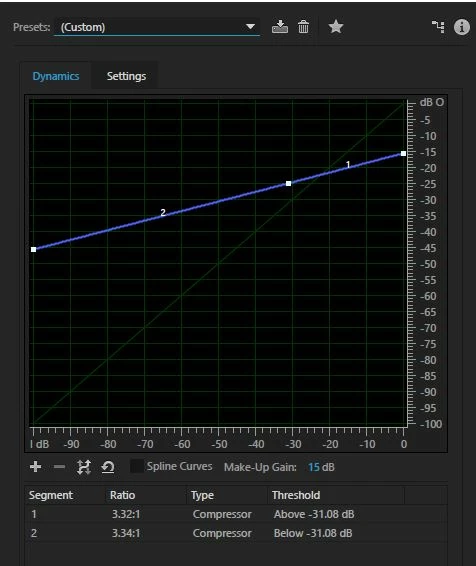
The faint green slope represents 'normal' dynamics, and all I've done here is altered the blue line so that it ends at -15dB and starts at about -45dB, and it's still a straight line. This is a good starting point, but I should warn you that if you have the blue line much more level than this, the artifacts make most audio unlistenable. The result comes back with the signal up to the max level it started at, as it's been given 15dB of makeup gain.
One important thing you should do to your file before running this though is to normalize it. The reason for this is that the effect is calibrated to run on a file where the peak level is 0dB, and that's what you should normalize to before running the effect, or the results will be completely unpredictable. Depending upon what it is you are trying to reduce the dynamic range of, you may need a slightly different slope, but this is probably a good starting point. HTH.

 AdChoices