Participant
March 20, 2018
Answered

CS6 - assigned shorcuts do not work !

  • March 20, 2018
  • 1 reply
  • 307 views

Hi Adobe,
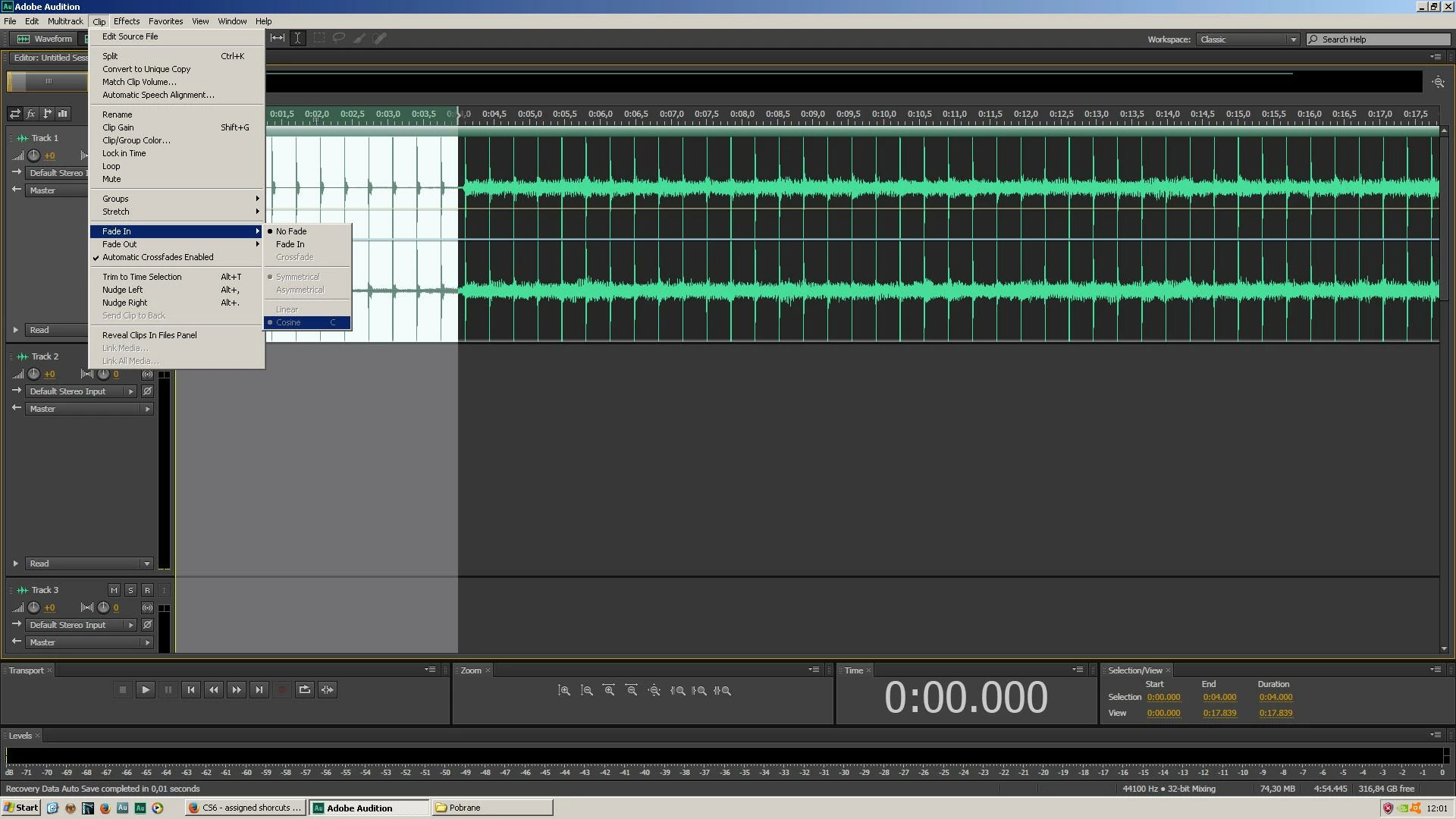
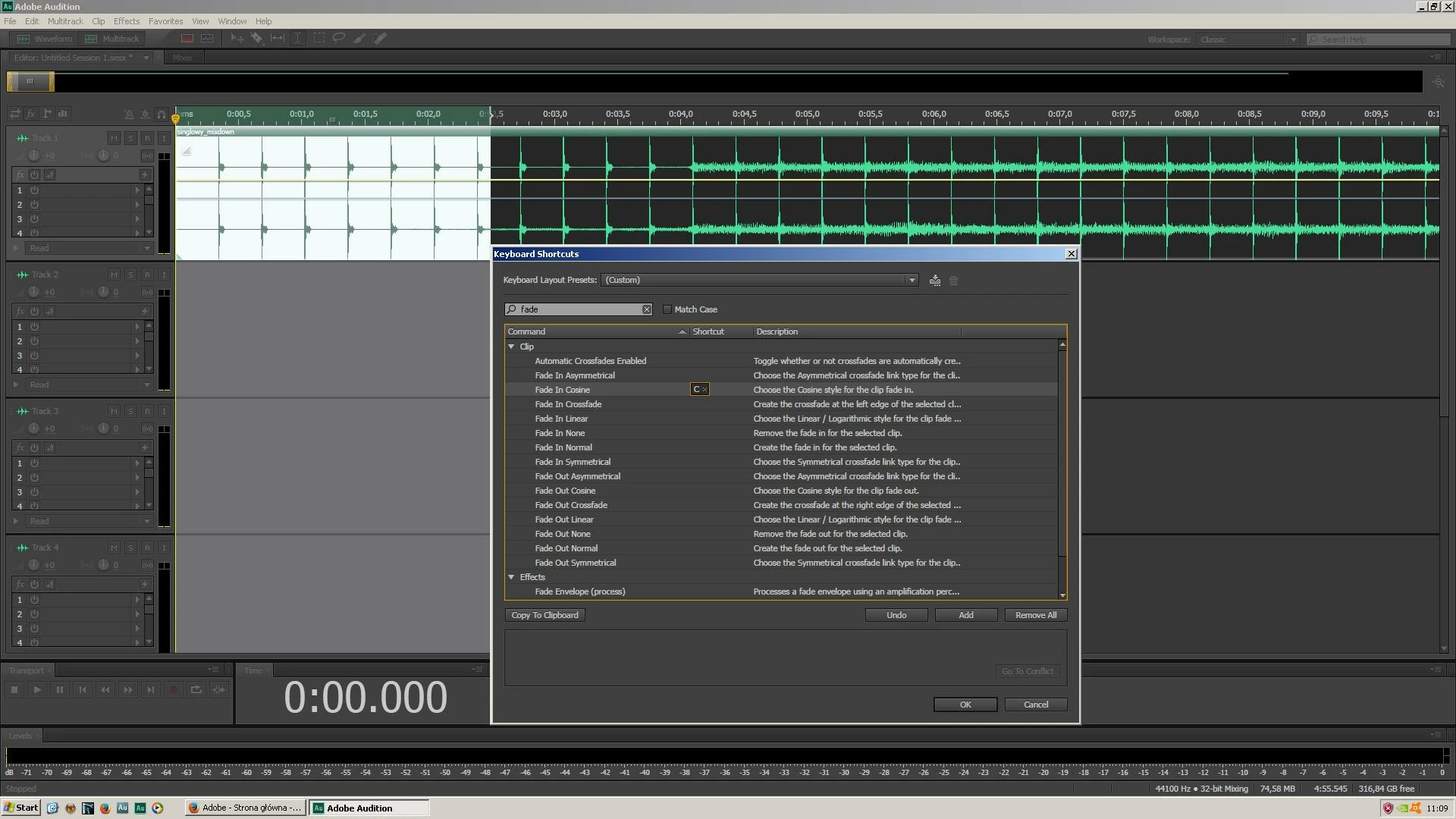
I have assigned the shortcut "C" to the "FADE IN" function. Unfortunately, this command does not work during use. I am unable to enter the "FADE IN" function using a shortcut on the keyboard. The only possibility to use the fade in / out function is only through the mouse.
In the old version of Audition 3.0 everything worked without a problem. Why are not abbreviations used in CS6 as well? Should I change something in the CS6 settings?

Rgds,

Martin
This topic has been closed for replies.
Correct answer ryclark

The Keyboard shortcuts in Audition CS5.5 and later are not the same as AA3 since the CS and CC versions are a complete rewrite of the software to make it cross platform compatible. This means that some of the features of AA3 aren't identical in the new versions unfortunately. The shortcut that you have assigned to your 'C' key just selects the type of fade law that is used when you use the mouse to make a fade at the start or end of a clip. There are many more options available in these newer versions which may be rather confusing. You need to assign Fade In Normal to the 'C' key to get the similar function to the AA3 one.

However since you are used to pre selecting the length of audio at the beginning of the clip with the mouse in order to apply the fade I would have thought that it just as quick to grab the Fade handle and drag that for the required length of your fade in.

1 reply

ryclark
ryclarkCorrect answer
Participating Frequently
March 20, 2018

The Keyboard shortcuts in Audition CS5.5 and later are not the same as AA3 since the CS and CC versions are a complete rewrite of the software to make it cross platform compatible. This means that some of the features of AA3 aren't identical in the new versions unfortunately. The shortcut that you have assigned to your 'C' key just selects the type of fade law that is used when you use the mouse to make a fade at the start or end of a clip. There are many more options available in these newer versions which may be rather confusing. You need to assign Fade In Normal to the 'C' key to get the similar function to the AA3 one.

However since you are used to pre selecting the length of audio at the beginning of the clip with the mouse in order to apply the fade I would have thought that it just as quick to grab the Fade handle and drag that for the required length of your fade in.

FreezeArtAuthor
Participant
March 20, 2018

It works much better but still out off selection... (FADE IN NORMAL - "C" shortcut)...
Thanks for help but do you have any idea how to make FADE IN equal to selection ?

Rgds,

Martin

ryclark
Participating Frequently
March 20, 2018

I don't think you can any longer except by using the mouse to drag the fade handle. I can't see anything anywhere to be able to preset the length of the shortcut applied fade unless I am missing something.