

Rowby
Inspiring
March 20, 2017
Answered

Export 2 item multi track to stereo with separate right and left tracks

  • March 20, 2017
  • 1 reply
  • 2098 views

Hi 

Using Audition CC    Current version.

I have a multi track project.  In track 1 is the left track I want to use in the exported version.

In Track 2 is the right track I want to use in the exported version.

I want to end up with a stereo with Track 1 in Left and Track 2 in Right.

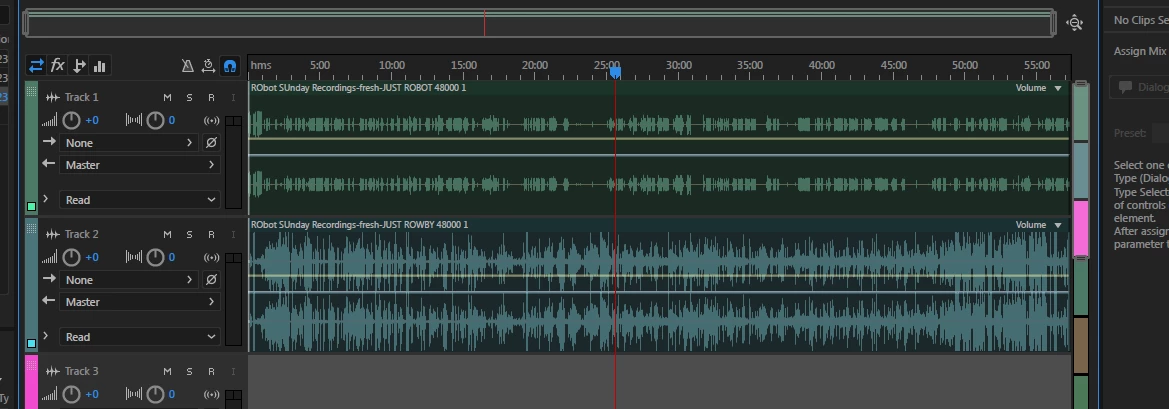
Attached is a screen capture of my current project.   When I try to export it -- I end up with a mixed track with Right and Left the same That's not what I want.  I want to keep them "separate".

I've done this before but I can't remember how I did it.

Thanks!
Rowby

    This topic has been closed for replies.
    Correct answer ryclark

    Are you working with a mono or stereo session? When you did your mixdown did you end up with a twin track 'stereo' file with the same on both tracks or a mono file? I suspect that you need to use the Pan/Balance controls on the track to pan one to the left channel and one to the right channel of the Master. You should then be able to hear Audition outputting them left and right before you do the Mix down.

    If that doesn't work you may have to convert your audio files to mono ones. It would have been easier if you had started off with single channel mono files rather than with identical audio in both halves of your 'stereo' files.

    1 reply

    ryclark
    ryclarkCorrect answer
    Participating Frequently
    March 20, 2017

    Are you working with a mono or stereo session? When you did your mixdown did you end up with a twin track 'stereo' file with the same on both tracks or a mono file? I suspect that you need to use the Pan/Balance controls on the track to pan one to the left channel and one to the right channel of the Master. You should then be able to hear Audition outputting them left and right before you do the Mix down.

    If that doesn't work you may have to convert your audio files to mono ones. It would have been easier if you had started off with single channel mono files rather than with identical audio in both halves of your 'stereo' files.

    SteveG_AudioMasters_
    Community Expert
    Community Expert
    March 20, 2017

    From the look of it, it's a stereo session, but each stereo track looks like dual mono. If that's the case, then just pan track one hard to the left, and track two hard to the right, and do a mixdown; you should be good to go.

    Bob Howes
    Inspiring
    March 21, 2017

    Just to add a detail to Steve's post, to pan your tracks there's multiple ways to do this but probably the easiest for this situation is to use the Pan knob in the settings panel at the left hand end of each track.  The pan is the one with the graphic that looks like a bow tie.  Just turn the top one all the way left (anti-clockwise) and the second track all the way right (clockwise).

    As an, they look like dual mono to me as well.  Next time you record I suggest that when your setting up your track inputs in Multitrack you specify mono (but stereo for the session).  All you gain from dual mono is doubling your file size on each track.