
Participant
December 25, 2016
Answered

Fatal Error - Audition won't start up

  • December 25, 2016
  • 1 reply
  • 6976 views

Hello,

I'm running a MacBook Pro with MacOS Sierra (10.12) and have the monthly Adobe CC subscription, so I am able to download any of the Adobe CC products when needed.  I'm currently running Adobe Photoshop CC, Illustrator CC, Premiere Pro CC, Media Encoder CC, Camera RAW CC and Acrobat DC without any type of issues at all. 

I recently wanted to download and run Adobe Audition CC (2017), so I downloaded it from the CC panel and installed it from there and when I go to open Audition, it comes up with the following "Fatal Error" dialog box:
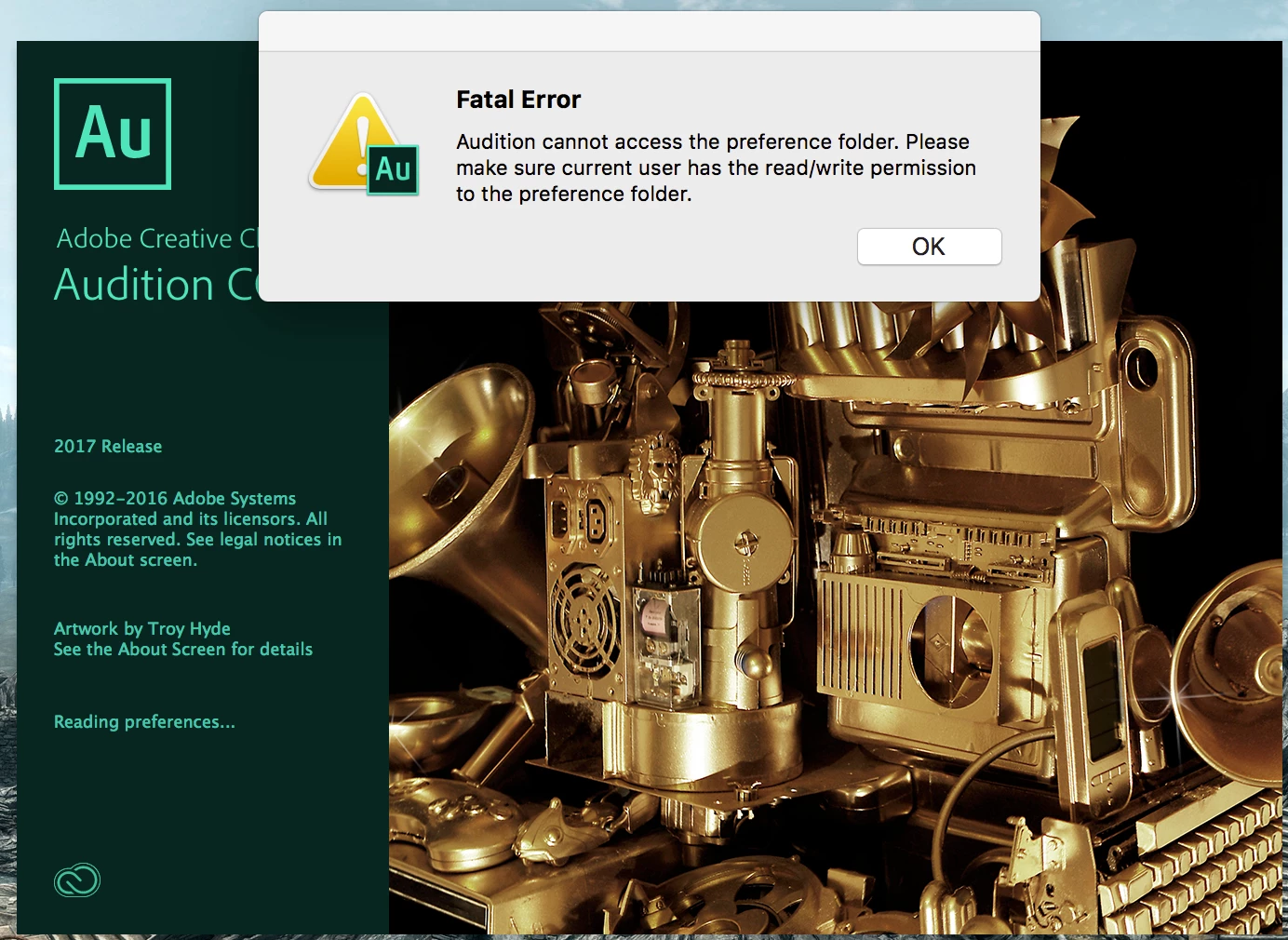
How do I fix this issue?  I haven't had this error with any of my other Adobe products and I don't understand why I can't use Audition considering everything else works perfectly fine.

Thanks!

Mat

This topic has been closed for replies.
Correct answer HC_Demon

Disregard.  I was able to find and reset my preference file folders and now it was able to open up and load with no issues.  I'm not sure why it was set to "read only" as the default, but I set them to "read and write" and it fixed the problem.

1 reply

HC_DemonAuthorCorrect answer
Participant
December 25, 2016

Disregard.  I was able to find and reset my preference file folders and now it was able to open up and load with no issues.  I'm not sure why it was set to "read only" as the default, but I set them to "read and write" and it fixed the problem.

Participating Frequently
August 8, 2017

Where are the preferences? I managed to find the hidden Library folder, (Command J) I think it was, then clicked the Audition folder, hit Command I for Get Info, unlock that panel using password, set everyone to "Read & Write", closed everything, restarted. No help at all.

Anyone able to offer advice on this?

ryclark
Participating Frequently
August 9, 2017

Preferences are in a folder named Audition/10.0 somewhere in your Library folders. But rather than messing with Auditions settings files you can rest them by just holding down Shift when you click on Audition to open it. This will set all the settings to the default.