Known Participant
August 17, 2024
Question

Getting basic mic recording setup correct, can someone advise?

  • August 17, 2024
  • 2 replies
  • 3218 views

Hi,
I am actively recording audio for videos as part of my current job and although I have used Audition for quite a few years now I am still barely above novice level in terms of audio production. 

I use a RØDE NT-USB, it's what my employer provided. 
I should note that I am connecting it to a Windows PC via a USB port in my external monitor since the native USB ports on the PC are all USB 3 which seems to cause interference when using this mic. I have no idea if this affects how Windows/Audition sees the mic, I assume not. 

So using the RØDE NT-USB and Audition on Windows I find myself struggling to get a basic setup working for recording narration for videos that is clean and normalised for e.g. YouTube - which I learned only recently should be -14 to -16 LUFs. 

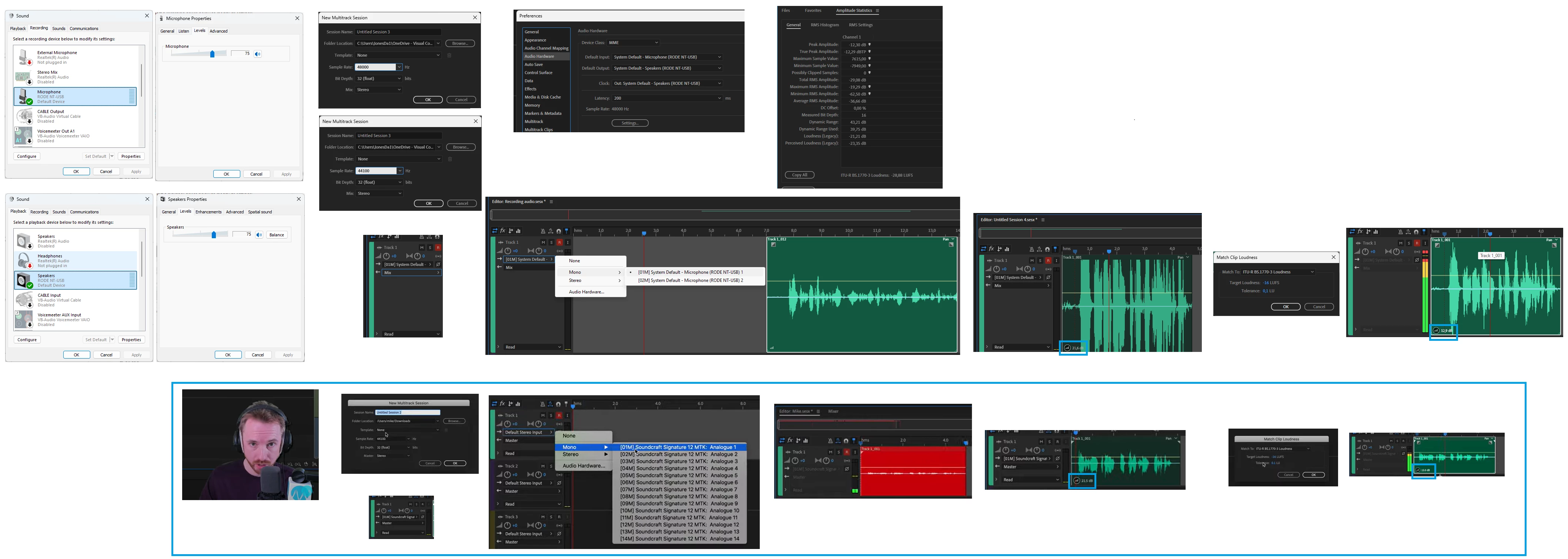
I am attaching an image which illustrates how the mic is setup in windows (I have my headphones connected through the 3.5mm jack on the RØDE NT-USB) and a recording comparison I did of my setup vs what the great Mike Russell showed in the video below
Mike Russell - YouTube - How to Make Your Voice Sound Better in Multitrack (Adobe Audition Tutorial) 


  1. I have my mic and speaker settings in Windows at 75 - this sounds the best to me and I have read many posts online that also suggest this. And in the screenshot below I also include a my Audition Audio Hardware settings.

  2. I setup the Multitrack Session as Stereo and record in Mono - this I read seems like a normal thing to do for voice over recordings. (I record my narration audio separately and then add to video in Premiere)
  3. I also assume the Multitrack Session > Sample Rate should be 48000 Hz which seems to be the default and is I understand what the RØDE NT-USB supports.

  4. In Mike's video in e.g. Track 1 the audio output is Master where for me it is Mix. I don't know what Master refers to nor where to find it. I am guessing this relates to Mike using an audio amplifier/mixing desk?

  5. I did a test recording using the first Mono selection similar to how Mike did it. 

  6.  When Mike records the wavefrom is tiny when compared to mine - does this indicate that something is wrong? I am including the Amplitude Statistics for that recording in the screenshot below.
    Note: Mike appears to be using a "Signature 12 MTK" in the video which I guess is somehow amplifying the audio signal into Audition or something like that - again total novice here. 

  7.  I used the control in the lower left corner of the track to slide the audio level to make it louder, and when it's at ~21.5 dB my waveforms are huge and the audio is very distorted. For Mike this is not the case. 

  8.  I then also did undo on the previous action and used the Match Loudness as Mike did for -16 LUFS and where again my results are distorted. 


Is there something obvious I am doing wrong here or is this just how it is when one only has access to a USB microphone?

This topic has been closed for replies.

2 replies

SteveG_AudioMasters_
Community Expert
Community Expert
August 18, 2024

It's not worth messing about with the size of the waveform display - that will just mislead you. It's normal when making a recording to set the mic gain so that there's enough 'headroom' to take account of anything that gets slightly louder than you intended - these days between 12-15dB lower than the 0dB peak. To set the record gain with this mic involves using the Windows Sound Control panel. Under the Recording tab you select the mic, which should be listed there, then Properties and then Levels, where there is a slider to adjust. Yes that's a right pain to get at, but you shouldn't need to do it very often, as it should remember the settings you finally make. The thing to do is to adjust the levels using the 'monitor input levels' facility in Audition (right-click with the mouse held over the meters and you'll get that) and set it so that your recorded peaks are around -12 to -15dB, as noted above.


Now your recorded level should appear to be more healthy. As for all the rest, we'd need to hear a sample recording to see what you are up against, but you have to get the levels right first, and ideally sort out what the interference, etc is. All this business about LUFS and everything else comes after that.

RH22_userAuthor
Known Participant
August 18, 2024

Hi Steve and thanks for the reply!
I have a shortcut for the Windows Sound Control panel on the desktop as I need to open it regularly. I find that Windows will sometimes adjust the levels, I'm not sure why, so I always need to check it before using a microphone. 

Sorry I don't fully understand the concept of setting the gain headroom to allow louder audio between 12-15dB lower than the 0dB peak. I usually set the gain so that the audio sounds loud enough and does not have so much gain that the audio sounds distorted and that is pretty much all I know to be honest. And in terms of setting the levels in Windows sould I be using percentage (e.g. 75) or decibels? See screenshot below.

And also I don't understand where in the Audition UX the monitor input levels facility you refer to is located.
The thing to do is to adjust the levels using the 'monitor input levels' facility in Audition (right-click with the mouse held over the meters and you'll get that) and set it so that your recorded peaks are around -12 to -15dB, as noted above.

If I enable recording (R) and input monitoring (I) then the Levels panel below becomes active but I don't like using the input monitoring as there is always a delay between the input and output. Is this what you are referring to, as shown in the screenshot below? And how do I set it so that the recorded peaks are around -12 to -15dB?


SteveG_AudioMasters_
Community Expert
Community Expert
August 18, 2024

Yes, use the I (Input) button - they disabled the right-click option, and I forgot... It's no good setting levels so that it 'sounds loud enough' - that means nothing. It's the level that is fed to Audition from the mic that is important, and you adjust the gain so that this level peaks at somewhere between -12 and -15dB on the meter. You don't have to keep monitoring it, you just set it for your level at the time, and Audition will then be recording a signal that isn't disappearing into system noise and interference, and with sufficient level to show in multitrack. Setting that input level is important. You've got to get this right first before you can sort out everything else. The record input level is the only one you care about - all the others are just listening levels, and don't relate to your recording at all.

RH22_userAuthor
Known Participant
August 17, 2024

As an edit to the orginal post above, I should also add that when recording I normally get clicks, buzzes and distortions included in my recordings which I need to then go through and clean up by silencing, auto healing or completely rerecording. Some of the sounds are the usual mouth noises that come with recording, the distortions I don't understand. I have always assumed it was an issue with audio processing from the microphone, through the computer hardware/OS and into Audition. Needless to say it makes creating a clean recording a lot longer than I would like.