Orf
Known Participant
March 16, 2018
Answered

How can I make make all clips in multitrack the same volume without clicking and dragging?

  • March 16, 2018
  • 4 replies
  • 11213 views

I have tons of clips in the multitrack and want to make all the volume levels (not gain levels) set to 0 db.

Is there an easy way to do that without clicking and dragging all 500 clips?

    This topic has been closed for replies.
    Correct answer _durin_

    If you don't mind going scorched earth on keyframes, or getting your hands a little dirty with a text editor and Regular Expressions, you should be able to remove all of those quickly and easily.

    Save the session .sesx file, then open it in an advanced text editor like Sublime Text.  These should offer the ability to perform a Find & Replace using regex which are sort of template-driven searches for text.  If you want to wipe out all keyframes on all clips and tracks, this example should work. Audition's .sesx file format is fairly human-readable XML, so searching for:

    .*<parameterKeyframe sampleOffset=.*

    should find each instance of a keyframe.
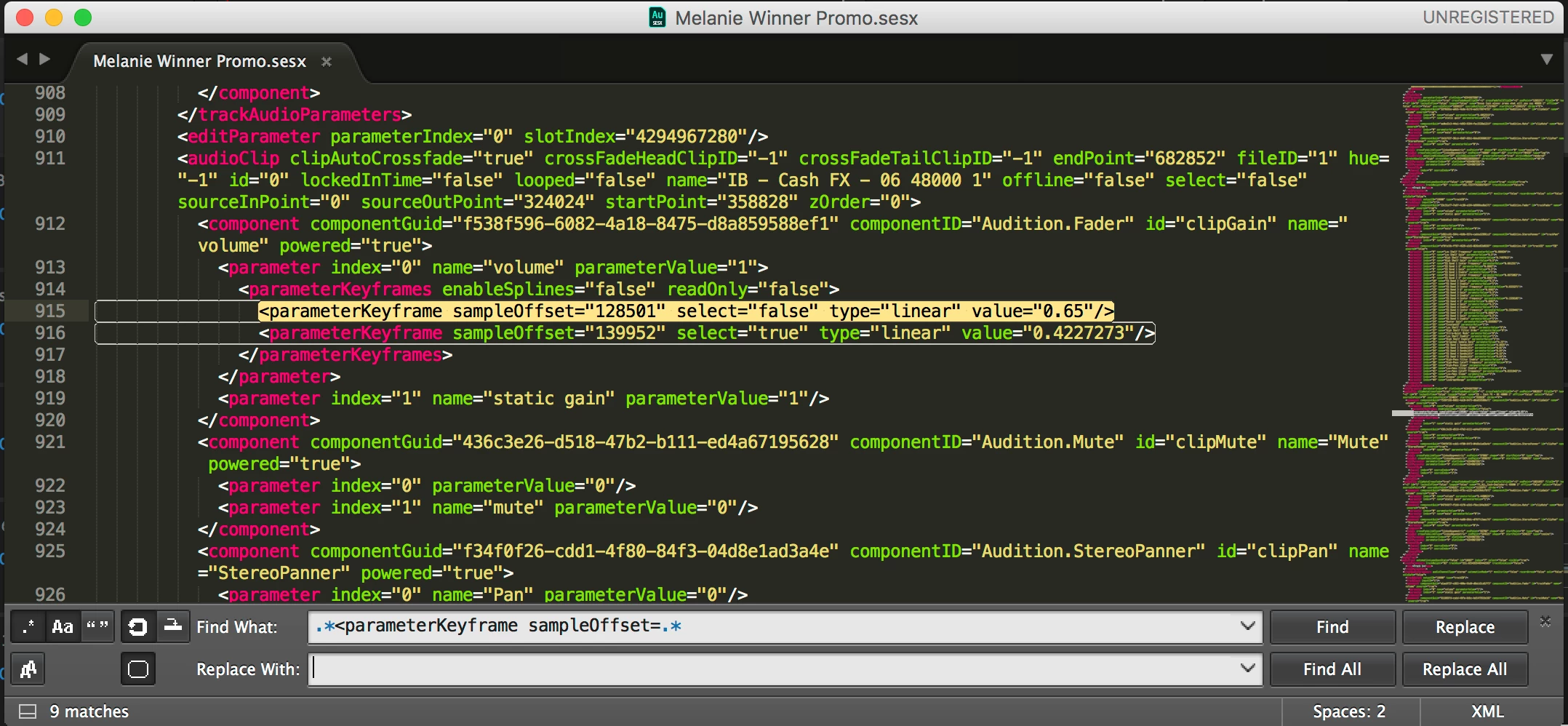
    However, that doesn't really explain why you'd end up with so many volume keyframes.  The Essential Sound panel doesn't generate any keyframe information.  The Clip Volume keyframes that show up when sending to Audition would be based on any keyframes in the standard Volume effect for every audio effect in Premiere.  I don't think anything else would be translated as clip volume keyframes when importing to Audition.

    4 replies

    Participant
    September 8, 2021

    Export your session to FCP XML interchange format,then re-open the new project. And boom all level parameters are back to default.

    Participant
    October 25, 2023

    This worked perfectly! Very quick, all volume keyframes gone, all "yellow lines"/"rubber bands" set to 0.

    Inspiring
    May 15, 2021

    I know exactly what you're talking about. I just mixed a track but I have to ship the raw file to someone else without volume envelopes. Here is what I did. I haven't tried it with multiple tracks but for me, this got the job done.


    Right click  on a keyframe, "Select all keyframes," Right click again, "Delete selected keyframes." Easy as that. You may have to drag the clip volume envelope to "0" if it isn't there already but you can get all of your clips back to zero this way. I was very happy to find this solution.

    _durin_
    Community Manager
    _durin_Community ManagerCorrect answer
    Community Manager
    March 19, 2018

    If you don't mind going scorched earth on keyframes, or getting your hands a little dirty with a text editor and Regular Expressions, you should be able to remove all of those quickly and easily.

    Save the session .sesx file, then open it in an advanced text editor like Sublime Text.  These should offer the ability to perform a Find & Replace using regex which are sort of template-driven searches for text.  If you want to wipe out all keyframes on all clips and tracks, this example should work. Audition's .sesx file format is fairly human-readable XML, so searching for:

    .*<parameterKeyframe sampleOffset=.*

    should find each instance of a keyframe.

    However, that doesn't really explain why you'd end up with so many volume keyframes.  The Essential Sound panel doesn't generate any keyframe information.  The Clip Volume keyframes that show up when sending to Audition would be based on any keyframes in the standard Volume effect for every audio effect in Premiere.  I don't think anything else would be translated as clip volume keyframes when importing to Audition.

    Participating Frequently
    August 9, 2021

    I've had this problem for years too and spent countless hours clicking on every single clips keyframes -> Deleting -> setting audio back to 0.


    I had a play around today with some solutions and found that if I went back to premiere and selected all clips and clicked "clear audio type" in the essential sound panel and exported an omf, when i bring that into audition all the keyframes are gone and the audio is set correctly at 0dB. 


    So i think i can confidently say that it is an essential sound issue within Premiere and i now have a very quick and easy solution!

    ryclark
    Participating Frequently
    March 16, 2018

    Two fairly easy methods. Either try Match Loudness from the Clip menu. Or from the Edit menu use Batch Process. there you can drop all your audio files and use one of the Normalize Favorites.

    Orf
    OrfAuthor
    Known Participant
    March 16, 2018

    Thank you for your response. Match Loudness is not what I'm looking for and the clips are already in a multitrack / I don't want to mess with the original audio files. I just want to set the clip level/volume to a default 0 db.

    In Premiere all you have to do is right click - select "remove attributes" - and have "volume" checked. It's that simple.

    Is there a way to do this in Audition? If not there should be.

    ryclark
    Participating Frequently
    March 17, 2018

    Unfortunately I am not a Premiere user so I am not sure exactly what you are after in Audition. What is it with your clips in the Audition's Multitrack that is not correct level wise? I am not sure exactly what you mean by 'set clip level/volume to default 0dB'. In the thread title you mention 'clicking and dragging'. What would you be clicking and dragging in order to do what you want?