
Participant
August 14, 2018
Answered

imported a 6 track wav file, can edit all but only hear 2 in waveform

  • August 14, 2018
  • 1 reply
  • 551 views

Hi - I'm new to Audition,  I started using it a couple of weeks ago to clean up audio files created with a SoundDevices MixPre6 and then import them into FCPX. I love the results, and the AutoHeal effect is a lifesaver to fix breathing sounds picked up by sensitive mics, but I have one problem that is driving me nuts.

With 4 mics recording to separate channels on the Mix Pre, I get a 6 channel wav file (the 4 independent tracks and a stereo mix). If I import the file directly into FCPX I can separate it into 6 tracks and edit each one independently. When I import it into Audition I can see all 6 tracks, and I can make changes (apply effects) to individual tracks, but I can only hear the first 2 (the stereo mix).  If I deselect the first 2, I can't hear anything, but I can see the change in the waveform and the changes are there when I save the file and then import it into FCPX (eg, if I select #3 only and select a range within that track and set it to silent, I can see that on the waveform and it is silent in FCPX).

It feels like there should be a simple switch to toggle to enable each track but I haven't found it.

TIA

Adrian
    This topic has been closed for replies.
    Correct answer SteveG_AudioMasters_

    adrianb52  wrote

    It feels like there should be a simple switch to toggle to enable each track but I haven't found it.

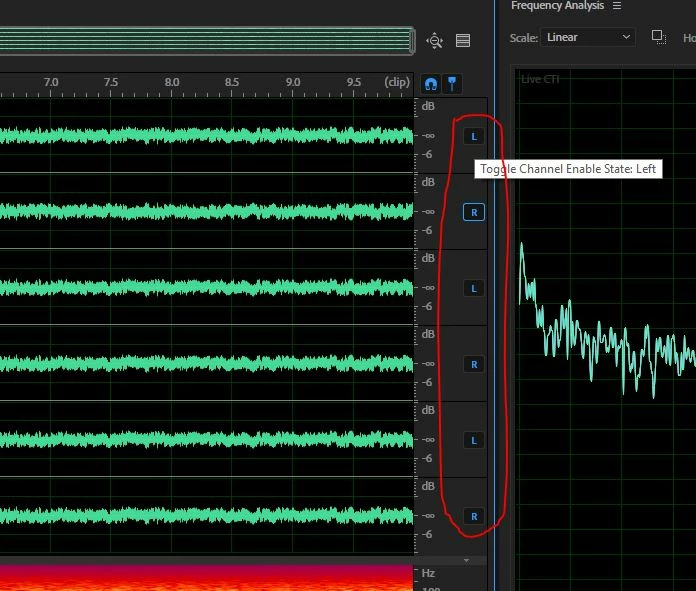
    Waveform view only ever plays two channels of audio at once; that's the bad news. Fortunately there's a trick you can do that will let you assign each channel to either R or L - at which point you'll hear it. This isn't really ideal, but it's way better than nothing. The clue is on the RHS of the waveform display:

    At the moment, your tracks probably show as the channels of a 5.1 system, which is the default. But if you click on the ones that aren't L or R, as I did in this quick test, you'll get a choice to choose the labels - and if you select L or R, you'll hear the channel. You can also use this to mute channels, so if, for instance, you want to do a gain change on just one channel, you can if you mute all the others.

    HTH (a bit, at least!)

    1 reply

    SteveG_AudioMasters_
    Community Expert
    SteveG_AudioMasters_Community ExpertCorrect answer
    Community Expert
    August 15, 2018

    adrianb52  wrote

    It feels like there should be a simple switch to toggle to enable each track but I haven't found it.

    Waveform view only ever plays two channels of audio at once; that's the bad news. Fortunately there's a trick you can do that will let you assign each channel to either R or L - at which point you'll hear it. This isn't really ideal, but it's way better than nothing. The clue is on the RHS of the waveform display:

    At the moment, your tracks probably show as the channels of a 5.1 system, which is the default. But if you click on the ones that aren't L or R, as I did in this quick test, you'll get a choice to choose the labels - and if you select L or R, you'll hear the channel. You can also use this to mute channels, so if, for instance, you want to do a gain change on just one channel, you can if you mute all the others.

    HTH (a bit, at least!)

    adrianb52Author
    Participant
    August 15, 2018

    Thanks! I never would have thought of that, but it works and will really help my workflow.

    I did notice that FCPX sees it as 5.1 but didn't realize that Audition defaulted to that.