Participant
July 30, 2018
Answered

"Imported Files" folders

  • July 30, 2018
  • 2 replies
  • 1832 views

I use Audition to produce radio shows.  I have created a session for each show that I do, and have given them a name (name of the show plus a new number each week to reflect the show number).  Each week, I take the previous show's session, open it up, remove the previous segments, and then replace them with the new segments.  The show open, bumps, commercials, etc never change, so it's just the segments that change every week.  Once the final mixdown is created, I save the entire session with a new number, to correspond with the new show number (SHOWNAME SHOW 1, gets renamed to SHOWNAME SHOW 2 next week, and so on).  This process creates a folder titled "IMPORTED FILES" each week.  Inside of the that folder are all of the elements.  These elements are also individually in the multi track session where they should be.  So, this "Imported Files" folder is just making unnecessary copies of files, and taking up space. 

Is there a way to make Audition quit creating the Imported Files folder?
    This topic has been closed for replies.
    Correct answer SteveG_AudioMasters_

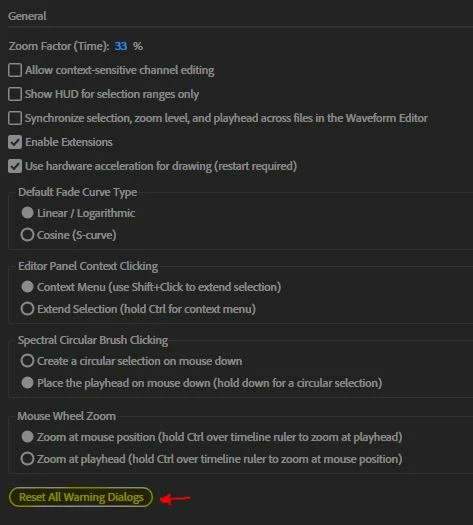
    First, you have to go to Edit>Preferences>General and at the bottom of the page, you have to reset the warning dialogs:

    For some reason, people seem to miss this, so I've highlighted it!

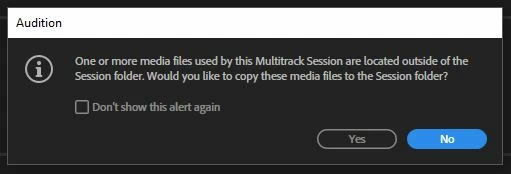
    Then, when you go to save a session, you'll get to see this dialog:

    ... and by saying 'No', you won't end up with duplicated files!

    2 replies

    acm_mt
    Participating Frequently
    January 28, 2020

    Hi Steve,


    Your answer to richmeier's question has helped me a lot, thank you. I have a follow-up. How do I get Audition to stop doing this by default?


    To clarify: I've followed your steps, and un-checked that "reset all warnings dialogues" box. But every time I start a new session, it reverts back to creating a folder and making duplicate copies of files. The only way to get it to stop making duplicate files and putting them in that folder is to go through the steps again -- uncheck "reset all warnings dialogues" and say no when it asks if I'd like to copy media files to the session folder.


    This is a pain, for obvious reasons.


    How do I change the default setting on Audition so that it does not make these unnecessary additional copies? They create real problems for me in other contexts (I won't bother to explain why, I just want to make it stop doing this).


    Thanks,


    Amy

    SteveG_AudioMasters_
    Community Expert
    SteveG_AudioMasters_Community ExpertCorrect answer
    Community Expert
    July 30, 2018

    First, you have to go to Edit>Preferences>General and at the bottom of the page, you have to reset the warning dialogs:

    For some reason, people seem to miss this, so I've highlighted it!

    Then, when you go to save a session, you'll get to see this dialog:

    ... and by saying 'No', you won't end up with duplicated files!

    richmeierAuthor
    Participant
    July 30, 2018

    Thanks Steve!  I will give this a shot.  I appreciate your time and insight!