
Participating Frequently
February 21, 2017
Answered

Voiceover Record Stereo with Mono Mic

  • February 21, 2017
  • 2 replies
  • 12295 views

Sirs:

My computer is Win 7 64bit Adobe CS6. Using  mono mic thru M-Audio Pro-USB. How can I record to both channels at the same time? Otherwise I must copy and paste which very time consuming.

Thanks,

David
This topic has been closed for replies.
Correct answer MikeHarrison

Mike:

Thanks for your response. When I record and playback I only hear from one speaker unless I cut and paste to the other track.

Thanks,

David


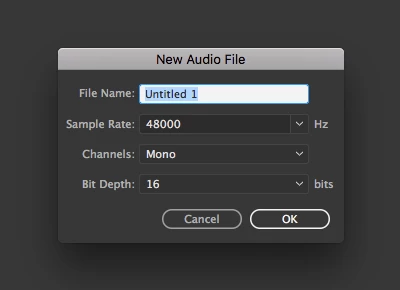
I know that, David. That's why I suggested opening a NEW MONO file, not a stereo file. A mono file should play from both speakers.

2 replies

Dave514Author
Participating Frequently
February 22, 2017

Thanks but nothing worked.

ryclark
Participating Frequently
February 22, 2017

Which of the above suggestions didn't work? All of them will work if used correctly. Are you trying to record into the Waveform or Multitrack view? If you let us know what you tried we can perhaps give you some more guidance.

Dave514Author
Participating Frequently
February 23, 2017

If you're in Waveform view, my suggestion of Edit/Convert Sample Type WILL work.  You have to change the setting in "Channels" to say Stereo on the drop down menu but you only do this once.  It remembers you previous setting next time you do it.

However, I'd strongly recommend that you record your voiceovers in Multitrack and set your track to Mono as mentioned above.  Multitrack records your work directly to a file so you don't have to do a Save at the end.  It also has a powerful "back up" facility (set under Edit/Preferences so you can preserve a copy at a different location--even the Cloud--in case something like hard drive failure or power bump happens--it's saved me a couple of times.  I also edit in multitrack--I have the same facilities (though done in a different way) to make super-accurate edits but it's non destructive so you can go back and change your mind--or fix things if the client changes his mind.

Your mic is mono.  all you achieve by recording in stereo is doubling the amount of disk space the file uses. 


Bob:

I appreciate you help. In Waveform I tried your suggestion and it didn't work. In Multi, I changed the Stereo to Mono Track 1 and the method to Write, however the record button was greyed out. At any event I'd only get single track and playback through one speaker most likely. Disk space isn't a problem. I'm going to YouTube to learn more about it. i thought the solution would be easy peasy...LOL

Thanks again

David

ryclark
Participating Frequently
February 21, 2017

Are you recording into the Waveform edit view or the Multitrack view? If you are recording from a mono mic why do you want to duplicate the audio onto two tracks? In either case you should just record a single mono file which will only use up half the space of a dual track mono recording. A mono file will playback out of both speakers from the Waveform view or, if you are recording into a stereo Multitrack session, can be panned to any position between the two track stereo output.

Bob Howes
Inspiring
February 22, 2017

Yup.  Easiest was is to simply record you mic to a mono track.  When setting up your session, click on the Input box (in the settings panel at the left end of each track) and you'll be offered a choice of mono or stereo track.  If you record mono, you can still specify the final mix to be a stereo file and you can also use the various pan controls to put the sound anywhere you want it.

If there is some reason your original recording must be in stereo (actually 2 track mono since you mic is a mono device) rather than cutting and pasting, you could also try Edit/Convert Sample Type  (Shift+T as the shortcut) and tell it to make a stereo track.