Inspiring
August 9, 2019
Answered

Silencing Spaces In Between Vocal Phrases?

  • August 9, 2019
  • 2 replies
  • 7027 views

How can I completely silence the sections between vocal phrases? I find myself doing this manually, which as you can imagine, takes forever. And I did try the noise gate(s) in the Dynamics Processing section. But that was much too complicated, and it seemed to affect all audio (I saw even the vocal parts come down in volume when I applied one of the presets).

All I would like to do is select any area of the recording that is less than, say, -30 or -40 dB, and completely silence it, leaving the actual vocals alone.

This sounds like a traditional gate. But I'm having trouble finding anything that simple in AA just now. I must be missing something.

Thanks!

Ken
    This topic has been closed for replies.
    Correct answer Mike Russell

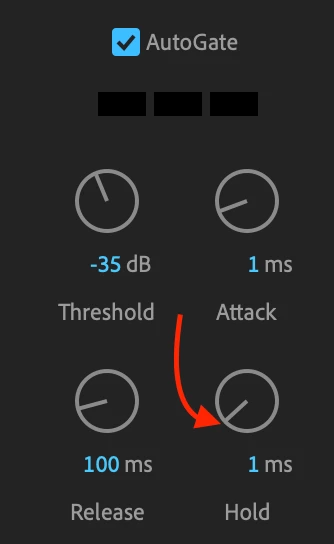
    OK I think I found the answer! There was a very good video on YouTube here: Adobe Audition CC 2018 - New Noise Gate Effect - YouTube showing that you don't choose Dynamics Proccesing. You choose Dynamics...Then inside that, there is a noise gate called "AutoGate" with a knob allowing you to chose the threshold frequency. Put a checkmark in the AutoGate box and apply. Boom! Worked like a charm. Woohoo!


    OK I think I found the answer! There was a very good video on YouTube here: Adobe Audition CC 2018 - New Noise Gate Effect - YouTube

    Hi Ken! Thanks for sharing my YouTube tutorial on this and glad it worked for you.

    A summary of the process:

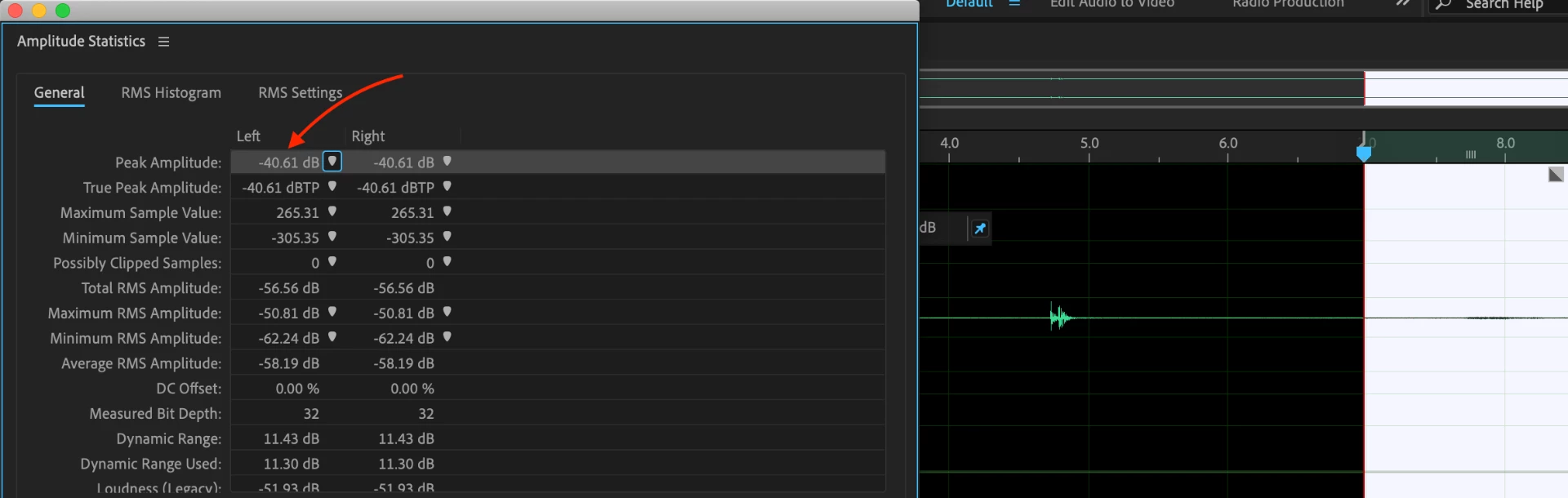
    1. Window > Amplitude Statistics.

    2. Highlight the noise floor (background audio with no speech).

    3. Click Scan Selection and make a note of the Peak Amplitude.

    4. Effects > Amplitude and Compression > Dynamics... tick AutoGate and type a Threshold 1dB or so higher than the number from step 3 and you're done!

    If you find your speech is getting cut off at the start and end just increase the Hold setting a little.

    2 replies

    bojoey
    Participating Frequently
    August 10, 2019

    That's the holy grail of podcaster editing! Of course you can do the manual editing thing which everyone has had to do for years. You can do this with Dynamics - the new plugin Audition has. It's traditional noise gate is the "easiest" way to deal with what you're speaking about. Set the threshold just below the sound of the voice, and crank down the noise with Gate as it goes below that threshold.

    However, SteveG(AudioMasters)​'s suggestion to use Dynamics Processing is the "right" choice - as you have maximum ability to really fine-tune your settings, not to mention flip to the back page of the plugin and see the actual expander/gate/compressor settings there - instead of using the somewhat cryptic graph image.

    From an aesthetic standpoint, killing all the noise is most likely going to sound pretty weird to anyone listening and might even be jarring. As a result you might just try using a simple setting in Denoise to help reduce the noise without it being obvious that you're gating the heck out of your dialog/content.

    Lastly, I did a tutorial from Audition Learn (within Audition) which describes how to use markers in the spectragraphic/waveform window which allows you to use markers to select and ultimately kill any silence that you want. It's pretty neat in that it stores the settings in the audio file so that if you want to use the file in another DAW, those markers remain. From there it's a simple matter of just using the markers window to get rid of whatever noise you want to get rid of. It's still manual editing, but I find it faster, and it also has added benefits of markers being stored int he file.

    SteveG_AudioMasters_
    Community Expert
    Community Expert
    August 9, 2019

    In theory, according to the manual, this should be possible in Diagnostics, (mark silence) but it doesn't work the way the manual suggests it should - it says that you can either delete or shorten silence, and that deleting it should leave the file the same length, but with the sections detected as 'silence' having their amplitude reduced to zero. In practice, deleting silence does just that - deletes the marked section.

    I reported it as a bug ages ago, but it still seems to be the same in the current release. I'll have another go when I'm back in the office.

    Inspiring
    August 9, 2019

    Wow. That's amazing that such a simple action is so hard to do. I appreciate you taking a crack at it.

    One thing that I must also be missing is how to change the parameters in the presets of Dynamics Processor. It seems the only way I can change things like threshold is to drag the dots and lines on the graph. I can't seem to find these as available settings to change just by typing them. There are some settings on the Settings tab. But I can't seem to find the MAIN ones - like, as I mentioned, threshold. Am I just overlooking something there? In the old AA, I could just change all that stuff in the little boxes by typing in the targets I wanted.

    If it were easier to change those settings I could probably make the noise gate work in Dynamics Process.

    SteveG_AudioMasters_
    Community Expert
    Community Expert
    August 9, 2019

    KenTheriot  wrote

    One thing that I must also be missing is how to change the parameters in the presets of Dynamics Processor. It seems the only way I can change things like threshold is to drag the dots and lines on the graph. I can't seem to find these as available settings to change just by typing them.

    If you right-click on any of the points on the screen, you get an option to edit the point - very precisely! The display below is only for information, not for changing anything...