
Known Participant
July 15, 2016
Answered

Audio mute and unmute button

  • July 15, 2016
  • 2 replies
  • 4692 views

Adobe Captivate 9

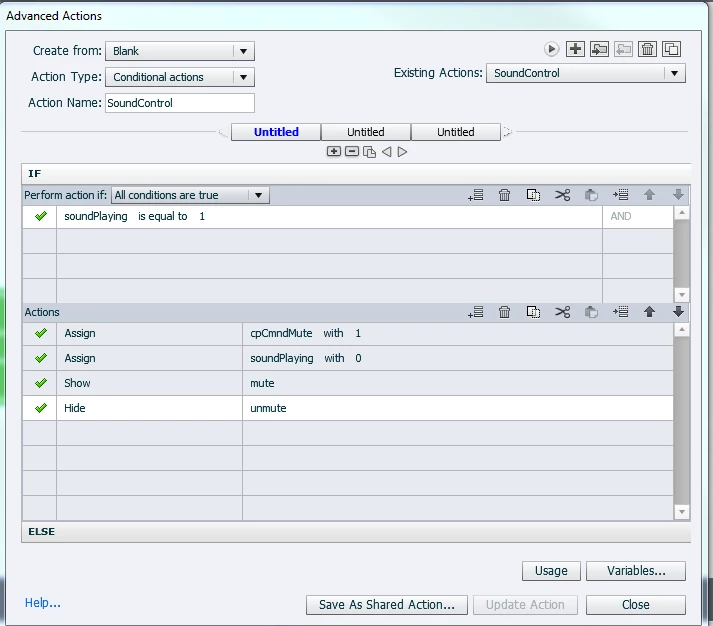
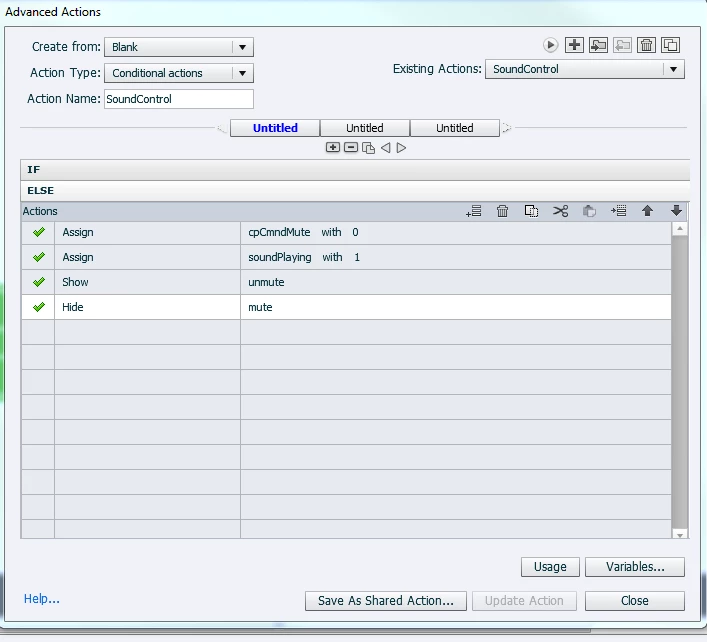
I created an audio mute and unmute button.  I ran into a little issue where I would like the audio to be muted and give the user the choice unmute it.  I cant figure what I have done incorrect.  I have a feeling its super easy but have been playing with this way to long.  Any ideas or assistance would be great!
This topic has been closed for replies.
Correct answer Lilybiri

You make it really VERY complicated. Have a look at my article:

1 action = 5 Toggle Buttons - Captivate blog

You'll see that you only need one variable, the system variable cpCmndMute and that you can use an extra state (besides the 3 InBuilt states) for a (shape) button to show the status of the button. I use a shared action, because the same action can be used for multiple toggle buttons.

2 replies

jrumAuthor
Known Participant
August 17, 2016

Lilybiri,

I have followed your instructions to create an audio on and off button.  However, if I click to mute the audio and then click the next button go to the next slide, the new slide is muted as well and the rest of the training.  Basically, there is a policy that users can read and/or listen too.  Most users unless they have an impairment will mute the audio and just read the policy.  I am having a hard time figuring out a way to not have this button control all audio in the entire training.

Lilybiri
Legend
August 17, 2016

I answered from my phone, but see that the answer has not survived. Sorry for that.

The mute button has the default behavior, same as in playbar or on any media controller: user decides when muting, and when unmuting.

If you want tor make audio play on each slide again, which could also annoy users IMO, you'll have to use another conditional action, triggered by the On Enter event of each slide: check if audio is muted, in thatcase change the state and toggle cpCmndMute, it if is not muted, just Continue.

jrumAuthor
Known Participant
August 17, 2016

Thank you!  I was able to figure it out!

Lilybiri
LilybiriCorrect answer
Legend
July 16, 2016

You make it really VERY complicated. Have a look at my article:

1 action = 5 Toggle Buttons - Captivate blog

You'll see that you only need one variable, the system variable cpCmndMute and that you can use an extra state (besides the 3 InBuilt states) for a (shape) button to show the status of the button. I use a shared action, because the same action can be used for multiple toggle buttons.

jrumAuthor
Known Participant
July 18, 2016

Thank you so much.  I read your article and created my own which worked great.  However, I now trying to figure how to mute the audio and give the user the option to turn it on when the arrive on that slide.  As of right now, the user can turn it off because the audio automatically plays.

Lilybiri
Legend
July 18, 2016

It is a toggle button: same button (showing different state) is used to mute and unmute.

The default value (as explained in the article) for cpCmndMute is 0, which means that Audio is ON. If you want it to be OFF when they come to a slide, you need to use the On Enter action for the command 'Assign cpCmndMute with 1'. If you want start situation for all slides, just select them all in the Filmstrip (CTRL-A) and apply that command.