
Participating Frequently
February 4, 2011
Question

Black fringe on transparent png in Captivate 5

  • February 4, 2011
  • 2 replies
  • 2119 views

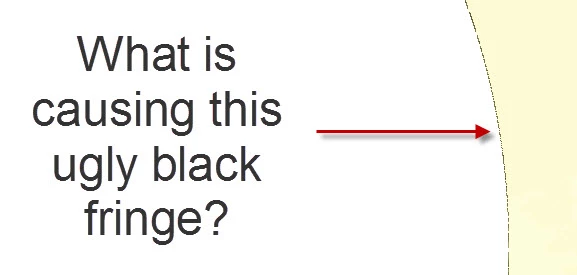
I'm converting a CP4 file to CP5. The files include png images that cover part of the screen. The edge where the png become transparent shows an ugly black fringe (edge, rim, line, whatever you want to call it) when I preview the file, either a regular preview or a web browser preview. The file is set up as a single-layer png file with transparency at the edge. I've looked at it closely in Photoshop. The edge is a 3-pixel fade from yellow to transparent, there is no black in the file. So far, I have tried:

  • Opening, resaving and reimporting the png files
  • Importing a psd file
  • Importing the new files (both types) into a new CP5 file

If I set the new file to have no transistions, and no fade at the beginning and end of the presentation, the fringe does not appear. If I have a fade at the beginning and end, the fringe flashes on at the beginning and the end. In the old presentation, the slide, the graphic and the presentation itself are set with no transitions, and the fringe stays on the edge the whole time.

I had another image that was also coming out badly; the drop shadow was dropping out and the edge was too hard. I resaved it (using "Edit with Photoshop"), Saved for Web as a 24-bit png, and that fixed it. But this is not helping with the other files. These, of course, all look fine in Captivate 4.

Here is a picture of the fringe:
    This topic has been closed for replies.

    2 replies

    Participant
    March 23, 2011

    Hi,

    I had the same problem but with semi transparent PNG buttons. Unfortunately, you cannot set a transparent color in buttons, like you would do for images. To remove the "fringe", I simply set the Preferences/Project/SWF size and Quality to High 24bit. I noticed that, this setting is not kept when you import a CP4 file to CP5, which was also your case.

    That's how I solved my problem and I think it can solve yours (or other's) as well.

    adaptable_body6C19
    Participating Frequently
    February 7, 2011

    Hello,

    Well i replicated the issue on my side too but it didnt show this error. As a resolution you can try doing this with a different slide and with a different png image and this might prove out to be image specific.

    Let me know if this works or not.

    zepvideoAuthor
    Participating Frequently
    February 7, 2011

    After further investigation, it appears that the black fringe is caused by the transparent part of another image crossing over the yellow area that has the fringe. Remember, this only happens when I preview the file, not in the native Captivate file. Here is the whole page, so you can see the context :

    The orange bars at the top and bottom are set up as a single Photoshop file, with a large transparent area in the middle.

    • If I move the yellow part (with the fringe) to the front, the fringe goes away.
    • If I delete the orange bars, the fringe goes away.
    • If I cut the orange bars into two parts, the fringe only shows where the files cross over the yellow part at the top and bottom of the page.
    • If I merge the yellow part with the background, the fringe goes away.

    So, I tried making a new file for the yellow area.

    • I made a yellow rectangle png, brought it in: no black fringe.
    • I made a file that had yellow across the top and the side, so that the center area was transparent: no black fringe.
    • I BLURRED THE EDGE of the same file, so that the yellow fades from solid to transparent: BLACK FRINGE! And, the fringe was the same width as the semi-transparent area, not just a single black line (it fades over about 12 pixels).
    • AND... I tried removing the soft edge, but making the whole yellow area semi-transparent. When I render the preview, the whole yellow area is dark green (still semi-transparent, otherwise it looks like it would be even darker).

    At least this seems to be following a pattern. Semi-transparent areas in a png under another transparent png will show up as black. But, if I reverse the stacking order so that the orange bars are below the yellow area, they don't seem to show a fringe, but the yellow area develops a WHITE fringe where it crosses the solid orange, but not over anything else on the page (I inserted a black rectangle under to check).

    What in the heck? Can you figure out what this might be?

    adaptable_body6C19
    Participating Frequently
    February 7, 2011

    Hi,

    Can you let me know the purpose of using photoshop here with the images?