
Exit
  • Global community
    • Language:
      • Deutsch
      • English
      • Español
      • Français
      • Português
  • 日本語コミュニティ
  • 한국 커뮤니티
0

Cannot install NeoSpeech on Captivate 9 for Mac OS

Community Beginner ,
Dec 06, 2016 Dec 06, 2016

I would like to try the NeoSpeech voices included with Adobe Captive version 9 for Mac OS. I have downloaded the installation file by clicking the download link in the Speech Management dialog box in Adobe Captive v9.

When I mount the disk image and click install.app, I receive this error message:
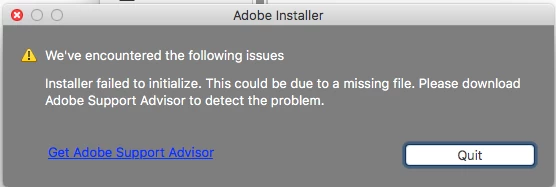
Screen Shot 2016-12-06 at 16.03.02.png

Maddeningly, when I click Get Adobe Support Advisor, I'm told that that tool is discontinued.

What should I do?

PS I've seen a solution for Windows machines which involves renaming the OOBE experience in the \AppData\Adobe folder to something else, but I'm on a Mac so these steps won't work. Can't find a solution elsewhere in the forum. Thanks in advance for your help!

864
Translate
Report
Community guidelines
Be kind and respectful, give credit to the original source of content, and search for duplicates before posting. Learn more
community guidelines

correct answers 1 Correct answer

Community Beginner , Dec 09, 2016 Dec 09, 2016

I received these steps from Adobe Support, which resolved my problem:

Here are few steps to help you install Neo Speech package on Mac.

Step 1 : Double click on the DMG file
Step 2 : Double click on the Neo Speech App file
Step 3 : Press and hold Control key and Click on the install File  and choose the option "Show package Content "
Step 4 : Go to the Folder Content > Mac OS
Step 5 : Press and hold Control key and Click on the install > Open with > terminal

Translate
Community Expert ,
Dec 06, 2016 Dec 06, 2016

Send an email to CaptivateHelp@Adobe.com and see if they can help with this.

Paul Wilson, CTDP
Translate
Report
Community guidelines
Be kind and respectful, give credit to the original source of content, and search for duplicates before posting. Learn more
community guidelines
Community Beginner ,
Dec 09, 2016 Dec 09, 2016

I received these steps from Adobe Support, which resolved my problem:

Here are few steps to help you install Neo Speech package on Mac.

Step 1 : Double click on the DMG file
Step 2 : Double click on the Neo Speech App file
Step 3 : Press and hold Control key and Click on the install File  and choose the option "Show package Content "
Step 4 : Go to the Folder Content > Mac OS
Step 5 : Press and hold Control key and Click on the install > Open with > terminal

Translate
Report
Community guidelines
Be kind and respectful, give credit to the original source of content, and search for duplicates before posting. Learn more
community guidelines
Community Beginner ,
Dec 13, 2016 Dec 13, 2016

Any ideas on how to resolve this in a Windows environment?

Translate
Report
Community guidelines
Be kind and respectful, give credit to the original source of content, and search for duplicates before posting. Learn more
community guidelines
Community Expert ,
Dec 13, 2016 Dec 13, 2016

In a Windows environment, you may run into problems with this particular download because of the size. At over one and a half gigabytes it's very likely that the download failed in some way. For example, the installer might have downloaded fully but the archive file that accompanies it might be damaged or incomplete.

Try downloading it again and see if that helps.

Paul Wilson, CTDP
Translate
Report
Community guidelines
Be kind and respectful, give credit to the original source of content, and search for duplicates before posting. Learn more
community guidelines
Community Beginner ,
Dec 13, 2016 Dec 13, 2016

Thanks, Paul.  No such luck.  Will email Adobe and see if they can assist.

Translate
Report
Community guidelines
Be kind and respectful, give credit to the original source of content, and search for duplicates before posting. Learn more
community guidelines
New Here ,
Jun 25, 2017 Jun 25, 2017
LATEST

Worked for me. Mac Sierra 10.12.5

Translate
Report
Community guidelines
Be kind and respectful, give credit to the original source of content, and search for duplicates before posting. Learn more
community guidelines
Resources
Help resources