
Participating Frequently
March 28, 2022
Question

Captivate 2019 Publishes Blank Caption Word Template in MAC

  • March 28, 2022
  • 4 replies
  • 229 views

I think I have the latest MAC and Word.


Other print to Word options work OK. Though weird formatting like a black bar behind the headings.


But Export to project caption gives me a blank page with just template header/footer. I see word automatically opens and some text is being printed. But when it is done I get a blank Word template.
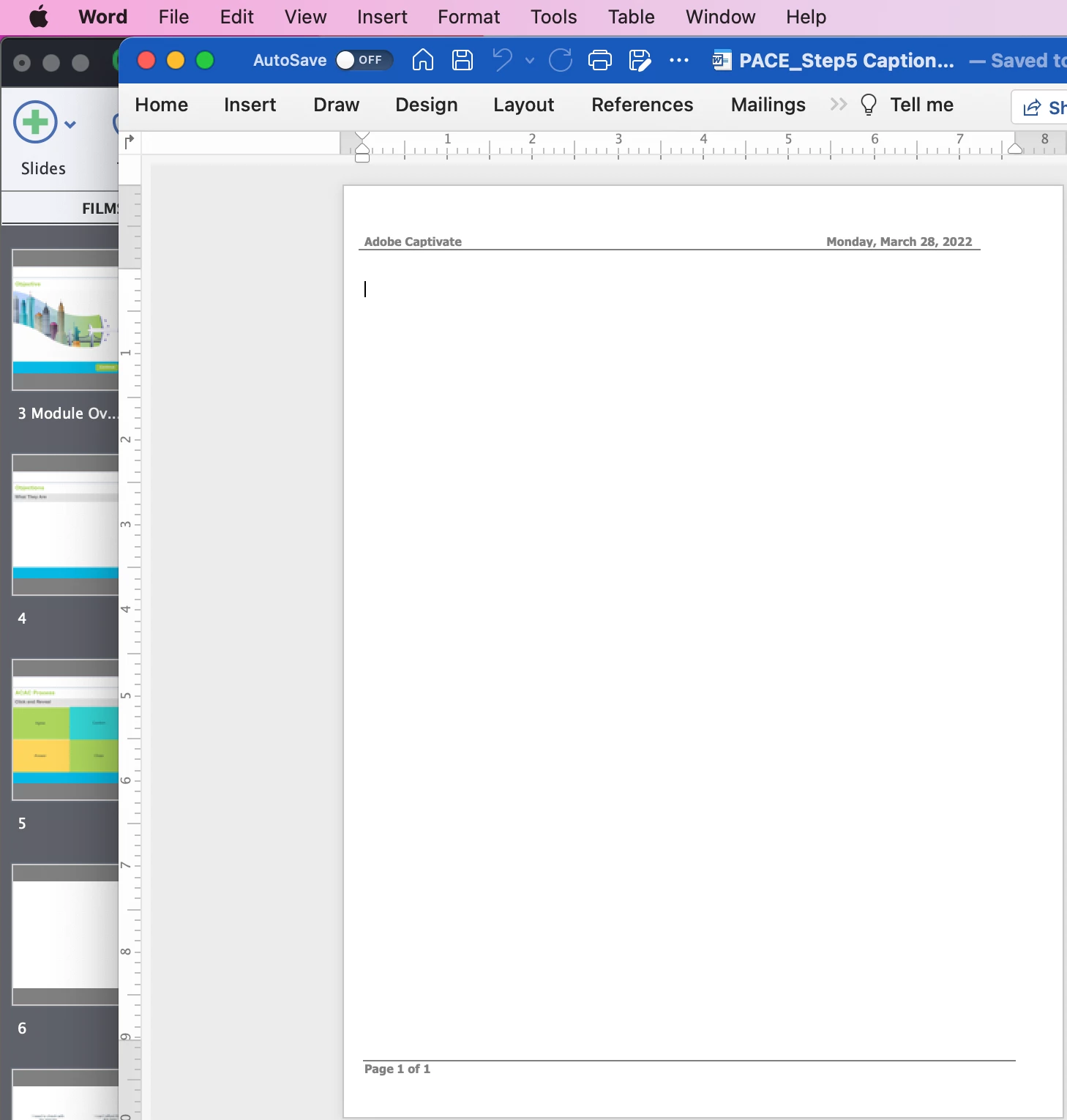
Right now I can only export on a PC. Will there be a fix?


    This topic has been closed for replies.

    4 replies

    Participating Frequently
    September 26, 2022

    I decided to export it to a PC instead. Thank you all!

    Paul Wilson CTDP
    Community Expert
    Community Expert
    March 29, 2022

    If you are exporting project text and closed captions you might run into white on white text if your course used white text on a darker background. My solution, if this is the problem, is to go to the Design tab and change the colour of the page to something that will contrast with the white text.

    Paul Wilson, CTDP
    Lilybiri
    Legend
    March 29, 2022

    Do you mean File, Export, Project Captions and Closed Captions? 

    That has always been tricky. It can be due to incompatibility between the Word version and Captivate version. I am not a Mac but a Win user. Sometimes you need to insist, sometimes it works when Word is opened while exporting, sometimes it needs to be closed. Do you use shapes or captions as text containers? Did you check the text styles in the Word document? Styles are taken over from Captivate (where it is called object styles).

    Rod is pointing to the File, Print options. That is the reason why I wanted to verify. That export is meant to be used for translations. Can you export to XML?

    RodWard
    Community Expert
    Community Expert
    March 29, 2022

    If you want a Word document that shows the contents of your project, use File > Print and then on the Print dialog, select which specific slides or ranges of slides you want output.  I find the Handout type is best.  These are the settings I choose.