
Known Participant
December 4, 2013
Question

Captivate 7 not showing the red frame when recording a slide

  • December 4, 2013
  • 4 replies
  • 2264 views

I've been using the "Record Additional Slides" button since Captivate 5, and never run into this problem: the red frame that lets you define what you want to capture is not displaying. When I try to record, Captivate captures a portion of the software window, and the desktop. How can I force the red frame to display?

Thank you for your help!

Heloisa

*** By the way, it is happening when I run Captivate from my Apple computer. I just tested running Captitvate on my parallels machine, and the frame does show up.
This topic has been closed for replies.

4 replies

Participant
August 5, 2014

I just ran into this too and figured out a way to get Captivate to display the red box again.  It is not a fix, it is a workaround.

BTW, my scenario was a MacBook Air running Mavericks with an external Thunderbolt monitor.  The red box would not display on the Thunderbolt monitor.  The red box would display on the laptop screen if I disconnected the Thunderbolt monitor and restarted Captivate.  So the problem was how to get the red box to display on the Thunderbolt monitor.  One more thing, I was trying to capture a screen area and not a specific application window.  Here's how I got it to work.

I opened an application window (iTerm) on the Thunderbolt monitor and then told Captivate to capture the application window.  The red box was displayed around the application window.  Then I captured a single screen shot and stopped the capture.  I closed but did not save the file.  Then I started a new capture but selected screen area and a size.  The red box was displayed.  Success.

Hope this might help someone else.

Participant
January 16, 2014

I am having this same issue since I upgraded to Mavericks.  I have installed the patch and I still don't see the red box.  I've checked the settings and (like you) have been using Captivate for many years without ever experiencing this issue.  I am on a Macbook Pro but it worked before upgrading to Mavericks.

Any suggestions on how to fix this?


Thanks,
Molly

Participating Frequently
April 26, 2014

Same problem here. using Windows 7, Captivate 7 licensed, it was workig fine then  the red recording frame disappeared, when clicking the record button the option for selecting the recording area ( red frame) is not showing.

- I used the same project that i have already recorded someslide a day before.

- The Hide recording frame in recording prefrences is not selected

- I tried to record a new project ( same porblem)

- i closed captivate, renamed C:\Users\[user name]\AppData (hidden folder)\Local\Adobe\Adobe Captivate 7 folder, to have captivate set a new settings folder ( same problem)

- I have captivate 5.5 on the same PC, ( same problem)

Solution :

- changed the background image to Windows defults

- disconnected the extended monitor

- change the screen resolution

the Red Frame appeared again. it appears that the screen res. has the bug. play with it until the red frame shows again.

Participant
April 26, 2014

I figured out how to make the red box re-appear.   I used a separate monitor and when that display was plugged in, the red box wouldn't appear.  Once I unplugged the external display, the red box appeared again. 


It's sort of frustrating since ideally I could use both monitors when recording (one displaying the script that I read for audio, and one displaying the the visual I capture. 

Oh well, at least there's a workaround.

Known Participant
December 4, 2013

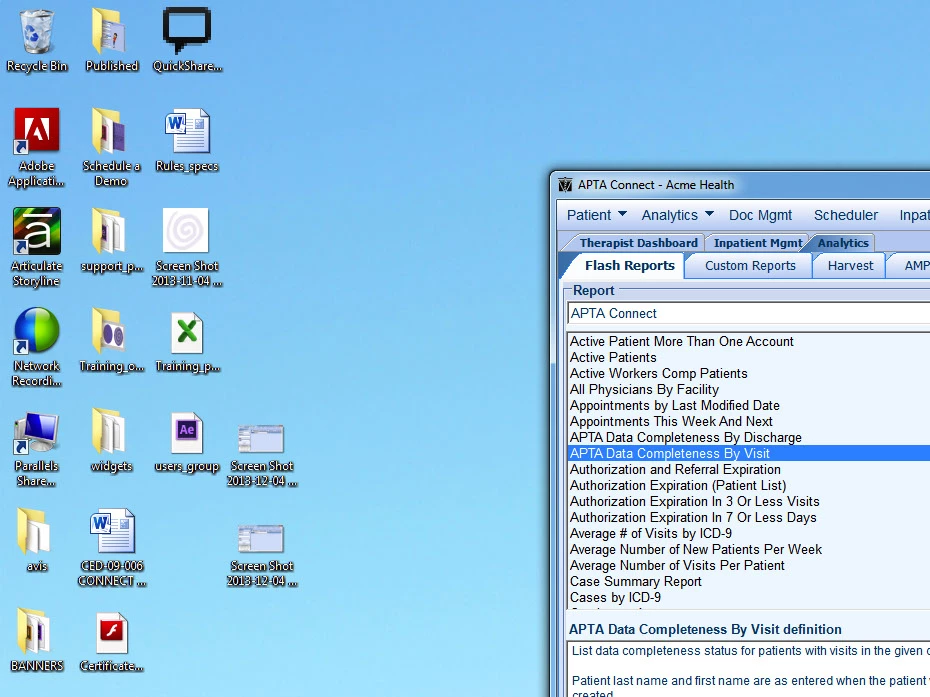
Interstingly, that option is not checked, however the frame is still not showing. The image shows the settings I have.

Thank you for your response.

Varun Kalra
Participating Frequently
December 7, 2013

Hi there,

Could you tell me the resolution of your project from which you are recording Additional slides?

Does it happen on a blank new project as well?

Have you tried recreating preferences for Adobe Captivate? if not, then try this step as well.

Here are the steps to recreate Preferences:

  • Save your Project.
  • Close Captivate
  • Windows 7: C:\Users\[user name]\AppData (hidden folder)\Local\Adobe\Adobe Captivate 7 folder
  • Rename the Captivate 7 folder to anything.
  • Launch Captivate.

Then try recording slides and check if frame shows up or not?

P.S. : Recreating preferences will reset all the customizations and settings of Captivate, but won't affect your projects.

Thanks.

Known Participant
December 9, 2013

Hello,

Just to clarify, the problem (no red frame while recording slides) happens only on the Apple version of Captivate. It runs fine on my parallel machine, however I am running a trial version there. My license is for the Apple platform. I'm concerned because my trial period will expire soon. the weird thing is that the Captivate that I have in my machine at home does not present this behavior. Only the one in my work machine.

The project resolution is 930px x 697px

This is the 14th module that I am developing for a training suite.I have never encountered this problem before. It all started after the Maverick's fiasco

So do  you think I should uninstall Captivate and start a brand new install? I tried changing the name of the folder but that didn't help much.

Thank you!

Heloisa

*****I just uninstalled and re-installed Captivate 7 7o my apple machine, but the problem persists. ;(

Varun Kalra
Participating Frequently
December 4, 2013

Hi there,

Please check the Adobe Captivate > Prferences and check whether hide recording window is checked by any chance in the recording settings.

Thanks.