


- Home
- Captivate
- Discussions
- Re: Checkbox widget text wrapping issue
- Re: Checkbox widget text wrapping issue
Checkbox widget text wrapping issue

Copy link to clipboard
Copied
I am using the stock checkbox widget in a standard responsive project in Captivate 8.0.1and even though it looks fine in the working window....
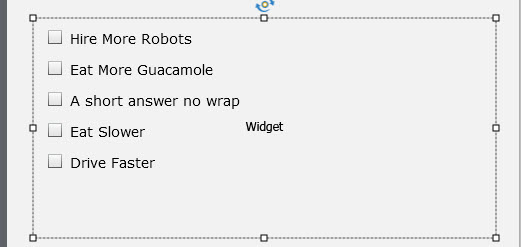
when I publish it.....the text wraps around.
I simply want the checkbox widget to stop arbitrarily wrapping the text.
What am I missing here?
Now even though the "help" section says I can set the position and size in the Transform window....there does not seem to be any options other than rotate...
Aside from that....
When I do click on the info button to see what the size/position etc., it says 140 for the width, 175 for the height.
but when I go to properties...I can see a different dimension. What looks to be the correct dimension.
I have tried everything and searched everywhere I can think of for a solution to this.
I have reset the width.height on each of the "views" and refreshed and tested each on individually, and they are all doing it.
I've even made the text blank, and aligned new, individual captions for each check boxk next to each check box in order to fake it. Even that doesn't work, because the text (while, again....looking perfect in the working window, becomes misaligned when published)
Can anyone please help me with this?


 9
Replies
9
9
Replies
9


Copy link to clipboard
Copied
Do you use the Checkbox widget or the Checkbox Learning Interaction? The latest version of the interaction has a checkbox for Scale Text, do you have that version:

I'm also puzzled by the Position panel setup, I would never use absolute size and position (px) for a responsive project. When I double-checked inserting the interaction in a responsive project, after resizing on the stage, I did get (just an example) these settings, and do not see any text wrapping when Previewing in Browser:

Copy link to clipboard
Copied
I am using the Learning Interaction, and it had the Updated ribbon when I captured this screenshot...so I tried it out, as I did not previously have the "Scale Text" option you mentioned...

It worked!
And I can't thank you enough! All the views look great too btw. I don't use absolute size or position either in responsive projects either, just grasping at straws with my testing by that point.
I will experiment with that new scaling option and see what kind of results I get.
Thank you again Lilybiri! Problem solved, and I couldn't be happier!


Copy link to clipboard
Copied
I've had problems with the Checkbox and radio button widgets and interactions. I had to edit the JavaScript to get them to work properly.
I haven't checked the Checkbox interaction, but the Radio button interaction converts numbers to strings and then tries to use that string to compare with numbers. It's doing the comparison for widths and heights. It will never work. I had to add in the code to rewrite the strings back to numbers.
Copy link to clipboard
Copied
In the widget html file, change the bolded width in this line:
<div ID="Widget_4538_checkbox" style="width:640px; height: 175px">
The file is located in the applicable folder, my widget id is 4538.
wr/Widget_4538/Widget_4538.htm
Copy link to clipboard
Copied
That's interesting TLCMediaDesign ! I was able to find the file and the style parameter for the div tag and it was 140X175 just like the "Animation Information" dialog box said. so I changed it to 220X400 just to see what would happen. No Change. However, once I inserted the new "Updated" version as mentioned by Lilybiri, and selected "Scale text" (although it might work with it unchecked now as well) everything looks great. Your advice on changing that style tag is very clever. I will keep that in mind moving forward. I'm already thinking of ways to customize the output based on your suggestion. Very helpful! Kudos! and Thank you very much!
Copy link to clipboard
Copied
I'm using the same thing and mine always wrap, no matter if I use the new or old ones. I've found that's it's easier to manipulate the old ones.
Very frustrating to have to apply my fixes every time I republish. I now have a version where I just copy in the new CPM.js and leave the widget folders alone. I have 35 of the interactions.
I also code mine to reset the radio buttons, and fix a IE error that gets thrown if you reselect a radio button. Mine also work in FIrefox.
Copy link to clipboard
Copied
You can reset them in Captivate by changing the variable (with latest version). I'm sure you have a better solution, but just wanted to tell that, blogged about it several times.
Copy link to clipboard
Copied
Thanks Lieve, my solution is not "better", just necessary.
I have a final test, html5, where the student must get 100% in order to pass. The results show how many they answered correctly. Then they retake, but are only presented with the questions they answered incorrectly. They keep on doing this until they achieve 100%.
I had to add code to reset the radio buttons so that what they answered previously did not show as selected and all radio buttons were deselected.
Also, if you made a selection and then changed it, an error was being thrown in IE.
Copy link to clipboard
Copied
David, I don't doubt your solution at all. Just tried to explain that with the latest version of the interactions (checkbox, radiobutton and TextArea) it is possible to reset the interactions by assigning an empty variable (v_null). I blogged about it. For that feature it is not necessary to change the code.


Get ready! An upgraded Adobe Community experience is coming in January.
Learn more
 AdChoices