
Participant
September 2, 2017
Answered

Device Landing Page - Publish for Device

  • September 2, 2017
  • 3 replies
  • 239 views

Hello everyone,

I am pretty acquainted with Captivate...however, I have never done a responsive project before. I am creating a project that will use all custom navigation by way of buttons throughout the project. So, I do not want to use gestures or the playbar. I was able to figure out how to turn those off (thanks to community posts). However, I am still getting a landing page of sorts with a play icon on it when I first open the project from my website. I would rather the project start on Slide 1 of my project. Is this something that can be easily removed?

If you want to see what I am talking about you can see it here (unless I fixed it already) The landing page only appears on devices though...on the desktop it goes right to Slide 1.

Thanks in advance for any help,

Tacha
This topic has been closed for replies.
Correct answer Lilybiri

Apple devices don't allow autoplay.

I will turn off Auto Play, add a poster image  to each movie,

I will replace the Play_icon.png by an invisible PNG in the folder HTML\Assets\htmlimages. On the poster image I add - centered vertically and horizontally -  a custom play image that fits in with the design. Here is a link to such an example file with poster image:

FluidBoxes on Master slides

3 replies

Participant
September 2, 2017

Thank you both for your quick assistance. Hopefully, I will get it fixed today.

Lilybiri
LilybiriCorrect answer
Legend
September 2, 2017

Apple devices don't allow autoplay.

I will turn off Auto Play, add a poster image  to each movie,

I will replace the Play_icon.png by an invisible PNG in the folder HTML\Assets\htmlimages. On the poster image I add - centered vertically and horizontally -  a custom play image that fits in with the design. Here is a link to such an example file with poster image:

FluidBoxes on Master slides

Paul Wilson CTDP
Community Expert
Community Expert
September 2, 2017

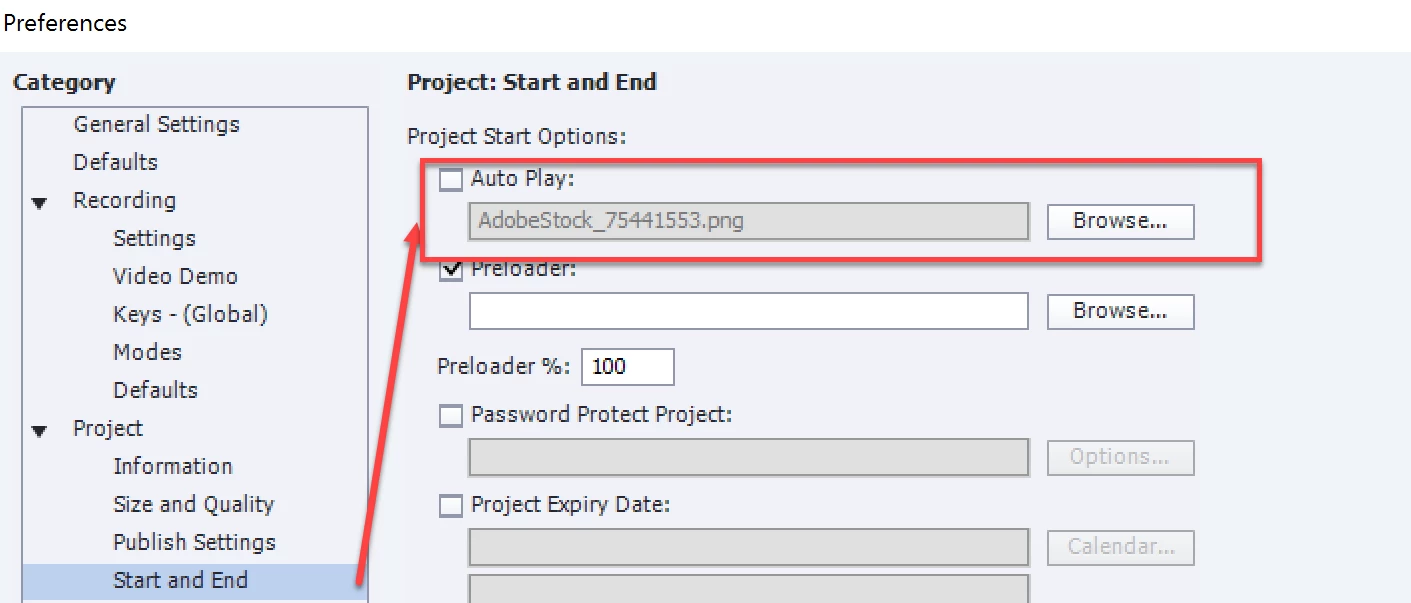
The two main mobile operating systems iOS and Android don't allow for auto play of eLearning courses. What you can do to help with this is to add an image behind the play button. This image could include instructions to your learners to click the play button to begin. Just use the browse to feature next to auto play in preferences to select and add such an image. 

Paul Wilson, CTDP