
Participating Frequently
October 8, 2009
Answered

How do I apply a Design Template to an existing project, and...?

  • October 8, 2009
  • 1 reply
  • 2273 views

I made some customizations to one of the design templates and saved those changes.  I want to have these changes applied to existing and new projects, how do I get this to happen?  Also when making the customizations to the design template, I seem to be able to only make certain changes.  For Example: The first item is a TEB - I am able to change the success and failure caption boxes but only in regard to style, I can't seem to change the text.  It reads "Type success text here."  I want that to always read "Correct!"  so how can I implement this without have to change the text for each item in the project?

Thanks for your time!

Tami

This topic has been closed for replies.
Correct answer Captiv8r

Hi there

btjra wrote:

I made some customizations to one of the design templates and saved those changes.  I want to have these changes applied to existing and new projects, how do I get this to happen?

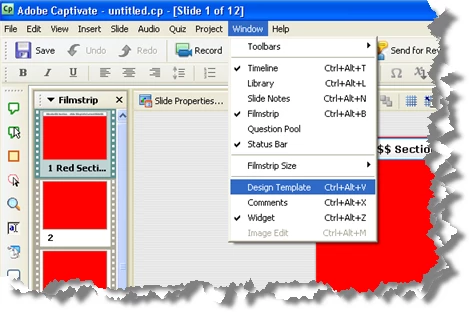
After you create your design template, you apply it by opening a project that you wish to apply the template to. Then you click the Window menu and choose Design Template.

This opens the Design Template panel. From there you choose a template to apply to your project.

btjra wrote:

Also when making the customizations to the design template, I seem to be able to only make certain changes.  For Example: The first item is a TEB - I am able to change the success and failure caption boxes but only in regard to style, I can't seem to change the text.

Indeed you may only apply the visual characteristics. The text is influenced by editing the object later in the project.

btjra wrote:

I want that to always read "Correct!"  so how can I implement this without have to change the text for each item in the project?

Thanks for your time!

Tami
I don't think you will be able to influence this. Not with a Design Template. What you can do is create a Project Template with the captions pre-configured. Then you could copy and paste as needed to accomplish it.

You should add your voice to others that wish to see more flexibility with configuring defaults such as what you are asking. You do this via the Wish Form.

Cheers... Rick

Helpful and Handy Links

Captivate Wish Form/Bug Reporting Form

Adobe Certified Captivate Training

SorcerStone Blog

Captivate eBooks

1 reply

Captiv8r
Captiv8rCorrect answer
Legend
October 8, 2009

Hi there

btjra wrote:

I made some customizations to one of the design templates and saved those changes.  I want to have these changes applied to existing and new projects, how do I get this to happen?

After you create your design template, you apply it by opening a project that you wish to apply the template to. Then you click the Window menu and choose Design Template.

This opens the Design Template panel. From there you choose a template to apply to your project.

btjra wrote:

Also when making the customizations to the design template, I seem to be able to only make certain changes.  For Example: The first item is a TEB - I am able to change the success and failure caption boxes but only in regard to style, I can't seem to change the text.

Indeed you may only apply the visual characteristics. The text is influenced by editing the object later in the project.

btjra wrote:

I want that to always read "Correct!"  so how can I implement this without have to change the text for each item in the project?

Thanks for your time!

Tami

I don't think you will be able to influence this. Not with a Design Template. What you can do is create a Project Template with the captions pre-configured. Then you could copy and paste as needed to accomplish it.

You should add your voice to others that wish to see more flexibility with configuring defaults such as what you are asking. You do this via the Wish Form.

Cheers... Rick

Helpful and Handy Links

Captivate Wish Form/Bug Reporting Form

Adobe Certified Captivate Training

SorcerStone Blog

Captivate eBooks

btjraAuthor
Participating Frequently
October 8, 2009

Thanks Rick!

As always, you are the man with the answers!  I will add this request to the wish list post haste!

As for this comment -

I don't think you will be able to influence this. Not with a Design Template. What you can do is create a Project Template with the captions pre-configured. Then you could copy and paste as needed to accomplish it.

You should add your voice to others that wish to see more flexibility with configuring defaults such as what you are asking. You do this via the Wish Form.

Cheers... Rick

I have tried the copy/paste option before and it would not copy.  I assumed it was because the text captions I need to change are dictated by a task users complete and so a copy from a regular text caption isn't accepted by a success/failure caption.  I recently attended the Captivate 4 Masters course where I was told I could solve this problem by changing one and using the Apply to All settings at the bottom of the properties as described here:

Apply only to changed properties - Apply to all slides - Apply to all captions of this type.

When I do this, only the opened captioned actually changes.  But when I use apply all to change a highlight box, however, the changes take place on all slides.  I am only left with and assumption that the Success/Failure boxes are blocked for universal changes to text.  It is quite tedious to have to retype Correct and Incorrect on each actions coresponding caption.

Thanks again for your help!!

Tami

Captiv8r
Legend
October 9, 2009

Hi Tami

I'm perplexed why my suggestion fails to work for you. Moments ago I tested it to ensure it works and it does for me. So perhaps it will help if I outline what steps I followed.

In your Captivate Masters class, were you also advised that sometimes you see a bug related to the Apply To All function and as a result you should not expect it to be 100% reliable?

Here are the steps I followed.

I took an existing project and added a Click Box object to it. I configured all feedback captions to show. Success, Failure and Hint.

The captions were inserted with the standard readings of:

  • Type Success Text Here
  • Type Failure Text Here
  • Type Hint Text Here

I edited each caption to read differently and to be placed in a new position where they all overlapped.

The captions now read:

  • Yay! Good for you. You clicked the Click Box!
  • Boo! Hiss! You missed the Click Box!
  • Yep! Here is where you should click!

Then I saved the project as a template.

I then created a new project based on my template. There was my Click Box and my captions were exactly as I had left them.

I added some slides and copied my Click Box. Upon pasting, my captions remained intact.

Hopefully this my provide some insight into why it didn't work for you.

Cheers... Rick

Helpful and Handy Links

Captivate Wish Form/Bug Reporting Form

Adobe Certified Captivate Training

SorcerStone Blog

Captivate eBooks