


- Home
- Captivate
- Discussions
- Re: Sounds like a use case for a 'While' loop in a...
- Re: Sounds like a use case for a 'While' loop in a...

Copy link to clipboard
Copied
I have a screen simulation where an object flashes until the user clicks a button. We hope they'll do that pretty quickly but in case they don't we need it to continue flashing until they do. Any ideas will be appreciated. Can this be done with an advanced action?
Thanks in advance,
Susan


 1 Correct answer

Sounds like a use case for a 'While' loop in an Advanced Action.
Create two object states for your flashing object to represent Flash_on and Flash_off.
Create a User Variable - say v_isFlashing - and give it a default value of 1.
Create an Advanced Action, check 'Conditional Tab', select 'While' from the 'Perform actions:' drop-down list, and set the condition of v_isFlashing == 1.
Under 'Actions', have your flashing object repeatedly change states between Flash_on and Flash_off, with 'Delay Next Ac
...
 11
Replies
11
11
Replies
11

Copy link to clipboard
Copied
Sounds like a use case for a 'While' loop in an Advanced Action.
Create two object states for your flashing object to represent Flash_on and Flash_off.
Create a User Variable - say v_isFlashing - and give it a default value of 1.
Create an Advanced Action, check 'Conditional Tab', select 'While' from the 'Perform actions:' drop-down list, and set the condition of v_isFlashing == 1.
Under 'Actions', have your flashing object repeatedly change states between Flash_on and Flash_off, with 'Delay Next Actions By' command in between.
Run this action on Slide Enter.
Have your button assign the value 0 to v_isFlashing.
The script will be looped and executed repeatedly about every second and keep the object flashing as long as v_isFlashing has the value 1. It will stop flashing when the value 0 gets assigned, which happens on click of the button.
Play with the ' Delay Next Actions By' values to make it loop seamlessly.
Copy link to clipboard
Copied
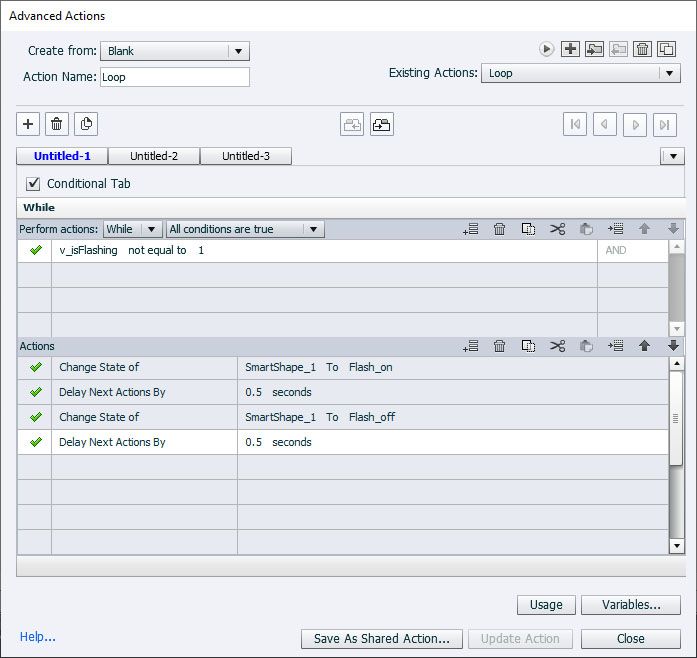
I must be doing something wrong. Here is what I built from the directions above. In the properties panel for the button to stop the loop I've assigned 0 to v_isFlashing.
Copy link to clipboard
Copied
Hhm, works for me.
Do you run the 'Loop' Advanced Action on Slide Enter? Sorry, looks like I initially failed to mention that in my previous post. Corrected now.
Copy link to clipboard
Copied
Yes I ran it on slide enter. Just to verify the == means not equal?

Copy link to clipboard
Copied
No.
See my post below.

Copy link to clipboard
Copied
Example, action triggered by On Enter event of the slide. Each cycle in the process takes some time to restart, hence the delay of 1 sec. Default value of v_flash == 1

I wanted to post an alternative as well, was typing when Gaanf entered his answer. Anyway, here is another screenshot:
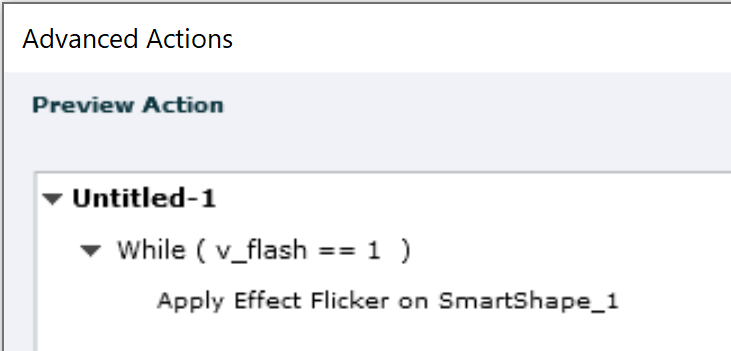
The SmartShape_1 is the object which is flashing.
Copy link to clipboard
Copied
I've tried all these ways and it's not working. This is in CP2017. Am I correct in thinking == means not equal to?
Copy link to clipboard
Copied
The == would mean IS equal to where != would mean NOT equal to.
Copy link to clipboard
Copied
Thanks.
Copy link to clipboard
Copied
The Flicker option only flickers a few times then stops. I need it to continue flickering until the button is pushed. So did the loop option. ???
Copy link to clipboard
Copied
You must have something awry, I tested both solutions in an example file.


Get ready! An upgraded Adobe Community experience is coming in January.
Learn more
 AdChoices