


- Home
- Captivate
- Discussions
- Re: How do I make content appear using a button?
- Re: How do I make content appear using a button?

Copy link to clipboard
Copied
Good morning, how do I create "hidden" text or objects and have them appear when the user clicks a button? Is it different for an image then it is for, say a text box? I would usually use this type of effect for text.
Thank you!
Tanya


 1 Correct answer

Hi there
Pretty much anything you see in Captivate is known as an "object". And pretty much across the board, you are able to hide an object as well as name it.

Once you have hidden and named an object, you then create Advanced Actions to manipulate them. (Hiding them, Showing them, etc)
You click Project > Advanced Actions to begin that process.
Once you have created an Advanced Action, you then assign it to the Button so that when it has been clicked, the action(s) are carried out.
Cheers... Rick
...
 9
Replies
9
9
Replies
9

Copy link to clipboard
Copied
Hi there
Pretty much anything you see in Captivate is known as an "object". And pretty much across the board, you are able to hide an object as well as name it.

Once you have hidden and named an object, you then create Advanced Actions to manipulate them. (Hiding them, Showing them, etc)
You click Project > Advanced Actions to begin that process.
Once you have created an Advanced Action, you then assign it to the Button so that when it has been clicked, the action(s) are carried out.
Cheers... Rick 
Copy link to clipboard
Copied
Thank you - that worked!! Do you know, however, if you can do this with objects other than a button? So, for instance, as seen below, it would be a lot better if I could make the text appear when the student clicks on the letter instead of having a button.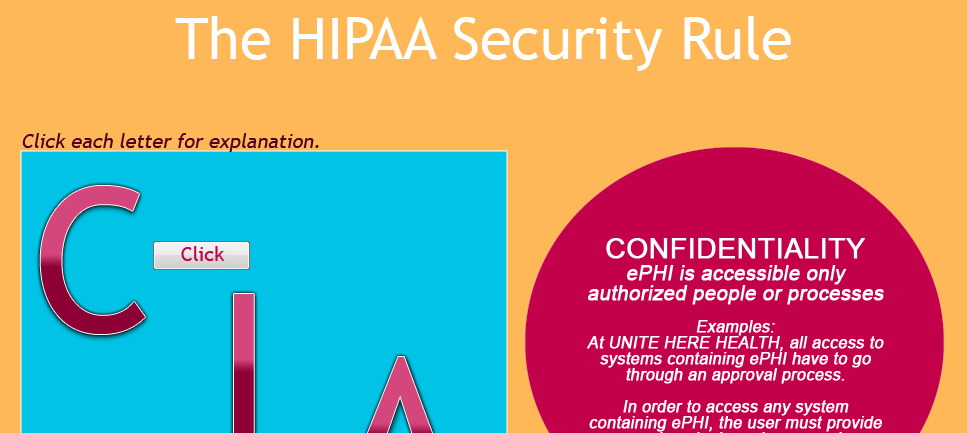

Copy link to clipboard
Copied
Any interactive object can trigger actions, simple, shared or advanced. You could put a click box over the letter but (of course Rick) I would recommend using a Shape button filled with the image of that letter, the way i explained in this post:
Turn an Image into a Button - Captivate blog
Be aware that what you do show will remain visible until you hide it again. That could be an issue if you come back to the original slide and want it to be in the state without the explanation visible. You didn't tell which version you are using?
Copy link to clipboard
Copied
Please enlighten us on exactly why in this specific instance you would elect to use a shape? 
Copy link to clipboard
Copied
@Rick To avoid the need of having two objects: the image of the C and a click box on top of it. That is one of the reasons I recommend using shape buttons, not the only one.
@tanya Since you are on Captivate 9, another approach would be to use the multistate objects, look at my blog posts:
1 action = 5 Toggle Buttons - Captivate blog
Playing with Captivate 9 - Captivate blog
If you want only to use multistate object to show the explanation, you don't even need an advanced action in CP9, because you can now uncheck the option 'Continue playing the project' in the Actions tab. Same for Hide/show
Copy link to clipboard
Copied
Lilybiri, yes I see, that would work...I could use a shape and put my letter in there and "use as a button". Thank you,
Captiv8r - I'm not sure of your questions. My question was asked because if I already have something the user can click...in this case I have three very large letters C I A, I don't want to put a button below that. I'd rather have them click on the letter itself - as Lilybiri explained I could do it in a shape and make the shape a button.
Rick, again thank you for your explanation, but I did want to point out that one doesn't have to go to those extra steps if one is using a button (in CP 9 though, it could be different in other versions). When a button is created, the user can go to Actions, and use the "on success" "show" action and pick the name of the object form the script dropdown. The reason I didn't see that first is because I was trying to make it so that if the user clicked on my giant "C", the explanation of the "C" would appear. The same options down't appear when just a text box is clicked. But thanks anyway because I didn't know how to use advanced actions before, and now I do!
Copy link to clipboard
Copied
Indeed you are able to click and show as you say. But the problem with that approach is that I'm assuming the play has paused. The moment you use that action, the play will resume and likely cause you to scratch your head because things seem to "fall apart".
Copy link to clipboard
Copied
Oh, and I was honestly curious about Lilybiri's approach. If we know more about why she suggested what she did, it might make better sense to us.
Cheers... Rick
Copy link to clipboard
Copied
Yeah, I'm still familiarizing myself on "timing"...still a bit confused about flow, you know...


Get ready! An upgraded Adobe Community experience is coming in January.
Learn more
 AdChoices