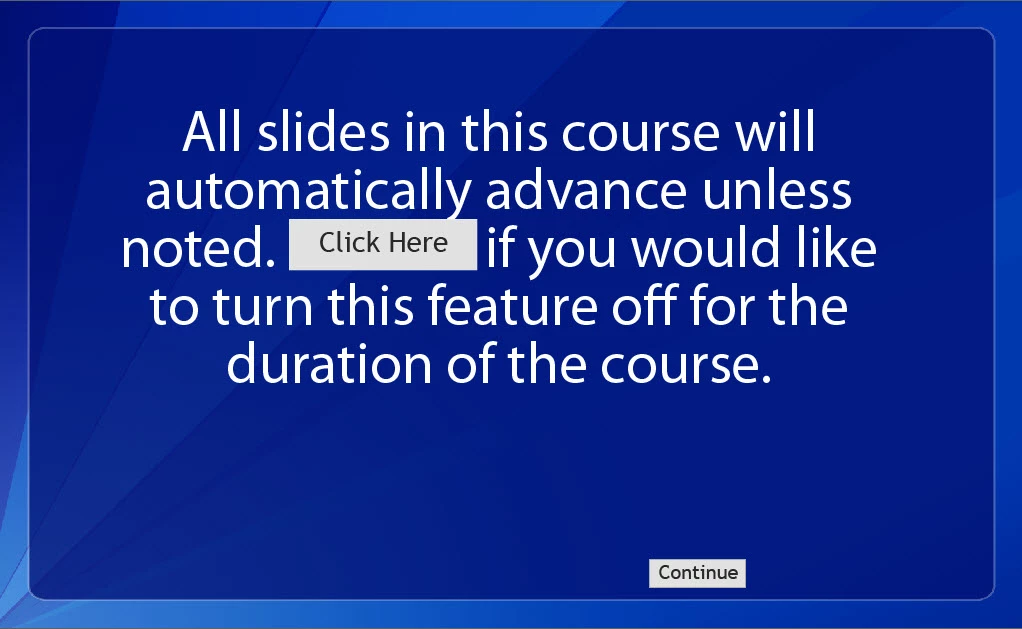
I'm not very, very new. Here is a mock up of the slide. It only requires one button and it's not just to show or hide the continue button.
Hi!
I'm assuming your project "naturally" autoplays - automatically advances to next at the end of each slide.
I was able to get this to work by creating a variable "var_continue" and two buttons on the title slide: Autoplay and Continue. Autoplay lets the project run start to finish and Continue pauses at each slide until the learner selects Continue (those button titles may not be very clear to a learner so you might think of better ones).
Both Autoplay & Continue are set to pause after 1.5 seconds, so this should force a choice on your title slide. The advanced action attached to Autoplay assigns "var_continue" with 0 then continues. The advanced action attached to Continue assigns "var_continue" with 1 then continues. You can try using "Toggle" - but I never have much luck with it and prefer to just assign values.
The Exit action of the title slide will be another advanced action - but first, let's jump to the first slide following the title slide.
As Leive suggested, add another Continue button to this slide using a shape and selecting "Use as Button" in the properties. For it's action, select "Go to the next slide" (or "Continue", but I prefer to specify). Then go to Timing Properties, select "Display For: Rest of Project", then select "Pause After: 1.5 seconds". Name this button "b_continue"
So let's talk about that Exit action for the title slide. I called it "act_autoplayToggle". It should be a conditional action that checks if "var_continue" equals 1. If it does, Show "b_continue" and Enable "b_continue". Else, Hide "b_continue" and Disable "b_continue". Enabling/disabling might be overkill, but why not, right?
If Autoplay is selected on the title slide, the project should play normally. If Continue is selected on the title slide, a Continue button will appear on each title slide and pause each slide after 1.5 seconds until the button is selected.
Now, I'm making another set of assumptions for simplicity, which is my slide defaults are set to 2 seconds and I don't have animation or narration that makes them longer or shorter. Pausing at 1.5 seconds works because they're all 2 seconds long. You can adjust the "Pause After" length, but the Continue button will have the same pause length for each slide. If you have variations in slide length, this won't be impossible, but you can't have one Continue button that shows through the entire project (at least, I don't know how that would work without pausing for the longest required amount of time, but I'm all ears if someone else does).
Instead, you'd have to time a separate Continue button for each slide and use a variation of "act_autoplayToggle" to make each slide show/hide that Continue button depending on the value of "var_continue". At this point, I'd move it to the On Enter action of each slide and look into a shared action. Would something like that help you?

 AdChoices