
Known Participant
April 30, 2010
Question

Mouse movements in Captivate

  • April 30, 2010
  • 1 reply
  • 3716 views

Hi all,

I tried searching the forums for a solution to this problem but I can't find a
thread with the answer and it's driving me mad.

I am trying to produce a Captivate movie and I want to insert a "mouse"
(BTW, the version that I am using is Captivate 3 as this is the only version
that we have a licence for etc)

Let's say I have 2 slides.

On the first slide slide, I go to the Top menu, Insert and then select Mouse.

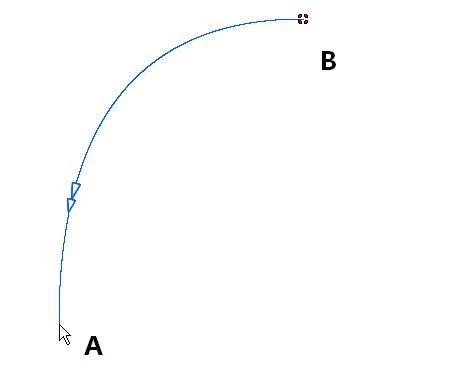
I then get a mouse as you would see in the attached image. Cursor "A" is
the end cursor that moves around etc. Point "B" is what I would call the "origin",

and this is where the mouse starts before moving along the path in Blue.

Obviously, on the screen, you can move A to any location, but you can also move B
around as well.

This is all well and good as I can manipulate this to suit the movie.

But if I go to the next slide and try to insert another mouse like this one, all I get is a mouse

with the end cursor "A", the path in blue but no origin point "B" that I can move around etc.

I can only move A around!

BUT, if I remove this mouse and then delete the FIRST slide with the fully adjustable mouse
with this origin point etc, I can go to the second slide and insert this type of mouse.

It's as if I can only insert a mouse like this on one slide ONLY which I am finding infuriating
OR am I missing something dead simple in the menu settings etc

Thanks in advance for any help

Cheers

Keith
    This topic has been closed for replies.

    1 reply

    Captiv8r
    Legend
    April 30, 2010

    Hi Keith

    This is normal behavior in Captivate.

    On the slide where the mouse first appears you are able to adjust both start and end points. On each slide after that one, the start point is determined by where the mouse STOPPED on the last slide. This is actually by design and provides continuity so you don't see the mouse suddenly popping to different areas of the screen and making the video seem disjointed.

    If your goal is to reposition the start point for a particular slide, duplicate the slide where it stopped. Remove all but the background and mouse, then reposition the stop point to where you want it to start. Also time the slide for the smallest timeslice. .1 seconds.

    Cheers... Rick

    Helpful and Handy Links

    Captivate Wish Form/Bug Reporting Form

    Adobe Certified Captivate Training

    SorcerStone Blog

    Captivate eBooks

    keith888Author
    Known Participant
    April 30, 2010

    Hi Captiv8r,

    Thanks for getting back me so quick. I have tried doing it your way by duplicating the first slide but
    I just can't find an origin point on the mouse on the second screen as it looks like it is still linked to
    the "A" point of that first mouse.

    I can only change the origin point of that first mouse.

    This is driving me mad...

    Thanks

    Captiv8r
    Legend
    April 30, 2010

    Please take a moment and re-read what I wrote. ONLY on the first slide (where the mouse appears) may you change BOTH the start and end points. Every slide that follows you are only able to change the end point.

    So perhaps you have slide six where the mouse first appears. On slide six you will have an abiliy to change both beginning and end points. But slides seven forward will only offer the end points to be changed because the start point is determined by where the mouse STOPPED on the slide just before.

    So perhaps slide 10 needs the start point to be different than where it is. You duplicate slide nine, then time it really short and change the end point (because that's all you can change) to reflect the new start point.

    Cheers... Rick

    Helpful and Handy Links

    Captivate Wish Form/Bug Reporting Form

    Adobe Certified Captivate Training

    SorcerStone Blog

    Captivate eBooks