New_guy1
Inspiring
December 20, 2016
Answered

"The Following Projects Have Many Unused Items" Where???

  • December 20, 2016
  • 2 replies
  • 831 views

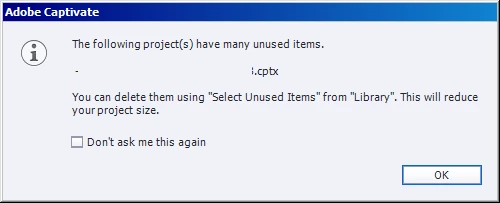
It received the message shown in the graphic below and want to know:

1.  How can I find out exactly what those unused items are?

2.  Is Captivate CERTAIN that I am not using it?
    This topic has been closed for replies.
    Correct answer RodWard

    Look in the Library.  There's a column there that shows the number of times each object is used.  Any items with 0 against Usage Count are not currently being used in the project and could possibly be deleted if there are no plans to use them.

    2 replies

    Lilybiri
    Legend
    December 20, 2016

    You can also use the right-click menu on the Library and choose Select Unused items. That way you could delete all of them at once.

    However: you have to know that unused items only have consequences for the file size of the cptx file (raw file), not for the published file. I will only delete unused items when the project is really finished, not in an early stage. You can simply ignore that warning, no problems.

    RodWard
    Community Expert
    RodWardCommunity ExpertCorrect answer
    Community Expert
    December 20, 2016

    Look in the Library.  There's a column there that shows the number of times each object is used.  Any items with 0 against Usage Count are not currently being used in the project and could possibly be deleted if there are no plans to use them.

    New_guy1
    New_guy1Author
    Inspiring
    December 20, 2016

    Does the library represent what is being used in my current captivate file only?

    I'm not familiar with the intricacies of the library.

    Lilybiri
    Legend
    December 20, 2016

    The Library is for me one of the most important aspects of Captivate. You can import all type of assets to the Library, and drag them from there to a slide. Same instance of an object can be reused, and in that case will not add to the file size. Shared actions, SVG's, audio clips are in the Library. You can import a native Photoshop file, indicate the layers you want to import and they'll be converted to PNG-image. It is from the Library that you can use the roundtripping with Photoshop, Audition, Illustrator (for SVG).

    You can open the Library of any project in another project as an external Library (File, Import menu) and drag assets either to the Library of that new project, or directly to the slides. I have a Library with shared actions which I can open in any project, saves me a lot of time.
