Linnel1
Known Participant
June 16, 2021
Answered

Simulating f6 and f12 keys and the tab key in Captivate 2017

  • June 16, 2021
  • 2 replies
  • 1410 views

Good day,


I'm using Captivate 2017. I've created a simulation for a systems training where the learners need to click f6 (to go to the next slide), f12 (to go to the next slide), and the tab key (to advance 1 space in the slide). As you can imagine, Chrome does like this, and when I publish and view the file in HTML5, the following happens:

f6 - the cursor visits multiple places on the browser window

f12 - A Chrome debugger window opens

tab - Has to be clicked 3 times in order for the cursor to move to the tab position on the slide.


Are there any workarounds for these issues?


    This topic has been closed for replies.
    Correct answer Stagprime2687219

    Hi. This was really helpful!

    But how do I stop it the function key applying to the rest of the simulation? Once past that page, every page can then be skipped using the F3 key. This is what I currently have set.


    Thanks!


    The code we've used so far allows us to turn on the listener.

    If you no longer wish to use it - we need to turn it off.

    Therefore - if the F3 button takes you to the next slide and you do not wish to allow that on the next slide - give this a try.


    // Turn off the keydown listener
    $(document).off('keydown');


    Place it on the onEnter action of the next slide.

    Hope it helps.


    2 replies

    Stagprime2687219
    Legend
    June 16, 2021

    Something like this would require a JavaScript solution.

    Here is a thought... give it a try and see if it helps.

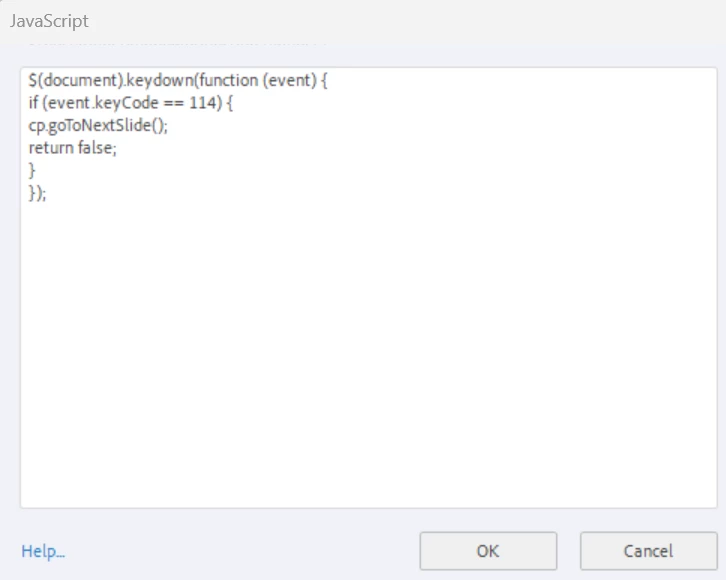
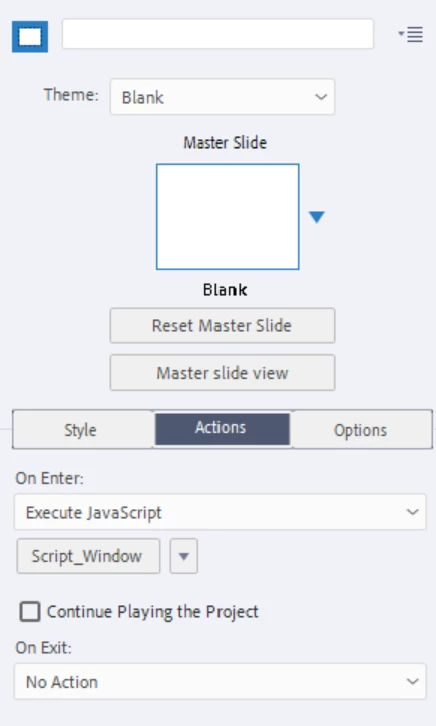
    Use the  onEnter  action for your slide to  Execute JavaScript

    In the script window...


    // F12 Goto Next Slide but don't open dev tools
    
    $(document).keydown(function (event) {
        if (event.keyCode == 123) {
           cp.goToNextSlide();
           return false;
        } 
    });


    The keyCode for the F12 button is 123

    F6 is 117

    Tab is 9


    Basically we have replaced the default action with our own.

    You would need to craft the actual actions you want performed in terms of JavaScript.


    Hopefully this works for you.

    Participant
    June 18, 2021

    Stagprime, I'm not the OP, but I still wanted to post an enthusiastic thank-you. I'm working on tutorials for a text-based system with all sorts of keystrokes that get tangled up in browsers... but this solution is exactly what I needed! Works like a charm! 

    Stagprime2687219
    Legend
    June 21, 2021

    Glad to hear that it was helpful for you.

    LinSims
    Community Expert
    Community Expert
    June 16, 2021

    Let me move this to the Captivate forum for you, which is the appropriate forum for your question.

    The Using the Community forum is for help in using the Adobe Support Community forums, not for help with specific programs. Product questions should be posted in the associated product community.

    Linnel1
    Linnel1Author
    Known Participant
    June 21, 2021

    Stagprime,

    Thanks so much for your speedy response. I'm sure I'm not doing this correctly, but I'm trying.


    For the f12 issue,

    1. In Captivate 2017, I established a variable called "Bypassdebugger."
    I assigned the variable with an initial value of zero.

    I assigned a text entry box with an F12 keyboard shortcut.  

    2. I don't see OnEnter in the Captivate interface (I see On success).

    I selected Execute Javascript under On Success.

    3. I pasted the following in the Script_Window


    // F12 Goto Next Slide but don't open dev tools

    $(document).keydown(function (event) {
    if (event.keyCode == 123) {
    cp.goToNextSlide();
    return false;
    }
    });


    The debugger window still comes up in Chrome. 


    I'm not a real programmer by any stretch, but any guidance you could give I would so 
    appreciate. I already appreciate what you've shared so far.


    Thanks!


    Stagprime2687219
    Legend
    June 21, 2021

    If you are seeing  "On Success"  then you are looking at the choice when a button is selected.


    Click on the space outside of your working stage so that the entire slide is reflected in the Properties Panel. Then you should see the  "On Enter"  dropdown.


    The code I provided should take you to the next slide in your project - if there is one - and not open the dev tools.

    If you need some other sort of validation to be included - that would need to be worked in.