Known Participant
December 21, 2017
Answered

Master Slide page numbers

  • December 21, 2017
  • 1 reply
  • 3140 views

How do I add page numbering to the master slide?

This topic has been closed for replies.
Correct answer Lilybiri

Not sure what you mean by the first question....In Captivate I see the slide as I expect to see it.

I don't see the option for 'Show Main Master Objects'.


But you said it didn't show the slide numbers, I don't understand  'I see the slide as I expect to see it'. I asked if you did see the slide numbers? Which master slide are you using? Please! This is the Properties panel for the Blank Master slide:
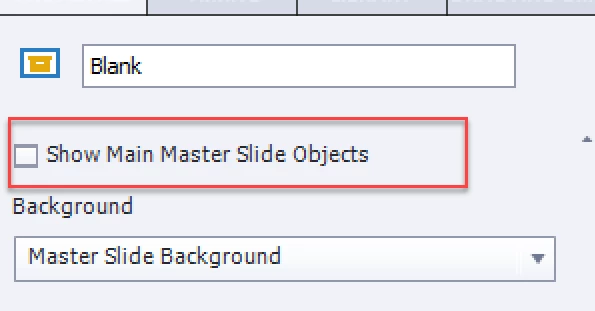
If your slide use this Blank master slide, which is not showing the Main Master slide objects you cannot see the slide numbers for which you added a text container on the main master slide (as you told me you did).

1 reply

RodWard
Community Expert
Community Expert
December 21, 2017

You can insert the System Variable called cpInfoCurrentSlide into a Text Caption or Smart Shape placed on the Master Slide.  This System Variable displays the current slide number.

Is that what you wanted?

Known Participant
December 21, 2017

Yes! A great start! Now, how do I find this variable?

Lilybiri
Legend
December 21, 2017

Create a text container (shape or caption) on the (main) master slide. Go into Edit mode by double-clicking or with F2.

Look in the Character part for the X-button (1 on screenshot). The insert Variable dialog box opens. Switch to System for Variable type (2). Choose the category 'Movie Information' (3). Find the variable. It will appear between $$ in the placeholder, but is replaced by its value on runtime. If you want 'Slide X of Y'. You can do the same with the system variable cpInfoSlideCount, from the same category. The length of the variables is the number of characters to be displayed, but for these variables the default length of 50 is OK.