
Inspiring
July 14, 2021
Answered

Unable to import my puppet =( - The Photoshop file operation failed

  • July 14, 2021
  • 3 replies
  • 1097 views

Error 1: When trying to import a PSD file for a new puppet I'm working on, I get this file operation failure. 
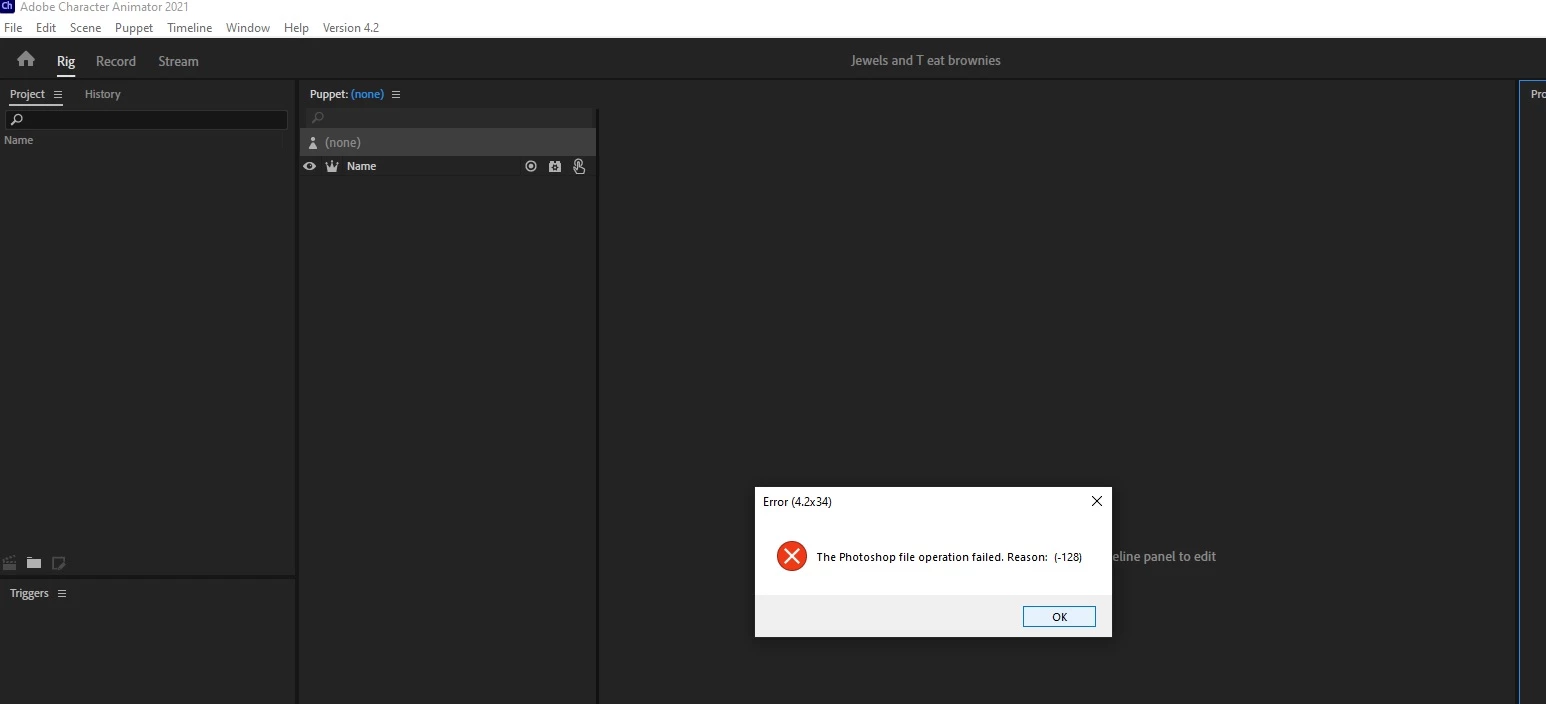
 

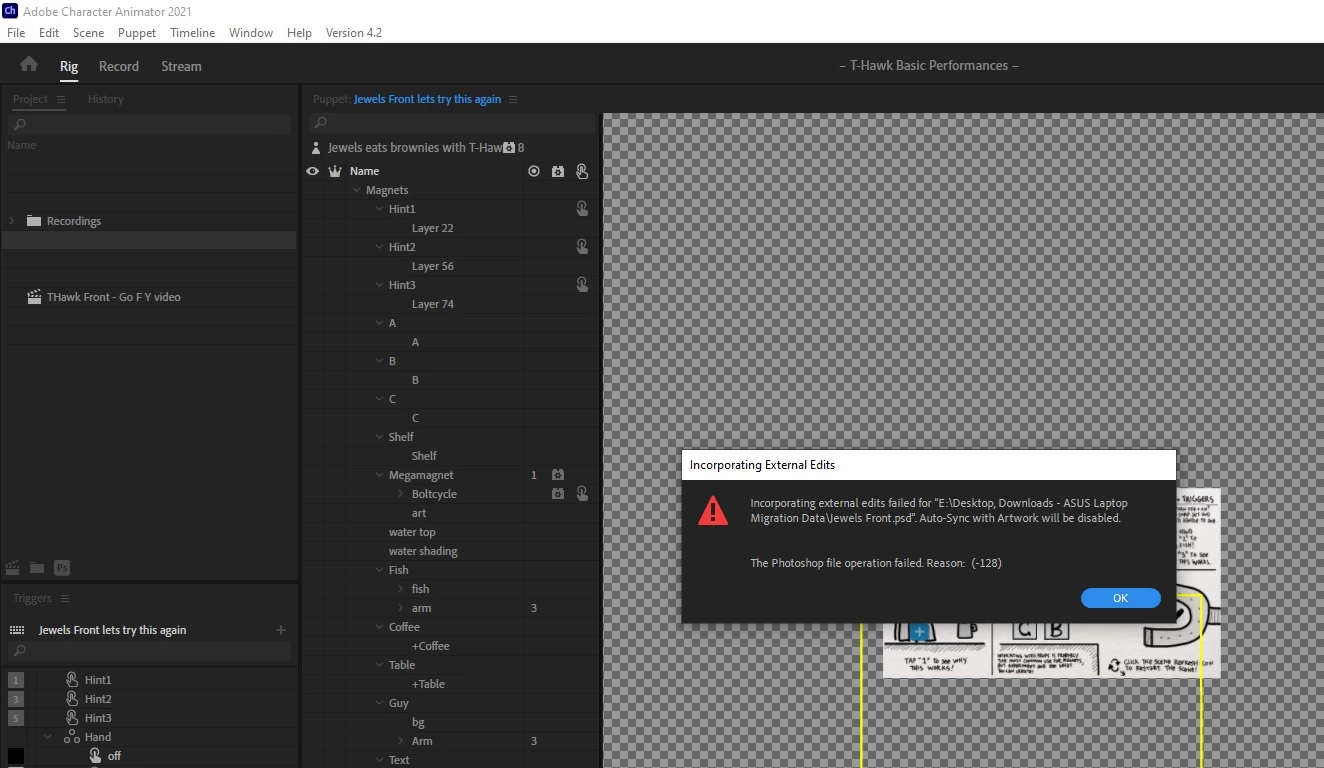
Error 2: When opening another project that already has this puppet imported I get this error: 

Incorporating external edits failed for "E:\Desktop, Downloads - ASUS Laptop Migration Data\Jewels Front.psd. Auto-Sync with Artwork will be disabled.

The Photoshop file operation failed. Reason: (-128)
 

The puppet in question opens fine in photoshop. I've tried duplicate the file, moving the file to another location, etc. I don't think this is a storage capacity issue. I have enough disk space (hundreds of gigs). 


Thank you

This topic has been closed for replies.
Correct answer jimmy8dmt

Update:


I think we narrowed this issue down to a problem with v4.2 and my CA project file. Here's what I tested:


  1. I tried copying the layers from the PSD puppet file into another photoshop file. Then I tried opening that copy PSD in CA v4.2, and I still get the issue.
  2. I uninstalled v4.2 and loaded the bad project file in v4.0 and it opens without issue. I loaded the bad puppet file in v4.0 and also no issue. 
  3. I upgraded v4.0 to v4.2 and opened a new project with just the bad puppet file and no issue. 
  4. I opened a copy of the bad project file in v4.2 that no longer contains the bad puppet, and it opens fine. However, if I open the original bad project file in v4.2 and then open the bad puppet file, it throws an error. Also, anytime I try opening a new project with the bad puppet file, it also throws an error. Strange!
  5. I reverted back down again to v4.0. I made a copy of the bad project file and removed the bad puppet. I opened the copy of the bad project file and it opens without error. I loaded the bad puppet file and that loads without error.


So it seems the problem has something to do with a corrupted project file and bad puppet file in v4.2. Everything opens up fine in v4.0.


Ciao!

3 replies

jimmy8dmtAuthorCorrect answer
Inspiring
July 18, 2021

Update:


I think we narrowed this issue down to a problem with v4.2 and my CA project file. Here's what I tested:


  1. I tried copying the layers from the PSD puppet file into another photoshop file. Then I tried opening that copy PSD in CA v4.2, and I still get the issue.
  2. I uninstalled v4.2 and loaded the bad project file in v4.0 and it opens without issue. I loaded the bad puppet file in v4.0 and also no issue. 
  3. I upgraded v4.0 to v4.2 and opened a new project with just the bad puppet file and no issue. 
  4. I opened a copy of the bad project file in v4.2 that no longer contains the bad puppet, and it opens fine. However, if I open the original bad project file in v4.2 and then open the bad puppet file, it throws an error. Also, anytime I try opening a new project with the bad puppet file, it also throws an error. Strange!
  5. I reverted back down again to v4.0. I made a copy of the bad project file and removed the bad puppet. I opened the copy of the bad project file and it opens without error. I loaded the bad puppet file and that loads without error.


So it seems the problem has something to do with a corrupted project file and bad puppet file in v4.2. Everything opens up fine in v4.0.


Ciao!

oksamurai
Legend
July 15, 2021

Can you post the PSD file here or DM me a link?

Participant
August 26, 2024

I would be very grateful if you could help me with the following problem, in Character Animator & Photoshop not connecting 🙁..... I have downloaded a PS face template from the official Adobe site, I try to load it in CH and it does not detect it, it is like if the file did not exist, I tried to drag the file to the CH program and nothing happens, help please 🙁

Participant
August 27, 2024

Make sure you have a valid PSD file and in Character Animator go to File > Import. You will need to be in Pro mode for this - click the upper right corner and switch from Starter to Pro if needed. If the problem persists, please upload a video or screenshot of your issue and we'll try to help you out.


Thank you teacher, problem solved

jimmy8dmtAuthor
Inspiring
July 15, 2021

Bump?