


kain19406534
Participating Frequently
May 6, 2019
질문

Help me out please! Colors seem to show wrong after monitor calibration?

  • May 6, 2019
  • 3 답변들
  • 4884 조회

Hi folks,

maybe somone with more knowledge when it comes to color management is able to help me out. I'd appreciate it a lot as I have been struggling to find correct answers on the web lately. Without much effort to be honest 😕😕 If someone could lead me to the right direction, I'd clearly make some kind of tutorial to help people out who have

been struggling as well. Now here's my problem:

I am trying to get consistent colors (and color values) in my Adobe CC programs after having calibrated my Eizo CS240 (Wide-Gamut-Monitor) with a colorimeter from

Eizo (Eizo/Spyder EX2). Something seems to be clearly wrong and I am trying hard to get consistent results.

First of all, I want to point out that when using sRGB as my default monitor profile in Windows 10, colors and color values seem to show right. I'll show you some screenshots first so you hopefully understand what I mean (I have my OS set to German language so I hope you still understand what I mean):

1. "Farbprofil" == display profile for monitor

(set to sRGB profile)
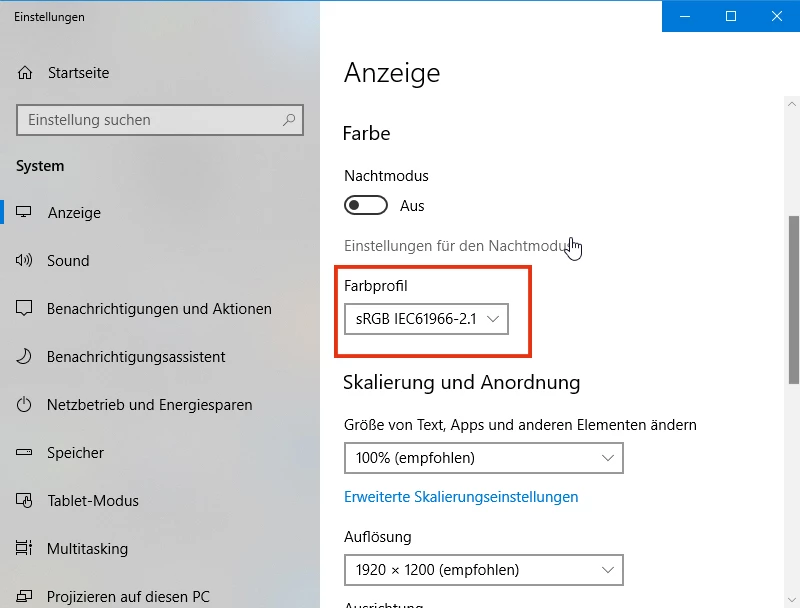
When set to sRGB (which would most likely not make a lot of sense in a color managed environment because it would propably limit a wide-gamut-monitor to sRGB I guess), everything plays out normal in the rest of Adobe programs. I have attached a screenshot of Illustrator showing what I mean:
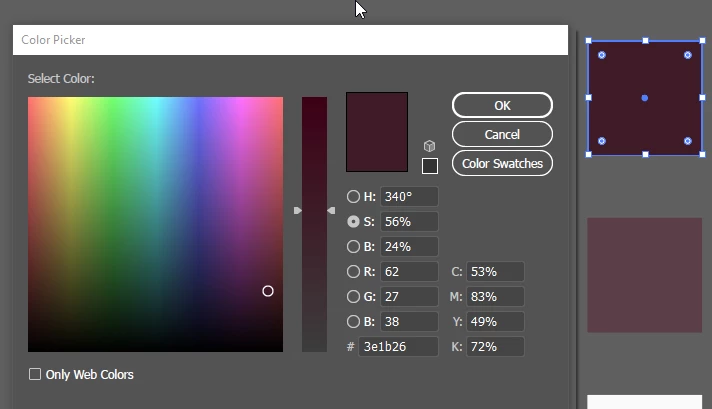
I got this square which I colored red with values RGB = 62/27/38 and HEX = #3e1b26.

Inside Illustrator the two colors visually match (the colored square and the displayed color inside the color picker).

In addition to that, not only do the colors visually match, but the color values are matching up as well.

I have used another external color picker (YS Instant Color Picker) to show you what I mean:
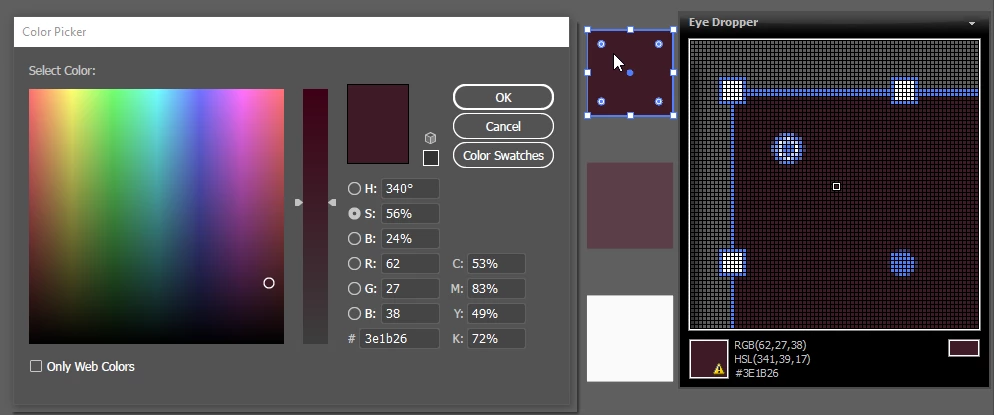
So far, so good it seems. All colors do visually match and the color values do match as well between a) the colored square, b) the displayed color inside Illustrator's color picker and c) the displayed color inside the external color picker.

PLEASE remember that all this happens when seen on my CS240 Eizo Monitor (wide-gamut) when set to sRGB in the display settings of the OS.

NOW HERE COMES THE PROBLEM:

When I now close all applications which use color management (like Adobe programs for example), then set my display color settings to a profiled one (instead of using sRGB like in the first screenshot I am now switching to Eizo CUSTOM profile which was the standard setting when the monitor was shipped) and reopen my Adobe programs, I am now getting the following problem:
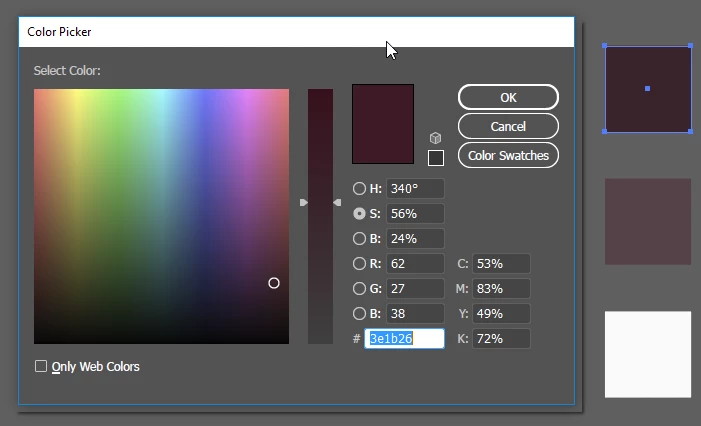
Now that I am using my calibrated and profiled color profile for my OS, Illustrator keeps showing me the right color inside the color picker but a wrong color

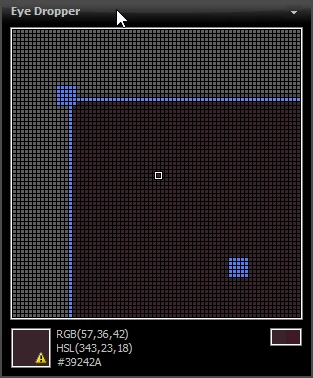
on-screen (the colored square which should be the exact same color). When inspected with the external color picker you can clearly see that not only does the visual appearance inside Illustrator differ from one color to another, but that the RGB values also no longer match:

1. color shown when inspecting color inside Illustrator's color picker (expected and intended values):
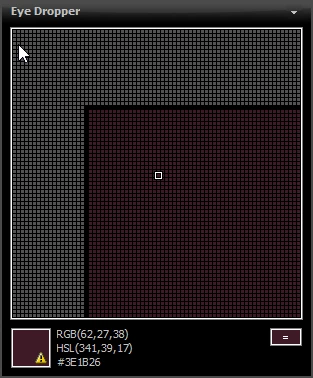
2. color shown when inspecting the actual colored square inside Illustrator ("washed out" representation when compared to color above):
Now I really don't quite understand what is going wrong here... I can no longer say which sRGB representation is the "right"...

What strikes me as especially strange is that even inside Illustrator colors no longer match up. I would have expected colors showing

wrong or different when using color-managed applications VS. non-color-managed applications BUT to get different color representations

inside the SAME color-managed application is utterly strange I think.

PLEASE SOMEONE HELP ME OUT. THIS TOPIC HAS TAKEN TOO MUCH TIME ALREADY TO GET THE GRASP OF AND I NEED HELP FROM SOMEONE

WHO CAN TELL ME WHAT EXACTLY S GOING WRONG HERE AND WHY. ANY HELP IS HIGHLY APPRECIATED

THX IN ADVANCE GUYS AND GIRLS

이 주제는 답변이 닫혔습니다.

3 답변

D Fosse
Community Expert
Community Expert
May 9, 2019

I'd just like to sum up what everybody here is saying.

The distinction between web and print is a false one. It's the wrong question to ask. There is no reason to treat them as separate entities.

If you have a properly color managed environment everything will display correctly, whatever the color space, whatever the destination and intended use. Web is no special case, it's like any other output.

There is no reason to restrict the monitor gamut for web work, any more than you need to restrict it for any other output. The monitor color space doesn't need to match anything else, it can be whatever it wants to - as long as you're using software that remaps the data into that color space. That's the key to the whole thing. Use color managed software, end of story.

---

One more thing: marketing has created this dichotomy between standard and wide gamut monitors. It isn't real! There is in fact nothing special about so-called wide gamut monitors. All monitors are different, and some are just a little more different. But for marketing reasons they have been lumped into these two camps, as if a monitor had to be one of those two. You could make a "medium gamut" monitor of any shade, and it would work just as well.

A standard gamut monitor requires color management too, if you want it to reproduce correctly. Most of them just happen to be close enough to sRGB for most people not to object too much to what they see, when it's fed sRGB data. But no monitor is ever made that reproduces sRGB correctly all by itself.

D Fosse
Community Expert
Community Expert
May 6, 2019

kain, can you please keep this in one thread? Having this spread over three separate threads is completely impossible to keep track of.

Please state which of these three threads we should respond to.

D Fosse
Community Expert
Community Expert
May 6, 2019

OK, I'm assuming this one. I will ignore the other two threads.

You cannot use sRGB as default display profile for that monitor. It is a wide gamut unit. The monitor profile needs to describe the actual, current behavior of the monitor.

This is what ColorNavigator makes for you. It measures the display and makes a profile based on that. ColorNavigator will then set up the profile at system level, and there's nothing further you need to do. That's it - done. There's normally no need to go into the Windows Color Management dialog, except to check.

Color managed applications load the monitor profile at application startup. They load whatever profile they get from the OS. This profile will be used until next startup.

In other words - if you change monitor profile, you need to relaunch Illustrator.

Run ColorNavigator again and don't do anything else. If it still doesn't display correctly, come back and we'll figure it out. Is this a dual display setup, like for instance a laptop + the Eizo? In that scenario it has happened that the wrong monitor profile is loaded.

kain19406534
kain19406534작성자
Participating Frequently
May 6, 2019

Too many things going on simultaneously here. We need to simplify and look at one thing at a time.

First, reset video card to default settings. Then reset Illustrator's color settings by choosing the "North America General Purpose" preset. It doesn't need to match other Adobe applications BTW. Close Illustrator down again.

Then create a new target in ColorNavigator. Set gamut to "Native", and the other parameters as you prefer. When you get to the point where you name the profile, click "customize profile". In the window that opens, set version 2.2 and tone curve "gamma value". This ensures a robust profile with minimum risk for errors.

Once ColorNavigator has finished, you should have this new profile set as system default. If you like, you can check in Windows Color Management (but don't do anything there).

At this point, open up Illustrator again. Create a new document in RGB mode. At default color settings, this will be sRGB, the profile will be embedded, and embedded profiles will always be preserved.

Avoid CMYK for now. The default policy of "preserve numbers" is there for a good reason, but can easily cause problems for the purpose at hand now.

---

If you follow this procedure, we have a scenario where everything should display correctly. All possible configuration errors should be eliminated. So if it still doesn't look right, there has to be a very specific issue somewhere. But to pinpoint that, we need first to be absolutely sure that everything is set up correctly.


Alright, I have followed the steps and (sadly) get the same results as before.

I have attached several screenshots in case I am missing something, which I don't think...

Do you think reinstalling my Adobe programs would make sense in this case maybe?

Thanks for sticking with me and trying to help me out. I have followed you through in several other forum posts

covering problems with Color Management and really appreciate the time you spend helping others

rob day
Community Expert
Community Expert
May 6, 2019

The problem with your testing is the color picker app is not color managed.

The Adobe apps use Lab as an intermediate, device independent color space to make the translation into your monitor‘s RGB profile, which is created by the hardware calibrator. So sRGB wouldn‘t likely be an accurate profile of your display, and using it would defeat the purpose of hardware calibration and monitor profile creation.

With Adobe apps the conversion for display goes from your editing space to Lab to the monitor profile—it might be AdobeRGB>Lab>MonitorRGB RGB, or sRGB>Lab>Monitor RGB, or US Web Coated SWOP CMYK>Lab>Monitor RGB etc. Your color picker app can’t deal with different editing and display RGB color spaces—it’s assuming there is a single RGB space.

kain19406534
kain19406534작성자
Participating Frequently
May 6, 2019

Hi,

thanks for the fast reply!

Now I get what you mean. I have contacted the customer staff at Eizo and he also replied saying that my external color picker app might not account for being color-managed.

STILL, how is it possible that the colors displayed inside Illustrator differ from one another?

(colored quad VS. the color shown in Illustrator's color picker)?

I would highly assume these two should be the same visually if viewed in the same program (Illustrator)?

Thanks for every advice in advance!