
Participating Frequently
December 13, 2017
Answered

Decal's text looks pixelated when rendered

  • December 13, 2017
  • 13 replies
  • 22206 views

Hi All,

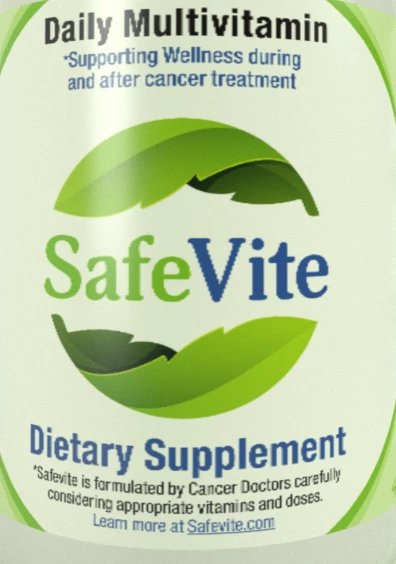
I have this issue with Dimensions where the text that appears in the decal pixelates pretty badly. I have tried using very high resolution (up to 1200 dpi) for the decal file. The original file is all vector made in Illustrator. I've tried using JPG's, PNG's, and PSD's but no luck. I also used CC Libraries and used the Illustrator file as an asset and pulled it into Dimensions. Every single render still looks the same. I am rendering it at 2300 pix x 2300 pix and at high quality (tried medium and low too but the same happens).

Here's an example of how it looks. Looks at the "V" in "Vite".
This topic has been closed for replies.
Correct answer JeanetteMathews

Hi Jenz!  There are a few things at the moment:

  • When using an .AI or .SVG file from Libraries Dimension needs to rasterize it to non-vector pixels.  This process does not actually make it "low-res" as ussnorway suggested.  By default they are rendered at 8,000 x 8,000 pixels.  Dimension doesn't yet have a mechanism in place to call for specific dimensions so we're loading a rather large image right now.  Resolution of the file itself is not actually the issue.
  • The second thing is that when a decal is added (through any mechanism) that decal's resolution is currently capped to 2,000 x 2,000 pixels.  This is irregardless of the size or resolution of the original image.  This is another Dimension limitation, not any issue with the art itself.

We hope to address both of these issues early next year.  Please note a lot of the pixelation is worse in the canvas and will be significantly improved when you render the file.

13 replies

danitosan
Inspiring
April 20, 2018

Same problem here and totally agree with Cledi​ and vplaas​. I've spent two days trying different combinations to make my renders look good, sadly getting always the same results. This is a beta version and you should warn us in order to manage our precious time properly.

JeanetteMathews
Adobe Employee
JeanetteMathewsCorrect answer
Adobe Employee
December 14, 2017

Hi Jenz!  There are a few things at the moment:

  • When using an .AI or .SVG file from Libraries Dimension needs to rasterize it to non-vector pixels.  This process does not actually make it "low-res" as ussnorway suggested.  By default they are rendered at 8,000 x 8,000 pixels.  Dimension doesn't yet have a mechanism in place to call for specific dimensions so we're loading a rather large image right now.  Resolution of the file itself is not actually the issue.
  • The second thing is that when a decal is added (through any mechanism) that decal's resolution is currently capped to 2,000 x 2,000 pixels.  This is irregardless of the size or resolution of the original image.  This is another Dimension limitation, not any issue with the art itself.

We hope to address both of these issues early next year.  Please note a lot of the pixelation is worse in the canvas and will be significantly improved when you render the file.

SideShowScott
Participating Frequently
June 8, 2018

Any new news? "early this year"... would that be before half way through the year? Because that is now.

I have the same issues, crummy pixelated output of the "decals" no matter the settings.... sigh.

I'll have to agree that this one poorly thought out function makes Dn useless. Let me know when it's a REAL program?

Cheers, Scott.

Participating Frequently
June 9, 2018

Hey Scott, I'm not sure if this will help you but I made a little discovery on why my image was pixelating so bad. It doesn't explain everything (like for example why only the text seem to pixelate even though it was flattened into one layer with the rest of the label). What I did was I cropped the label so it was perfectly square instead of landscape and that stopped the text from creating the awful aliasing. It's not perfect but it looks much better. However, this does not entirely solve the problem because I still need to show the back of the label in certain scenes.

Kat Gilbert
Legend
December 13, 2017

The font used could be the issue. Please check this by trying another one that is close to what you wish.

Participating Frequently
December 13, 2017

Thank you for your response Kat but all fonts on this label have been converted to outlines. And when I used it in a JPG and PNG format is was rasterized. So no live fonts.