

Locate your Files & Folders on Document Cloud web.
Without having access to desktop application Adobe Acrobat DC or Acrobat Reader DC, wondering how can you access the files which have been, shared, started or uploaded on Document Cloud?
These simple steps will help you to navigate them on Document Cloud web:
Sign In to Adobe Document Cloud:
- Using any web browser, visit the Document Cloud Home and sign in with your Adobe ID and password, or with your social (Facebook or Google) account.
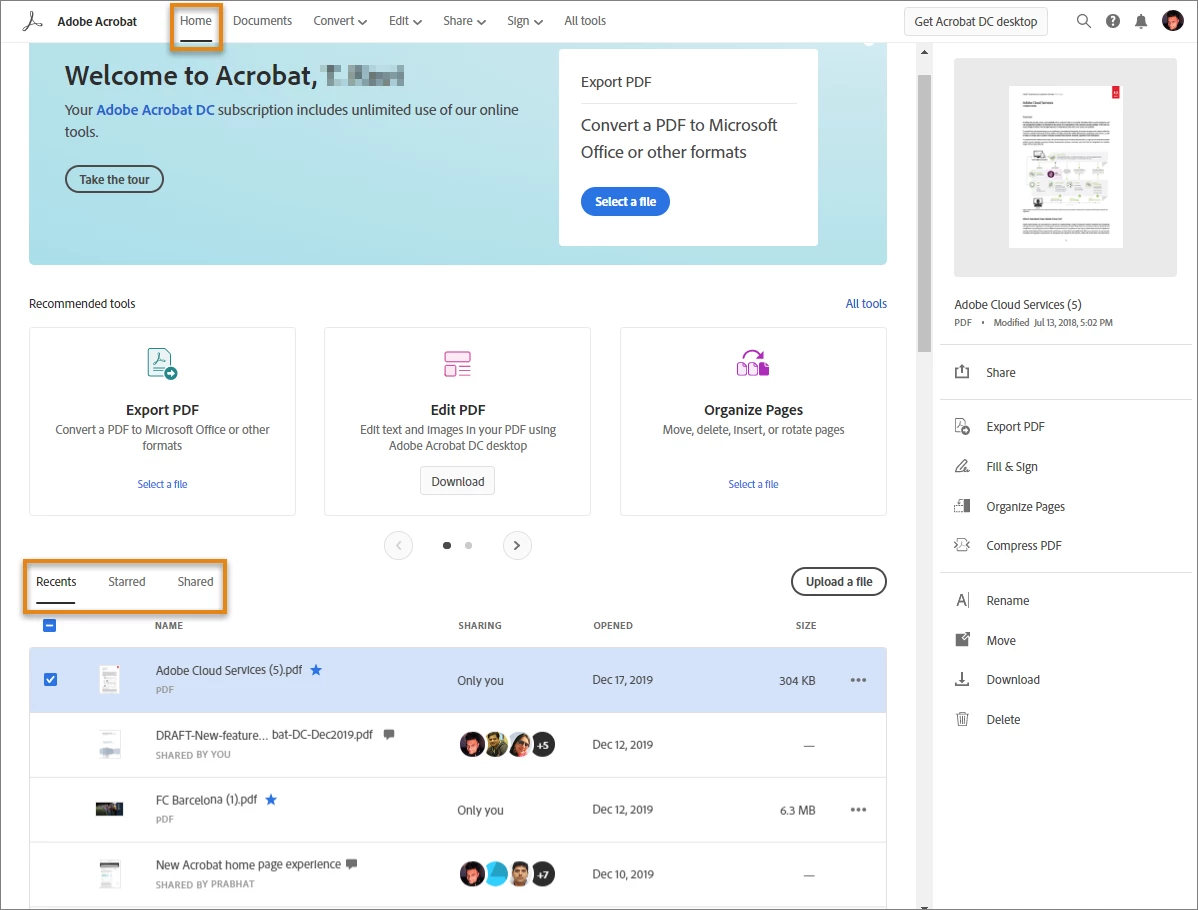
- Once signed in, you will see the Document Cloud Home page.
- In the home page, you can view your recent, starred or shared files. By default, the “Recents” tab is selected. Click the respective tab to view your recent, starred or shared files.
To view all your Files and Folders:
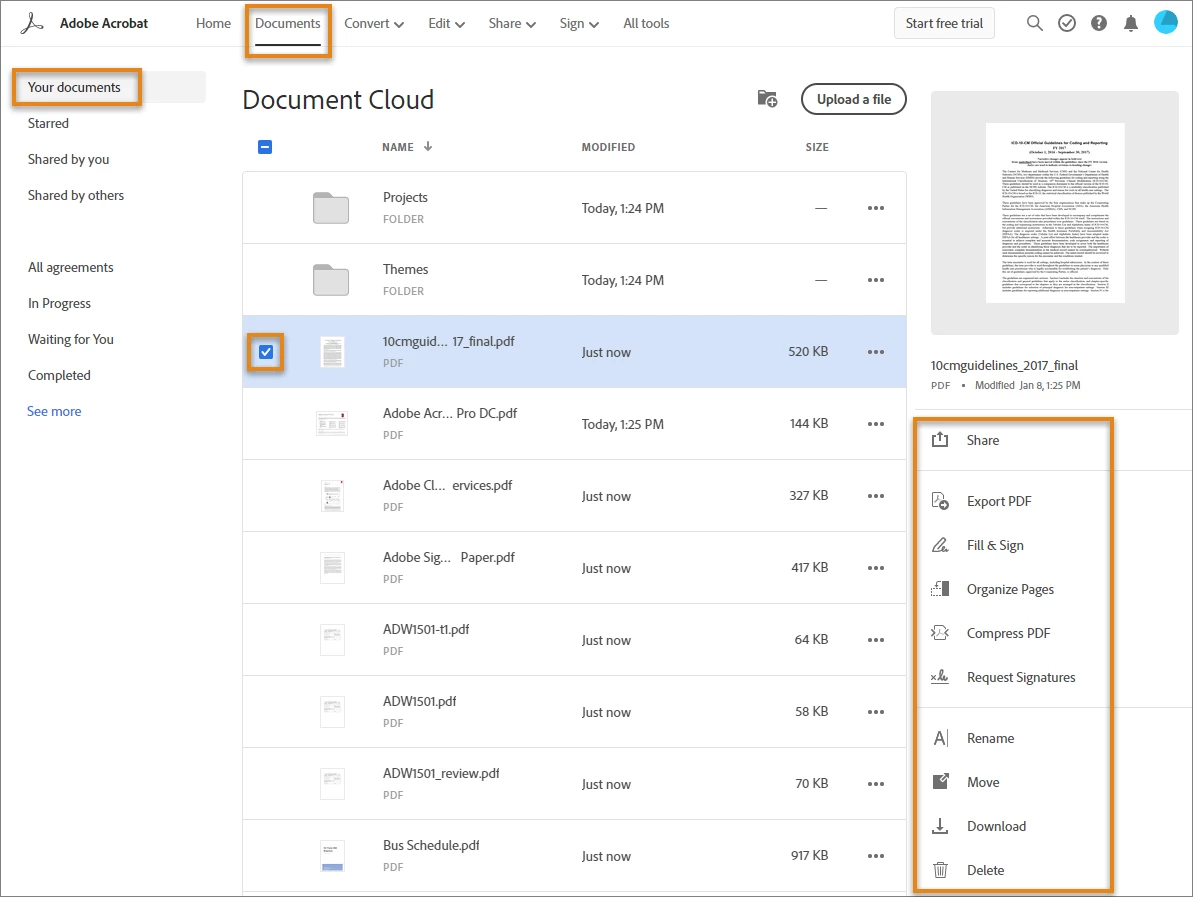
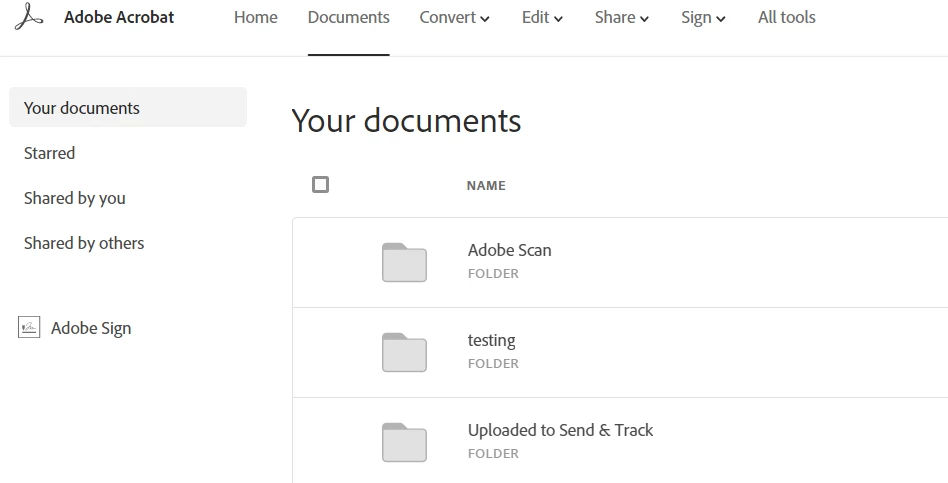
- Click Documents Tab > Your Documents in Adobe Acrobat home.
- To Track the document “Shared for Review” In the top-menu bar of Adobe Acrobat home, click Document > Shared By You. All the files shared by you are displayed along with the following information: Name, Sharing, Status and Last Activity
- You can further filter your documents by Starred files, files Shared by you, or files Shared by others.
View Agreements and Templates:
To view all your agreements and templates, click Documents > All agreements. You can further filter your agreements by status, such as In Progress, Waiting for You, Completed, Templates, and more. To view additional filters, click See More.
Additional Info: See this- Track Agreement sent for signature

Did it help you finding your Document Cloud Files? Share your experience with us : Join the conversation here. We are listening!
To discover a host of other great features – Go straight to: Is your work restricted to specific system? | Starting a PDF review online


 AdChoices