changd37972498
Participant
June 28, 2018
Answered

"," to define class in css not working

  • June 28, 2018
  • 1 reply
  • 473 views

Hi,

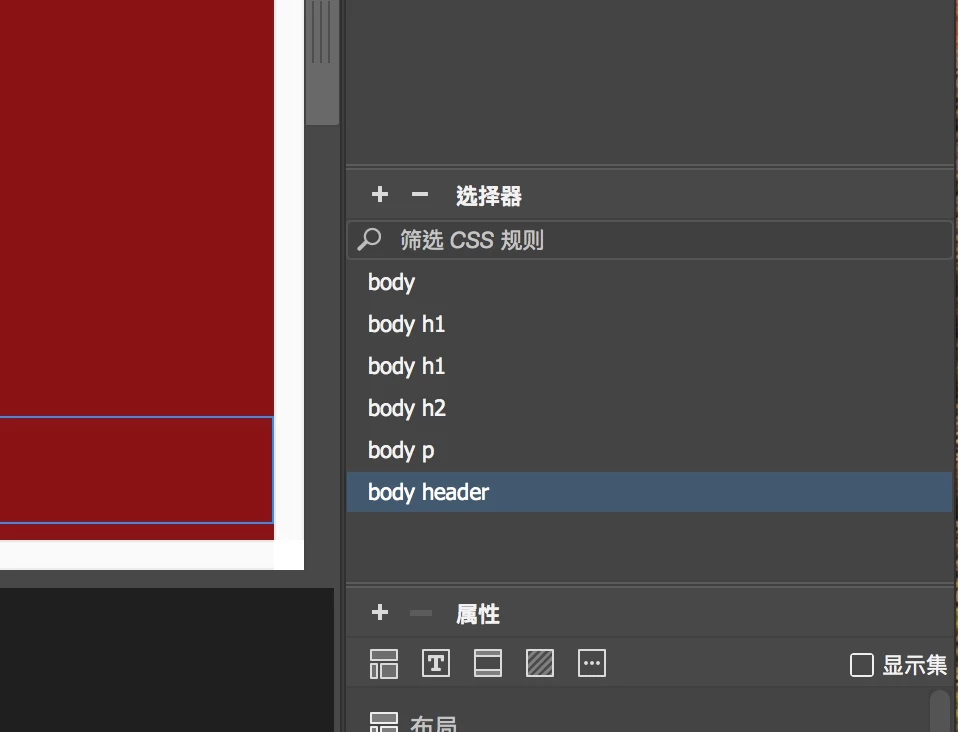
I am trying to define css using the "," symbol in front of text. every time after I clicked on '+' , typed in names the hit enter, the css component disappears. Anyone has any idea why this is happening?

This topic has been closed for replies.
Correct answer Jon Fritz

Classes use a period in front of the text, not a coma. If you're using a coma in your class name, that will not work.

You may be confusing DW by using a coma where you're not supposed to. CSS does use comas, but they're used to separate multiple selectors that are to receive the same properties...

.class1 {

     background-color:blue;

}

.class1, .class2, .class3 {
     color:red;

}

In the above, .class1 will have a blue background and .class1, .class2 and .class3 will all have red text.

One way to make a class using the CSS Designer...

1. Click the + by the Selectors sub-section
2. Use a period in front of a meaningful name (Example: .redtext)
3. Hit Enter/Return

4. Select the element you want to add the class to
5. Click the CSS button on the left side of the Properties Window
6. Choose the new class from the Class dropdown menu in the Properties Window


1 reply

Jon Fritz
Community Expert
Jon FritzCommunity ExpertCorrect answer
Community Expert
June 28, 2018

Classes use a period in front of the text, not a coma. If you're using a coma in your class name, that will not work.

You may be confusing DW by using a coma where you're not supposed to. CSS does use comas, but they're used to separate multiple selectors that are to receive the same properties...

.class1 {

     background-color:blue;

}

.class1, .class2, .class3 {
     color:red;

}

In the above, .class1 will have a blue background and .class1, .class2 and .class3 will all have red text.

One way to make a class using the CSS Designer...

1. Click the + by the Selectors sub-section
2. Use a period in front of a meaningful name (Example: .redtext)
3. Hit Enter/Return

4. Select the element you want to add the class to
5. Click the CSS button on the left side of the Properties Window
6. Choose the new class from the Class dropdown menu in the Properties Window