August 2, 2010
Answered

autonumbering figures

  • August 2, 2010
  • 7 replies
  • 4332 views

I would like to autonumber figures.

What I am doing:

I have created a paragraph style to autonumber figures. F:Figure <n+1>:

I have then applied the paragraph style in a text frame.

The numbering increments within the same text frame , but when I create another text frame the numbering starts at 1 (does not increment). I need the figure number to increment from one text frame to another text frame.

What I would like to do is create a text frame apply my paragraph format and get Figure 1:

and then create another text frame for a different image, apply my paragraph style and get Figure 2:

and so on.

Where am I going wrong?

Thanks in advance, Marc

    This topic has been closed for replies.
    Correct answer Michael_Müller-Hillebrand-ztkn

    Thank you both Yves and Michael for your replies. The process for incorporating  images into my documents is to do the following:

    1. Create an anchored frame.
    2. Import my image.
    3. Create an text frame to label my image.
    4. Apply a paragraph format to the text frame.

    It numbers fine. But, when I go through the process again with a new image and label the image, the number does not increment.

    Thanks for your help, Marc
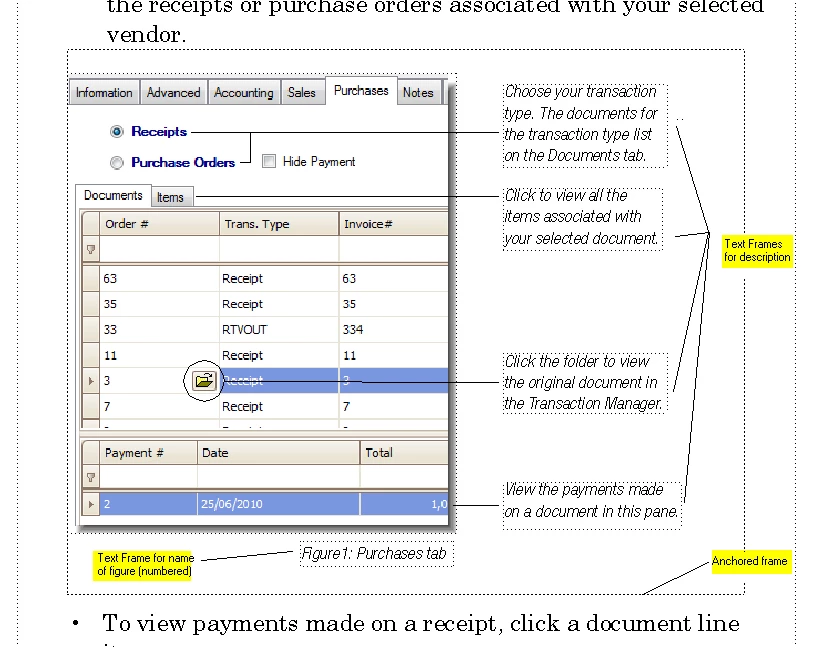

    Marc,

    Your screenshot shows no necessity to put the figure title INSIDE the anchored frame, the layout allows a position BELOW the anchored frame. I do not like to use tables for non-table purposes unless there is no other option. Mike Wickham’s suggestion seems to be a method used quite often, but IMO you can achieve the same with two paragraph formats:

    • one format to be used as an »Anchor Paragraph« which holds the anchored frame; I suggest using »At Insertion Point« as the anchoring position, you can get that setting very quickly using the key sequence »Esc m p«
    • another format for the figure title with auto-numbering; this format should have the »Keep with previous« setting activated.

    As Sheila suggested, it is highly desirable (= necessary) to keep paragraphs in a common text flow that somehow are connected. The figure title is supposed to be connected to other title because you want them numbered, therefore they must exist in the same text flow.

    Now it is up to you to decide which layout to use, but you have to change your current approach. Or drop figure numbering.

    - Michael

    7 replies

    Participant
    April 10, 2011

    None of these solutions is adeqate if you want to position a captioned photo at will. They all require you position it center, left, or right.

    Participant
    August 19, 2010

    I don't know if this will help, but I design my documents so that all text flows from frame to frame, even if graphics, call-outs, etc.. are included. The trick is to (well, this is how I do it):

    1. Create p-style for figure caption with your list attributes for auto numbering.
    2. Create a p-style for line where grapic frame is to be placed. Mine has above p-style as next so that it automatically creates the caption when I hit enter.
    3. Insert a blank line with the p-style of step 2.
    4. Press Enter to create new line. If your graphic p-style has figure p-style (step 1) as next, you do not have to associate it.
    5. Create a graphic frame outside the print area, left or right.
    6. Insert your primary artwork, photo, image, etc. into the frame.
    7. Using the Selection tool, select the frame.
    8. Cut the frame (Ctrl-x).
    9. Switch to Text tool and position cursor to the line created in step 3.
    10. Paste (Ctrl-v) graphic frame cut from step 8.
    11. To vertically position your graphic:

    Option A: Add blank lines below the last paragraph above your text to vertically space graphic.

    Option B: Use paragraph attributes to add space above.

    You should now have your graphic anchored to the line and can treat your graphic frame as a text character.

    If you need callouts, arrows, or other surrounding stuff:

    1. Position callouts and associated arrows around graphic as needed.
    2. AFTER ALL callouts, arrows, and any other graphic frames are added, select ALL.surrounding and associated frames. Be careful not to select text frame.
    3. Group frames.  This is necessary to accomplish next steps.
    4. Perform steps 7 - 10 from above procedure.
    5. Position anchored callout group:
      1. Choose Selection tool.
      2. Select an object in the callout group.
      3. Right on callout group.
      4. From menu, choose Anchored Object>Options (notice from here you can also release the object.  You may need to do so if you add to your callout group and start over to build and anchor the group.)
      5. Change anchor options to position your callout group. (it will help if you check Preview in the lower left corner.)


    I am using CS5, but I have used this methode in lower versions.

    I hope this helps.

    August 4, 2010

    Thanks everyone for the help.

    I guess I just assumed I needed to createa text frame for the image name.

    I have now taken the image name out of a seperate text frame and placed it in the main text frame. I applied an autonumbered paragraph format ( with keep with before check off) and it looks and works great.

    Thanks again, Marc

    Participating Frequently
    August 3, 2010

    mvk66 wrote:

    I would like to autonumber figures.

    What I am doing:

    I have created a paragraph style to autonumber figures. F:Figure <n+1>:

    I have then applied the paragraph style in a text frame.

    The numbering increments within the same text frame , but when I create another text frame the numbering starts at 1 (does not increment). I need the figure number to increment from one text frame to another text frame.

    What I would like to do is create a text frame apply my paragraph format and get Figure 1:

    and then create another text frame for a different image, apply my paragraph style and get Figure 2:

    and so on.

    Where am I going wrong?

    Thanks in advance, Marc

    Several folks have already suggested that you should contain all your content in a single text flow, for example, Flow: A, because FrameMaker autonumbering only works within a flow.

    Do you have a compelling reason to create your anchored frames for each graphic-and-callout unit, in independent text frames, rather than working in the conventional model of anchored frames within a single text flow?

    If your layout requires independent text frames, you can connect text frames manually on a master page, on a body page, and across body pages that are consecutive or non-consecutive; connecting body page text frames across pages is often used for articles that begin on a starting page, then "jump" to one or more continuation pages. Manually-connected text frames are all in the same flow, so sequential paragraph numbering works as expected.

    For more information, search Google for "framemaker connect text frames" without quotes. This will find entries in FrameMaker online Help, as well as in these forums, and even this tutorial article: http://www.informit.com/articles/article.aspx?p=24085.

    You can use any of the methods suggested here to include sequentially-auto-numbered paragraphs with your graphics. Summarizing:

    * Type caption text into an auto-numbered paragraph and insert an anchored frame to hold the graphic into the same paragraph.

    * Create one placeholder paragraph format to hold an anchored frame. Insert the anchored frame into the placeholder paragraph. Insert the graphic and callouts into the anchored frame.

    Variation 1: Create a text frame within the anchored frame and apply an auto-numbered paragraph format to the paragraph in the text frame. Type the caption.

    Variation 2: Type the caption in an auto-numbered paragraph format that follows the anchored frame; use the keep with next/previous property for one or both of the pair of paragraphs.

    * Create and insert a single-cell table into a placeholder paragraph. Insert an anchored frame into the cell. Insert the graphic and callouts into the anchored frame. To number the graphic and avoid the problem of generated lists, like a TOC, from displaying the caption in the wrong order, use an auto-numbered paragraph before or after the table. (Creating the caption from a table title that uses an auto-numbered paragraph format above or below the table, or from an auto-numbered paragraph in a cell inserted above or below the cell that contains the graphic, may mis-sort the caption entry in generated lists.

    HTH

    Regards,

    Peter

    _______________________

    Peter Gold

    KnowHow ProServices

    Inspiring
    August 3, 2010

    Marc

    Mike and Michael have already described good approaches. I use a dedicated "graphic" table format for graphics with callouts, as in your case. If my graphics don't have callouts, I don't use a table.

    I have attached a screen shot of how I'd do it:

    • If you have a lot of text in your callouts, you may want to number your callouts (A, B, C...) and put the text below your graphic. Thus, if your text expands, for example when it is updated or translated, you don't have to resize the text frames (which will save you A LOT of DTP costs when you outsource your translations). This approach may be a bit less user-friendly because they have to look at, for example B, and then read the callout text below the graphic, but it does prevent you (or the DTP guys at the translation company) from having to resize text frames.
    • Once you have created a dedicated table format for graphics with callouts, you just click the Update All button in the Table Designer. FrameMaker will then also "remember" the width of your columns and the paragraph formats which you have used in the cells. Thus, the next time you insert a "graphic" table, you will automatically get numbered callouts (A, B, C) and captions (Figure 1, 2, 3 etc).
    • I put my callout numbers (A, B, C..) in dedicated one-cell tables with a yellow shading. This makes them easy to see on a light and dark background. I also put a white line behind my callout lines for the same reason (and I group the lines, of course).
    • The callout numbers are not numbered automatically because they are (and have to be) in separate text frames. The callout text itself, however (e.g. A. "Choose your transaction type...") does have autonumbering.

    I hope this helps. If you want to have the FrameMaker file which contains this example, just send me an email: yves.barbion@scripto.nu

    Feel free to reuse the components which you find useful.

    Cheers


    --
    Yves Barbion
    www.scripto.nu

    Inspiring
    August 3, 2010

    I also put a white line behind my callout lines for the same reason

    Cool tip!

    August 2, 2010

    One thing to consider with any of the alternative layouts suggested is whether there might be an impact on the creation of generated files such as a Table of Contents or List of Figures.

    FrameMaker has rules about the order that it "gathers" text in disconnected frames and text in tables as compared to text that's in the body flow (Flow "A") when it creates generated documents like a TOC or LOF, which can sometimes result in entries appearing out of order in the generated files.

    Sheila

    Inspiring
    August 2, 2010

    You don't have to create a new text frame for each new image in your  document, unless you have a very special type of layout. In that case,  you can connect the text frames and thus create a single text flow. The  numbering will then increment.


    --
    Yves Barbion
    www.scripto.nu

    Participating Frequently
    August 2, 2010

    Marc,

    In addition to Yves’ comment, you maybe want to post a screenshot of your layout, so we can see why you think you need separate text frames for each figure title.

    - Michael

    Participating Frequently
    August 3, 2010

    Thank you both Yves and Michael for your replies. The process for incorporating  images into my documents is to do the following:

    1. Create an anchored frame.
    2. Import my image.
    3. Create an text frame to label my image.
    4. Apply a paragraph format to the text frame.

    It numbers fine. But, when I go through the process again with a new image and label the image, the number does not increment.

    Thanks for your help, Marc


    Marc,

    Your screenshot shows no necessity to put the figure title INSIDE the anchored frame, the layout allows a position BELOW the anchored frame. I do not like to use tables for non-table purposes unless there is no other option. Mike Wickham’s suggestion seems to be a method used quite often, but IMO you can achieve the same with two paragraph formats:

    • one format to be used as an »Anchor Paragraph« which holds the anchored frame; I suggest using »At Insertion Point« as the anchoring position, you can get that setting very quickly using the key sequence »Esc m p«
    • another format for the figure title with auto-numbering; this format should have the »Keep with previous« setting activated.

    As Sheila suggested, it is highly desirable (= necessary) to keep paragraphs in a common text flow that somehow are connected. The figure title is supposed to be connected to other title because you want them numbered, therefore they must exist in the same text flow.

    Now it is up to you to decide which layout to use, but you have to change your current approach. Or drop figure numbering.

    - Michael