
Known Participant
July 25, 2012
Answered

How do I get a symbol inserted in a sentence to not overlap top sentence?

  • July 25, 2012
  • 2 replies
  • 1722 views

Hello all!

Here is a picture of my problem, which shows the inserted symbol mid-sentence overlapping my top sentence text:
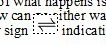
How do I fix this? THANK YOU so much in advance!

jessie

P.S. The symbol automatically flowed in when I imported my stuff from Word, so I did not insert this in FM. I'm in FM 10 with 32-bit OS.

    This topic has been closed for replies.
    Correct answer

    Select the paragraph where the figure appears.

    Open Paragraph Designer.

    On the Basic tab, in the Indents and Spacing frame, deselect the "Fixed" check box.

    Apply the change.

    This increases the leading for the line.  The other option is to resize the figure and its containing frame to fit the standard leading.

    2 replies

    Bob_Niland
    Community Expert
    Community Expert
    July 26, 2012

    If you have a Unicode font with code point 21CC populated, you can avoid the graphic framing altogether by just typing the harpoons as a character.

    Known Participant
    July 26, 2012

    Thanks AJ and Error! I ended up unchecking the fixed box and that worked great. Thanks for making my day easier! Have a good one.

    Known Participant
    July 26, 2012

    See Working with multiple languages in the Help.

    FM has character map features to aid in entering non-keyboard glyphs, but it's probably easier to use the Windows Character Map.

    Quick & Dirty:

    1. Type an X at the spot where you want the harpoon.
    2. Select the X and apply font Arial Unicode MS (Format > Style > Font).
    3. On desktop: Start > All program > Accessories > System > Character Map
    4. Font: Arial Unicode MS
    5. Go to Unicode: [ 21CC ]
    6. [ Select ]
    7. [ Copy ]
    8. Back in your document, with the X still selected, Ctrl-V paste.

    This is not stable. If you Update All and revert to paragraph Default Font, the glyph may vanish.

    More Elegant:

    1. Click in the margins, so that no text is selected.
    2. Format > Character > Designer
    3. Define a Character Format with an arbitrary name, such as "Unicode Sans".
    4. Set Family to [ Arial Unicode MS ]
    5. Commands: New Format
    6. Store in Catalog
    7. Select your Q&D harpoon character. Cntrl-C copy it.
    8. Special > Variable [ Create Variable ]
    9. suggested Name: [ U+21CC.sans ]
    10. Definition:
      pick <Unicode Sans> from the Character Formats list
      Cntrl-V paste your harpoon glyph
    11. [ Add ]

    You can now insert this glyph anywhere you need it, irrespective of paragraph defaults and other Character Formats. If it does get damaged, just re-insert the variable in place.


    Thanks, Error! I appreciate you taking the time to write out these steps. I need them. I keep all of my forum posts and refer back to them. And I use symbols a lot so this is very helpful. THANKS a million!

    Correct answer
    July 26, 2012

    Select the paragraph where the figure appears.

    Open Paragraph Designer.

    On the Basic tab, in the Indents and Spacing frame, deselect the "Fixed" check box.

    Apply the change.

    This increases the leading for the line.  The other option is to resize the figure and its containing frame to fit the standard leading.