
Known Participant
March 13, 2015
Question

How to display full path of missing graphics?

  • March 13, 2015
  • 5 replies
  • 3102 views

I'm using FM11, but have seen this in earlier versions as well. I am updating old files created years ago, and some import links are broken.

FrameMaker tells you the name of the missing file, and then just fragments of the actual file path, which is not very helpful:
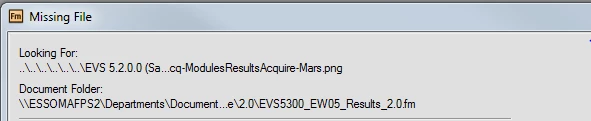
Is there any way to get the full path to show up?

This topic has been closed for replies.

5 replies

Community Manager
November 20, 2018

You might want to install the 30-day free trial version of FrameMaker 2019 release. We have updated the "Object Properties" pod and it now lists you the full path for the referenced file. You can also click into this text field and copy the full path. Plus there is a browse button to go to replace the selected graphic with a "new" one (which can of course also be the same one living in a different folder now).

Known Participant
September 26, 2019

This, while part way toward the solution does NOT address the problem when you are opening a file and Frame can't find the imported grafix.


I use many grafix across several different publications, and when I get an update from our Engineering staff or Customer Service staff, I need ALL of them to update in ALL publications. This is next to impossible if you're using a subfolder of your book for illustrations. Also, my folder hierarchy can be as many as four or five folders deep, depending on the complexity of the publication. 


I created a feature request for this, about eight months ago; I'll drop in the URL so you can vote for it.

https://tracker.adobe.com/#/view/FRMAKER-5979

pulkitn
Adobe Employee
Adobe Employee
November 20, 2018

Following unresolved  pathname  is improved in FM2019 release otherwise

  • You can Save following file into mif format.
  • Open this mif file in text editor
  • search for "ImportObFileDI"

If you have multiple files you can take help of MifWash Utility provided with Framemaker installation

Bob_Niland
Community Expert
Community Expert
October 11, 2018

Save the file as MIF.
Open that in a plain text editor.
Search on the image file name.
The <ImportObFileDI markup will show the full path.

deborahsauer
Inspiring
March 16, 2015

The list of reference will give you the path of the imported graphics files, including the full file name (even for missing files). Open the book. With the book file selected, go to Add > List of > References. Move Imported Graphics into the Include References column. Click Add. The list of references (LOR) file is added to your book. Of course, you'll want to delete it from the book file.

Participating Frequently
October 11, 2018

Hi Deborah,

I found your response when searching google and it works and is going to help us find out where all the graphics are in our user guides!

Thanks!

Pat

Legend
March 16, 2015

Shosh,

You could try my WS Utilities plugin. It has a graphic utilities pod that displays the full path of the selected graphic, where you can change the path if you want. You can also use the drop-down list to select a different file. It is not free, but it has an endless trial version:

WS Utilities Plugin - West Street Consulting

Russ