Community Manager
July 17, 2020
Question

New Navigation view for FrameMaker documents.

  • July 17, 2020
  • 3 replies
  • 1858 views

While creating or working on a style-based document, it is very helpful to know the overall structure of the document that you are working on. Scrolling through a long document does provide this information, but it is not a seamless experience.


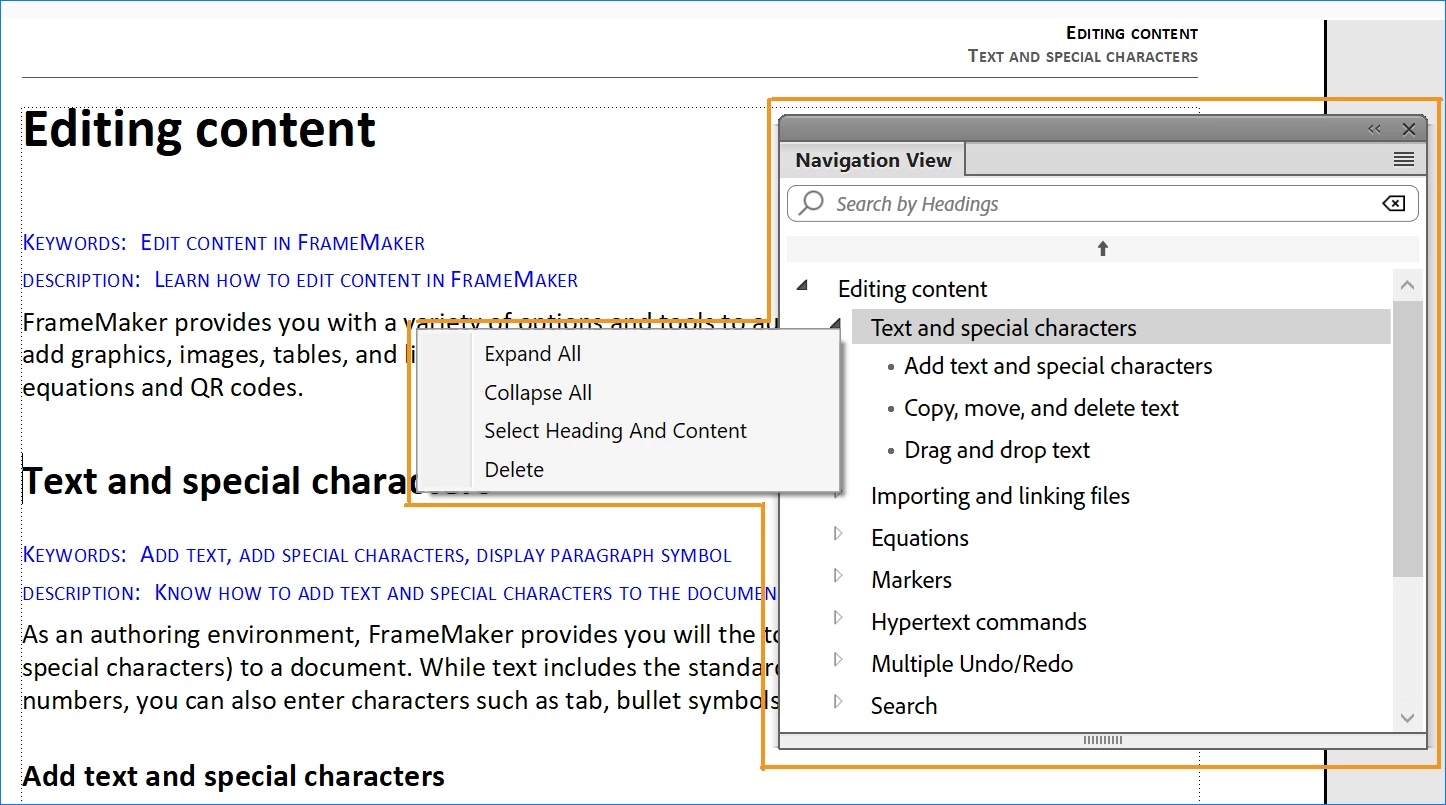
The latest release of FrameMaker provides a single unified view of the headings or structure of your current document. Open the new Navigation View, and the structure of your current document is displayed in the Navigation View panel. The logic used in this feature gives you a list of all headings and subheadings within your current document.


To launch the Navigation View, go to View > Panels >Navigation View or use the shortcut keys Escnv.


Clicking on a heading in the Navigation View takes you to the heading content. Use the context menu to quickly navigate to, expand or collapse topics, or even delete an entire heading (or topic) from your document.


For more information, see Navigation View.

See a video on the Navigation View feature.

This topic has been closed for replies.

3 replies

Barb Binder
Community Expert
Community Expert
September 24, 2023

Hi @tw_021422:


How is your book set up? Are you using a book file to collect the chapters, or are all of the chapters in one FrameMaker file? Looking at your screenshot, it looks like the latter. 


Normally, we put each chapter in its own file (i.e., chapter 1.fm, chapter 2.fm, chapter3.fm) and then pull them into a book file to manage the documents. The Navigation view shows us the structure of each individual chapter—it's not expecting that all the chapters are in a single file.


~Barb

~Barb at Rocky Mountain Training
K.Daube
Community Expert
Community Expert
September 22, 2023

Kuldip, you may have a look at https://www.daube.ch/docu/fmaker84.html - this tool is table driven, not by some sort of AI...

Community Manager
September 22, 2023

Thanks, Klaus, for sharing the link. I'll share this with the product team as well so that they can evaluate it and decide whether they would like to implement something like this in future releases of FrameMaker. 

Participant
September 21, 2023

Hello!

I've used this program for a few years now (unstructured) and haven't figured how to make the navigation view to match the document exactly. I thought at first it based its hierarchy on how the bookmark tags are organized when the document gets exported/printed (under PDF setup) but modifying this hasn't changed anything.

Essentially, all my documents will show the title page as the top header, then one non-heading styled section as the first child (which works) but then the first chapter of the document is the only child at this level. All following chapters are nested under this first chapter, even though all chapter headers have the exact same styling (heading1). Is there another way to control what section gets nested under which parent section in the navigation view?

Thanks!

Jeff_Coatsworth
Community Expert
Community Expert
September 21, 2023

Did you watch Matt's video in the original post? It seems pretty straightforward in that it only looks at paragraph tags (they don't have to be H1, H2 etc) to figure out a hierarchy. Can you post a screenshot of what you are getting? Also don't forget to give us your exact version of FM - there may have been fixes to this that have taken place since it was introduced. 

Participant
September 21, 2023

I did watch the video and thought it was straight forward too, which is why I was confused with what the navigation view was doing with my documents.


I'm running version 16.0.5 of FM 2020.


Attached is the navigation view I'm seeing.