

Copy link to clipboard
Copied
I have a full page background on my master page (Left in this case) that incorporates static graphics and borders for certain master pages. I use the borders/boxes for NOTE and TIP text on certain pages. The Text Frames on these master pages are not overlapping. I've added text frames with my icons and note text to these Body Pages as I need them. All great so far.
I decided to go update the master page background graphic to change some colors, etc. All files are linked.
Now, with the updated master page backgrounds, those pages where I've added the text frames are "buried" like on a sublayer. I've checked that my Master Page background images are "Sent to Back." I've tried to bring my text boxes to the front on my Body Pages, but they are still hidden. Interesting that the anchored frame (the icon) I have attached to each NOTE or TIP item shows up, but the text doesn't. Also, I can see and select the frame edges... only the text is hidden. If I drag the fame to another part of the document (e.g., over the top of another flowed Master Page text frame, then the text shows up.
There is no frame on the master page for the bordered area. I wonder if that's what I need to fix. Just add a background frame (no flow attached)?
Advice before I go and screw something else up?
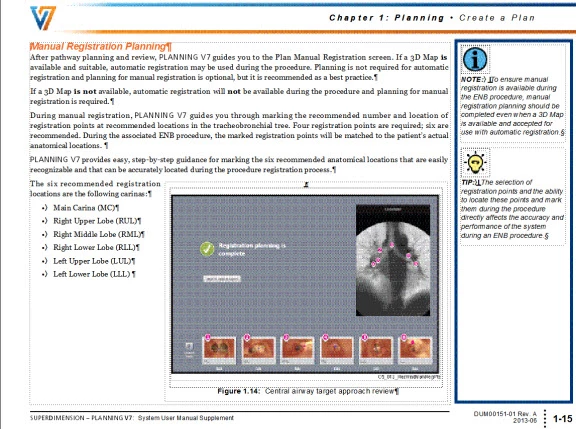
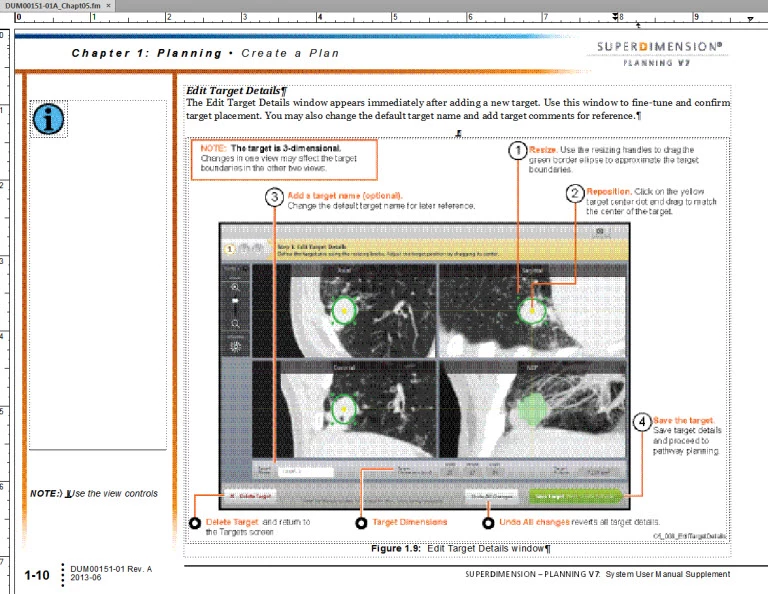
This is what it is supposed to look like (1). Image (2) is what I'm getting now.
Thanks Arnis,
It was the runaround property!
How simple... I didn't think about that.
Solved!
To answer you question, though... my process for building this new template was:
I'm not dropping text frames for body content... except for these tips and notes. I don't want to use
...Copy link to clipboard
Copied
Chris,
You should have custom master page layouts for the Note and Tip design layouts (either create a separate, disconnected flow(s) for these boxes or use a sidehead arrangement). These should then be applied preferably using the Master Page Mapping tables (you would also need to create a corresponding trigger paratag) or manually applied (lots of maintenance as content changes though).
Note: if you apply a background text frame on a Master page, then it's not available for content entry on the Body pages.
Note: by default, FM has a fill of White applied to a text frame. Change it to None and you might see content that has been inadvertently covered up.
Copy link to clipboard
Copied
I do have custom pages for these "sidehead" layouts. And, there is no frame on the master page for this bordered sidehead area. It's just the image background and then the other text flow frames are outside of the bordered area. So, there shouldn't be a white fill because it's a background graphic and there is no frame on top of it (the bordered part). The background extends all the way down to just above the border.
I did add the background text frame as you suggested (no text flow). As soon as I place it, it drops behind the background graphic. Does the Send to Back function work when adding background graphics on Master Pages. I am placing the new text frame after the graphic is placed, so shouldn't it be on top? I know the background is sitting on top because I can't grab my new text frame unless I drag the background image out of the way, then my text box is selectable.
I probably should have used the master page mapping tables, but didn't. I'm on a deadline for draft now... I might be able to fix that during the revision cycle. For now, I just have to get it to work. Thanks for the suggestions. Any other help is most welcome!
Copy link to clipboard
Copied
Chris,
I'm still not clear on what your doing and how you've constructed the page layout. Are you just dropping text frames on the Body pages? A sample of your Master Pages woud help.
A background text frame on a Master page will not let you add any content when on the Body page. I was suggesting that you could add a text frame using a separate flow on the Master page. Objects on any FM page are stacked according to their creation order (last one is on top). Send to Back does work, but if the graphic has been placed first, and you draw a text frame on top of it, then the frame will be on top.
How is your "graphic" placed on the Master page (and what is it - the background gradient lines; are these separate items or one large image)? Is the run-around property for the graphic turned off (this can repel text on the Body page from the Master page)?
In the second screen capture, note the solid line at the bottom of the left-side text frame containing the Info icon. That is FM's way of letting you know that content has been forced out of the frame, i.e. off the page into never-never land. The line of text at the bottom may be your missing content?
Copy link to clipboard
Copied
Thanks Arnis,
It was the runaround property!
How simple... I didn't think about that.
Solved!
To answer you question, though... my process for building this new template was:
I'm not dropping text frames for body content... except for these tips and notes. I don't want to use a flow for that because I never know where they are going to pop up and I want to be able to place (position) them specifically on each page. Is that a poor approach?
Yes, I'm aware of the solid line at the bottom of the NOTE text frame you mentioned. Originally, I had all the text in bounds. When I updated the master pages, everything shifted (only in those body page text frames with the notes/tips). I repositioned and they flow fine now.
Thanks very much for your continued help with this. Why do these nitpciky problems always pop up at deadline -- not when things are slow!? ![]()
Copy link to clipboard
Copied
Arnis wrote: You should have custom master page layouts for the Note and Tip design layouts (either create a separate, disconnected flow(s) for these boxes or use a sidehead arrangement).
Arnis,
I updated my main flow master page text frame with the sidehead arrangment you suggested. I positioned the sidehead so the division would run right down my vertical bar. Left/Even page has the sidehead on the left and the Right/Odd page has the sidehead on the right. When I went back to the body pages, I'm finding that my text is flowing into the sidehead area... even though the text marker (on the Master Page) is not in the sidehead area.
This is making me feel dumb. What am I doing wrong?
Instead of using the sidehead, is it best practice to just use a "background" text frame (like for headers/footers) and then just place my notes/tips in there on the body page where I need them? I just want (for some body pages) a side head to place additional content like NOTE, TIP, WARNING, CAUTION info.
This is a shot of the Master Page

This is the resulting Body Page

Copy link to clipboard
Copied
Chris,
This could be due to a couple of things.
1. Check your paratag settings on the Pagination tab. They should be "In Column" to stay in the main area. To be in the side-head area, the Sidehead Alignment option should be selected.
2. How exacly did you specify the sidehead? You should be using the Format > Page Layout > Column Layout... option to turn on the sideheads and then update the flow.

Sideheads are a document level property.
If this isn't working for you, another alternative could be to use anchored frames set to be outside the text frame. Insert a text frame to hold your icon and notes. Tip: create these on your Reference page with the icon already inserted, then you can just copy&paste as needed.
Get ready! An upgraded Adobe Community experience is coming in January.
Learn more