Participant
November 27, 2012
Answered

how to print grayscale image as process black?

  • November 27, 2012
  • 2 replies
  • 8421 views

how to print grayscale image to PDF as process black only rather than CMYK colors?  I'm using FM10

This topic has been closed for replies.
Correct answer Arnis Gubins

Ed,

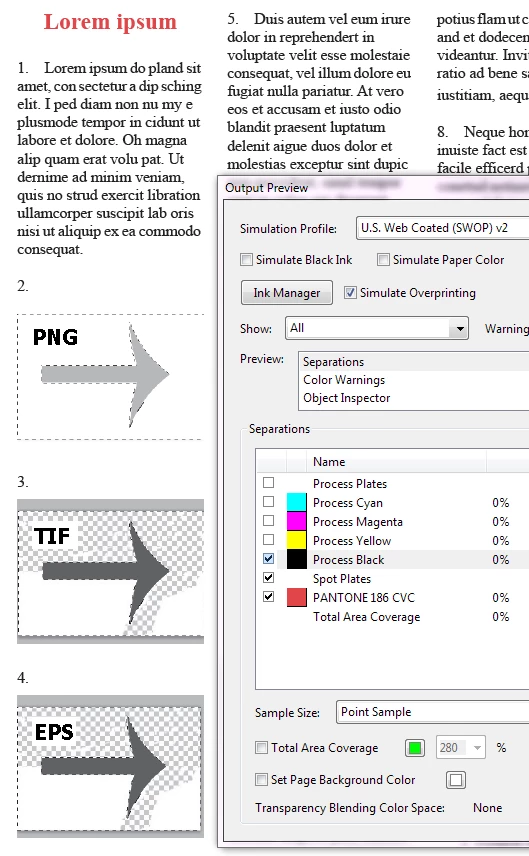
What file format did you save the image in? It's important, as Error indicates. If you left it as a PSD, then FM does an RGB conversion. A TIFF or an EPS will properly stay as greyscales (i.e. on the K plate). Other formats, like PNG in greyscale are actually Indexed colours and resolve to RGB when FM creates the PDF in the presence of Spot plates and hence components get mapped to the CMY plates also.

Here's a sample generated using SaveAsPDF with the CMYK option with the same "greyscale" file saved as PNG, TIF and EPS from Photoshop (note how the PNG isn't all there on the K plate):
2 replies

Arnis Gubins
Inspiring
November 27, 2012

Are you certain that the images are actually greyscale instead of RGB or CMYK that look grey? What format is the image file? What joboption was specified for the PDF creation? How was the PDF created: SaveAsPDF or printing to PDF or printing to PS and distilling?

True greyscales should print on the K plate when you use the CMYK output option in FM10.0.2. Note: if you haven't updated your FM version, then earlier versions didn't produce correct CMYK or spot output.

Participant
November 27, 2012

I am using 10.0.2.419.  Photoshop shows mode grayscale, 8-bit.  I have tried

all three methods to create the PDF.  If I use the same images in In-Design

and create a PDF the images and text are process black at various

percentages of intensity.  I have also tried FM 11.  I am using a custom

settings file, but have tried many of the other out of the box setting files.

I can use Acrobat Pro "Advanced > Print Production > PreFlight >  PDF

fixups > Convert to grayscale", but that also changes my revised text that

is Pantone 186 (red) to grayscale as well.

Arnis Gubins
Inspiring
December 4, 2012

Further testing results.

I started with a .PNG of an equation that is all black visually.  100% black would be fine with me.

- I opened the .PNG image in photoshop, saved as JPG, closed and opend the JPG.

- Converted the image to mode Grayscale 8-bit.

- Copied the gray channel to a channel named "gray copy".

- Filled the original "gray" channel with white, then converted to CMYK.

- Next, I pasted the "gray copy" channel into the Black K channel.

- Final step, deleted the "gray copy" channel and saved the file.

I believe these steps should result in a JPG, CMYK with all of the color as percentages of the Black K channel and CMY all 0%.

I import the image file into FrameMaker, printed it and the result in the PDF is C:75% M:65% Y:67% K:90%

I'm either missing something real simple, FM is forcing a conversion to CMYK, or there is some profile, mode, or color management setting in the .JPG file that I just don't understand, and can't find.

I did a test in In-Design and it too results in a CMYK brilliant or rich black. Maybe I'll have to take this to a photoshop fourm and learn how to work with the graphic files.

Ed


Ed,

[A bit late perhaps, I've been out of town]

Why are you trying to use a JPG? This file format is lossy and will be created with indexed colours instead of a true grayscale (hence you won't get a proper conversion in FM as I showed in my prior examples - which also included the Pantone 186 spot). Do your conversion to either TIF or EPS from Photoshop - simple grayscale conversion. You're overly complicating things...

Also, which Distiller joboption are you specifying?

Have you configured the Adobe PDF printer instance to properly render gray text & graphics to Postscript Gray? This would also affect which plates you'll get output on.

Bob_Niland
Community Expert
Community Expert
November 27, 2012

Is this native Frame graphics or an imported image?