Inspiring
June 6, 2023
Question

Selecting and Moving

  • June 6, 2023
  • 2 replies
  • 3829 views

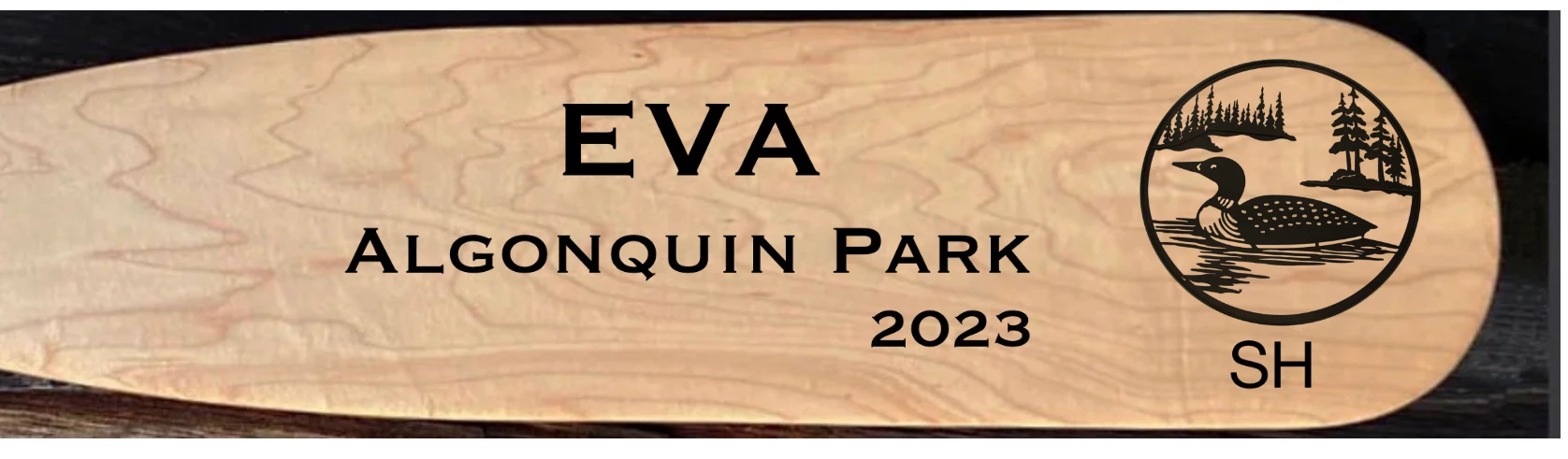
So I am a beginner with Adobe Fresco. If I am presented with a graphic such as this - can I somehow isolate the black circle with the loon in it and move it around on the paddle?

 

This topic has been closed for replies.

2 replies

Participant
June 7, 2023
&
thejanebradbury
Community Expert
Community Expert
June 7, 2023

If the loon is on its own layer click that layer and simply grab the Transform tool. A blue bounding box will surround it and you can then move it.


ttibsenAuthor
Inspiring
June 7, 2023

Thanks for that tip Jane. It just so happened that the loon was indeed on its own layer so your suggestion worked perfectly. What if that graphic was a photo? Can Adobe Fresco still manage to move the loon around on the paddle? 

thejanebradbury
Community Expert
Community Expert
June 9, 2023

What about this situation? Can I do the following with this photo?

    Select the small building on the left

    Once selected, is it possible to do a Cut and Paste operation so that the building can be pasted into a new file

    How about a select, copy so that I could then paste 2 more such buildings on to this picture

    Finally, it's a bit hard to get the selection perfect the first time so is it possible to refine the initial selection without having

    to start the selection all over again


The short answer is yes, it could be done. The long answers is that Fresco isn't really geared towards photo manipulation to the degree you want. It's a drawing/painting app in the main. For this sort of task Photoshop is the better choice as it has more options for Object Selection and removal. 


Selections

You can make small selections and either add or subtract to them without having to start all over from the beginning. When you are using the selection tool look to the top left and you should see two icons. One is for Add to Selection, the other is Subtract from Selection and you can switch between them as you make your selection. 

Copy/Paste

Once you have your selection you should be able to use Ctrl+C and then Ctrl+V to paste it as a new layer. To have your new layer selection into another file for me the easiest way is to duplicate the working file and rename it. Then go in and remove everything except the layer you want and save that as new file. I do it like this so that I don't accidentally delete any work I might want to return to later.