

Learn how to smudge and blend using Mixer brushes
Similar to Photoshop Mixer brushes, there’s now a new set of brushes available under Pixel brushes to choose from. In addition to these, you can import your Photoshop Mixer brushes in CC libraries into Fresco. Learn more about managing brushes here.
Here’s a quick tutorial by our designer Parichay to get started:
- On a fresh canvas, tap pixel brush>sketching>pencil and set the size and colour for the brush. Start sketching the outline of the drawing.
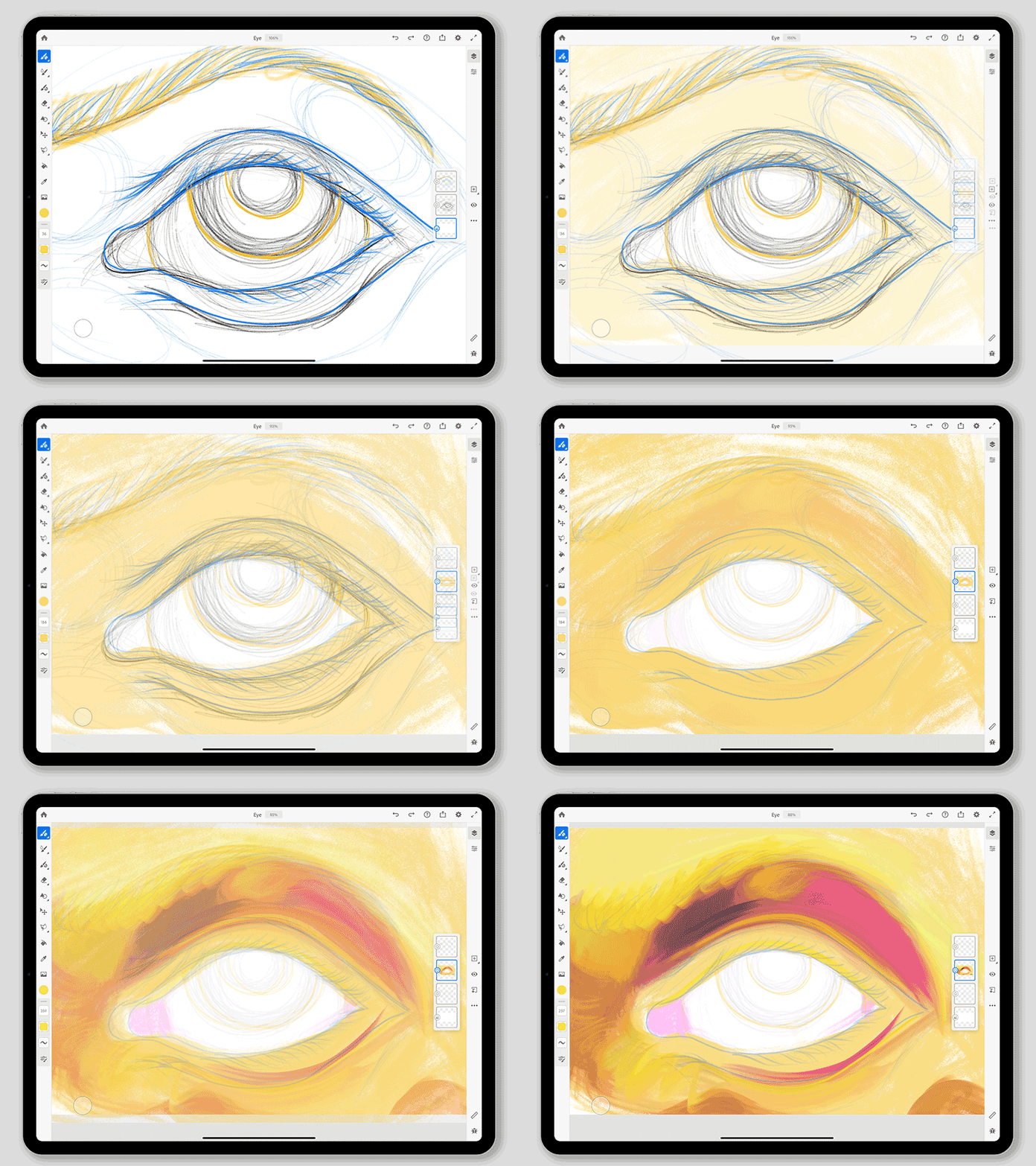
2. Add new pixel layer and tap on Pixel brush>Mixer brush>Softy Mixer. Begin colouring the parts of the drawing after setting the brush size and colour.
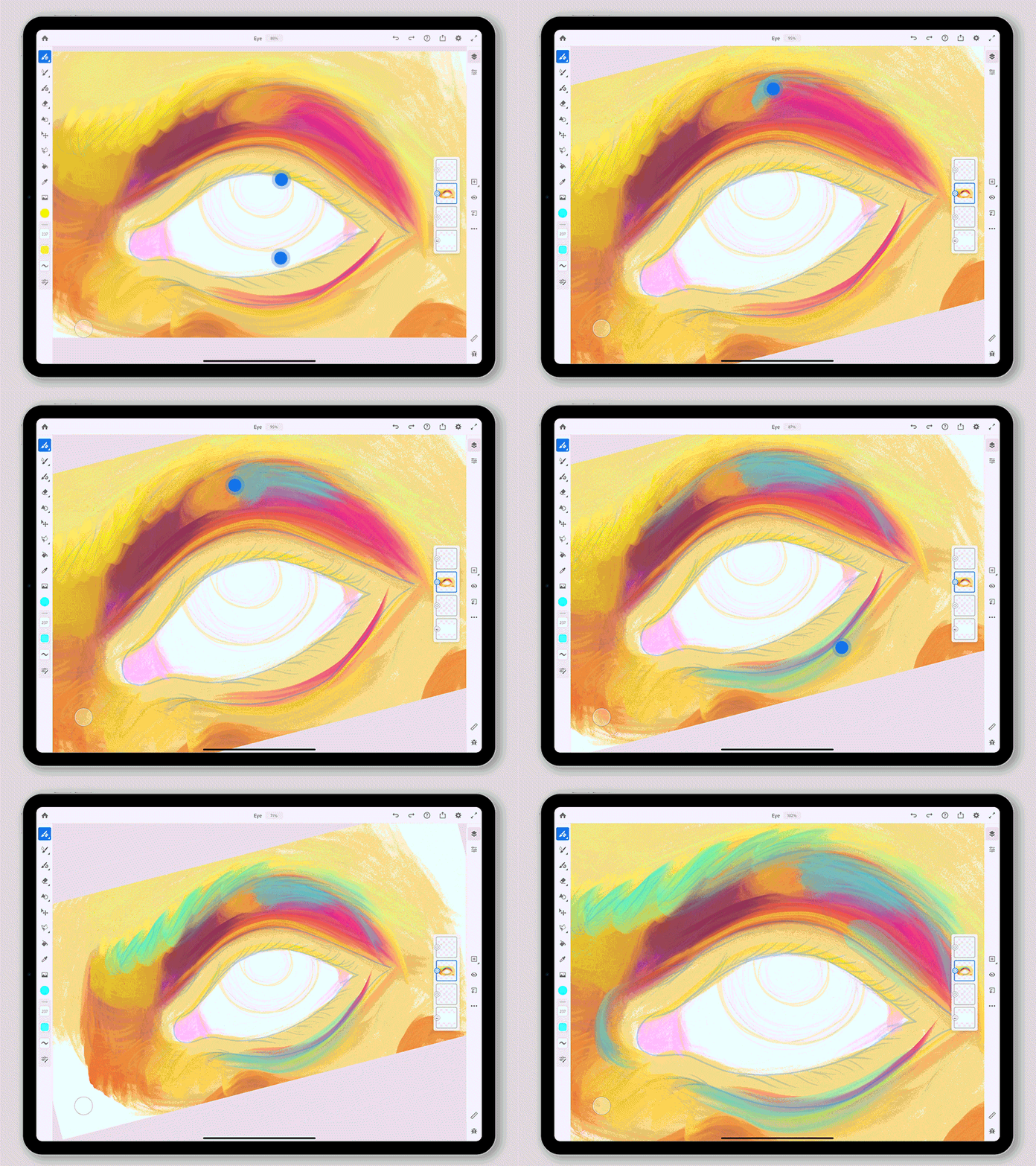
3. Selecting different colours from the colour wheel and blend them onto the canvas in different parts of the drawing.
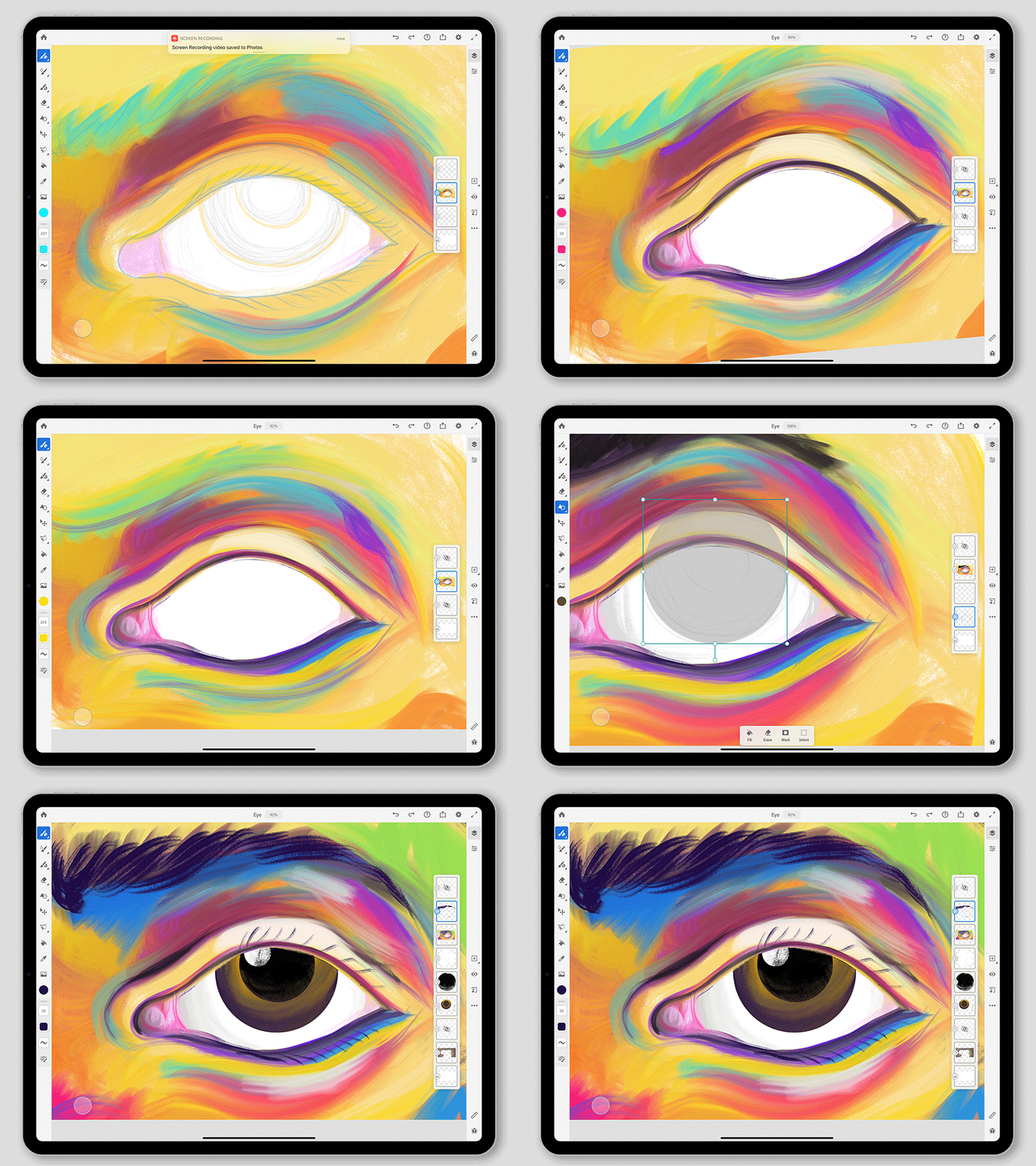
Quick tip: At any given point while painting if you wish to erase, use the touch shortcut in the primary state to erase the brush strokes.
Note: Find out how can you set the state of the touch shortcut here.
Result:
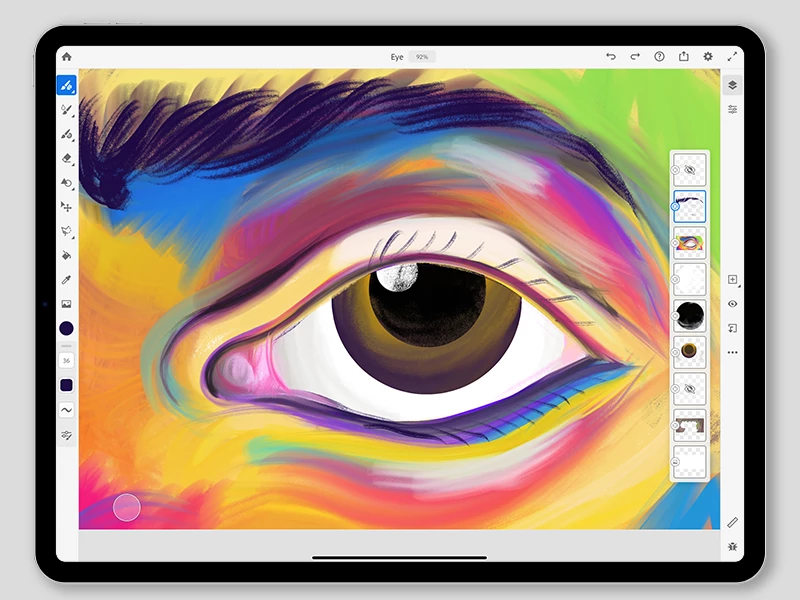
Note: To bring out the best texture of the colour mix, use mixer brushes on the same layer.
For more information on Mixer brushes, check out the help document here.


 AdChoices