Participating Frequently
April 7, 2017
Answered

4 color seps for screen printing

  • April 7, 2017
  • 2 replies
  • 20178 views

Hi,

I am not a wiz at Adobe, but my teacher wants an all photo process for screen print. I have the color comp finished, but dont know how to do the rest in Illustrator or Photoshop. Which is best and how?

    This topic has been closed for replies.
    Correct answer jdanek

    mikkanani  schrieb

    If I were designing this thing I would make it a one click deal,

    That's what a RIP is there for: https://softwareforscreenprinters.com/what-is-a-rip/

    Photoshop serves several purposes and so you might not find the one click solution for each and every specific task in it.

    It would help if you could show something.

    But actually I'm by no means an expert in screen printing. The steps I described above are my interpretation of what jdanek told you to do. This might or might not be what he had in mind. So you might want to wait for him to get back to you.


    I agree.  You said your instructor wanted process color separations for silk screen.  Here's some screens of a logo I designed...
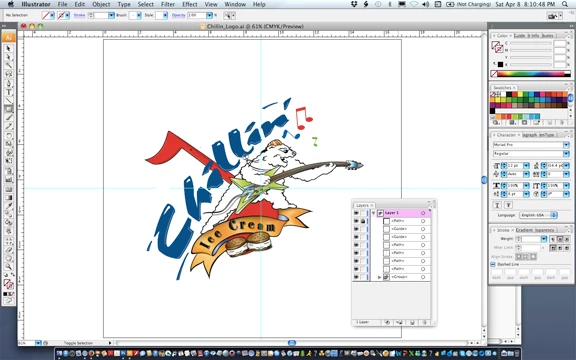
    as seen in Illustrator with the Layers panel open for you to see that every Illustrator file consists of many Layers and, you are right, everything you do just about creates a new Layer.  Not sure why you'd be concerned with layers if your artwork has been approved and is ready to be color separated.  The above artwork is a native .ai file setup on an artboard 17" x 17".
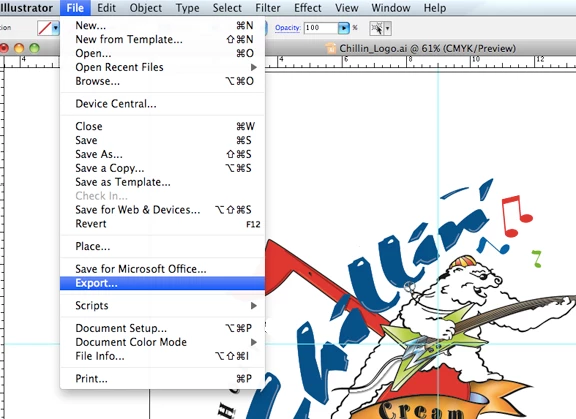
    In Illustrator File > Export...
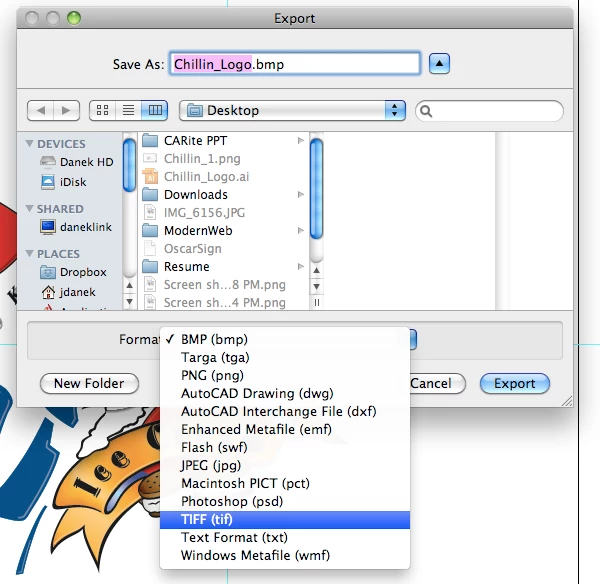
    Above is your Export dialog...
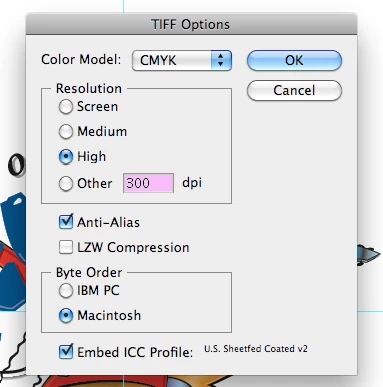
    continue on...
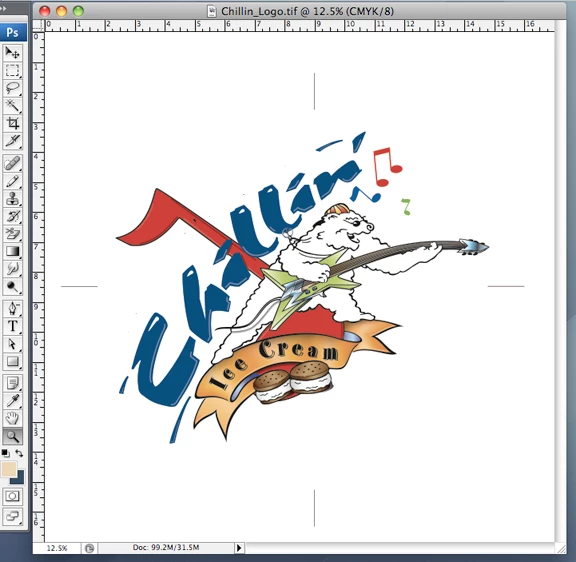
    above is the composite opened in Photoshop, complete with center marks...
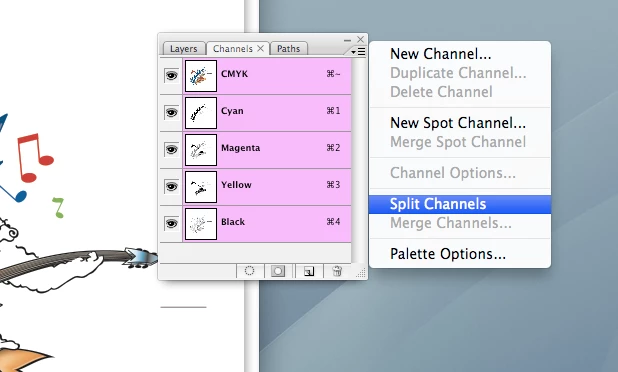
    in the Channels dialog, select "Split Channels" ( not necessary to copy Channels )...
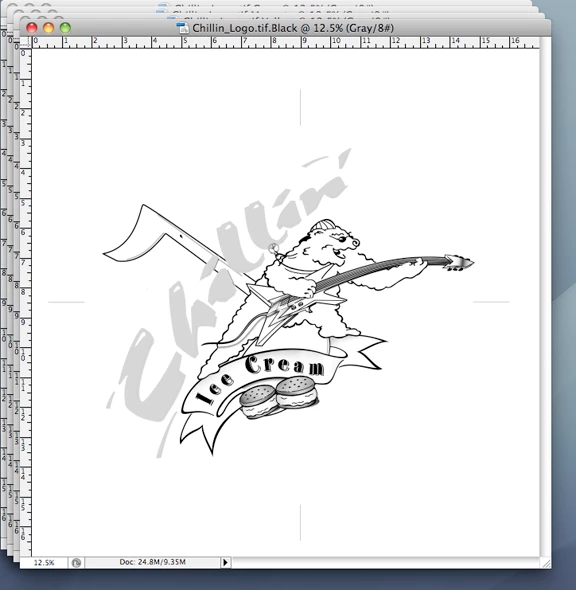
    ...notice this grayscale file is now named Black...
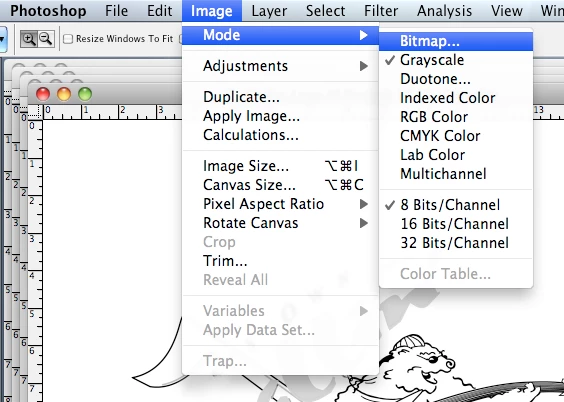
    ...now its time to convert to Bitmap ( Mode > Bitmap )...
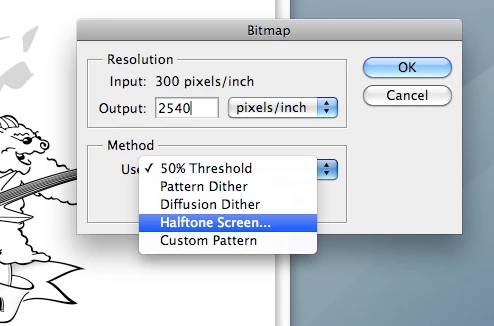
    ...set the output resolution at 2540 dpi, disregard what I told you previously about doubling the file size and scaling it back down ( not necessary )....
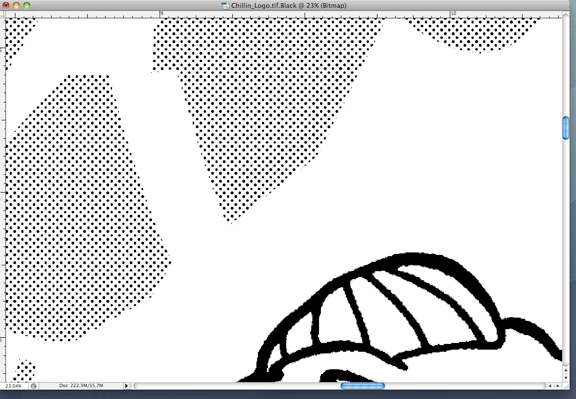
    ...each Channel is now ready to be printed on vellum and then burned onto a silk screen.

    I hope this gets me out of the doghouse.  Didn't want to be rude, after all.

    2 replies

    warrenh37225820
    Participant
    June 14, 2018

    what were your setting for the halftone screen? Freq Angle and shape

    Inspiring
    June 14, 2018

    That depends on the mesh of the silkscreen. You also have to consider garment thread count. Those will affect screen angles, frequency. Shape should be elliptical.

    Sent from my iPhone

    warrenh37225820
    Participant
    June 14, 2018

    Awesome! Thank you for replying.

    Mylenium
    Legend
    April 7, 2017

    I'm not following. What exactly is the problem? Have you actually had a look at AI's Inks & Separations panel, flattener preview and all the good stuff? How are your colors actually set up?

    Mylenium

    mikkananiAuthor
    Participating Frequently
    April 7, 2017

    I watched only one video about color seps for t-shirt printing. The guy made it look easy while doing complicated things. So, my comp is finished. The original art is a photo done in high bright and contrast, 15 pt dot, all black. The second art is a big brush stroke I made, scanned, outlined in Illustrator, then filled with a multi-color gradient to mimic a split font. They are visual combined in Photoshop now in two layers and no background. It looks great, but the next steps are crucial for doing negatives and exposing the screen. I don't really know what to do next, how to separate the colors, go gray, dot and pattern thing. That's all!

    m

    jdanekCorrect answer
    Inspiring
    April 9, 2017

    mikkanani  schrieb

    If I were designing this thing I would make it a one click deal,

    That's what a RIP is there for: https://softwareforscreenprinters.com/what-is-a-rip/

    Photoshop serves several purposes and so you might not find the one click solution for each and every specific task in it.

    It would help if you could show something.

    But actually I'm by no means an expert in screen printing. The steps I described above are my interpretation of what jdanek told you to do. This might or might not be what he had in mind. So you might want to wait for him to get back to you.


    I agree.  You said your instructor wanted process color separations for silk screen.  Here's some screens of a logo I designed...

    as seen in Illustrator with the Layers panel open for you to see that every Illustrator file consists of many Layers and, you are right, everything you do just about creates a new Layer.  Not sure why you'd be concerned with layers if your artwork has been approved and is ready to be color separated.  The above artwork is a native .ai file setup on an artboard 17" x 17".

    In Illustrator File > Export...

    Above is your Export dialog...

    continue on...

    above is the composite opened in Photoshop, complete with center marks...

    in the Channels dialog, select "Split Channels" ( not necessary to copy Channels )...

    ...notice this grayscale file is now named Black...

    ...now its time to convert to Bitmap ( Mode > Bitmap )...

    ...set the output resolution at 2540 dpi, disregard what I told you previously about doubling the file size and scaling it back down ( not necessary )....

    ...each Channel is now ready to be printed on vellum and then burned onto a silk screen.

    I hope this gets me out of the doghouse.  Didn't want to be rude, after all.